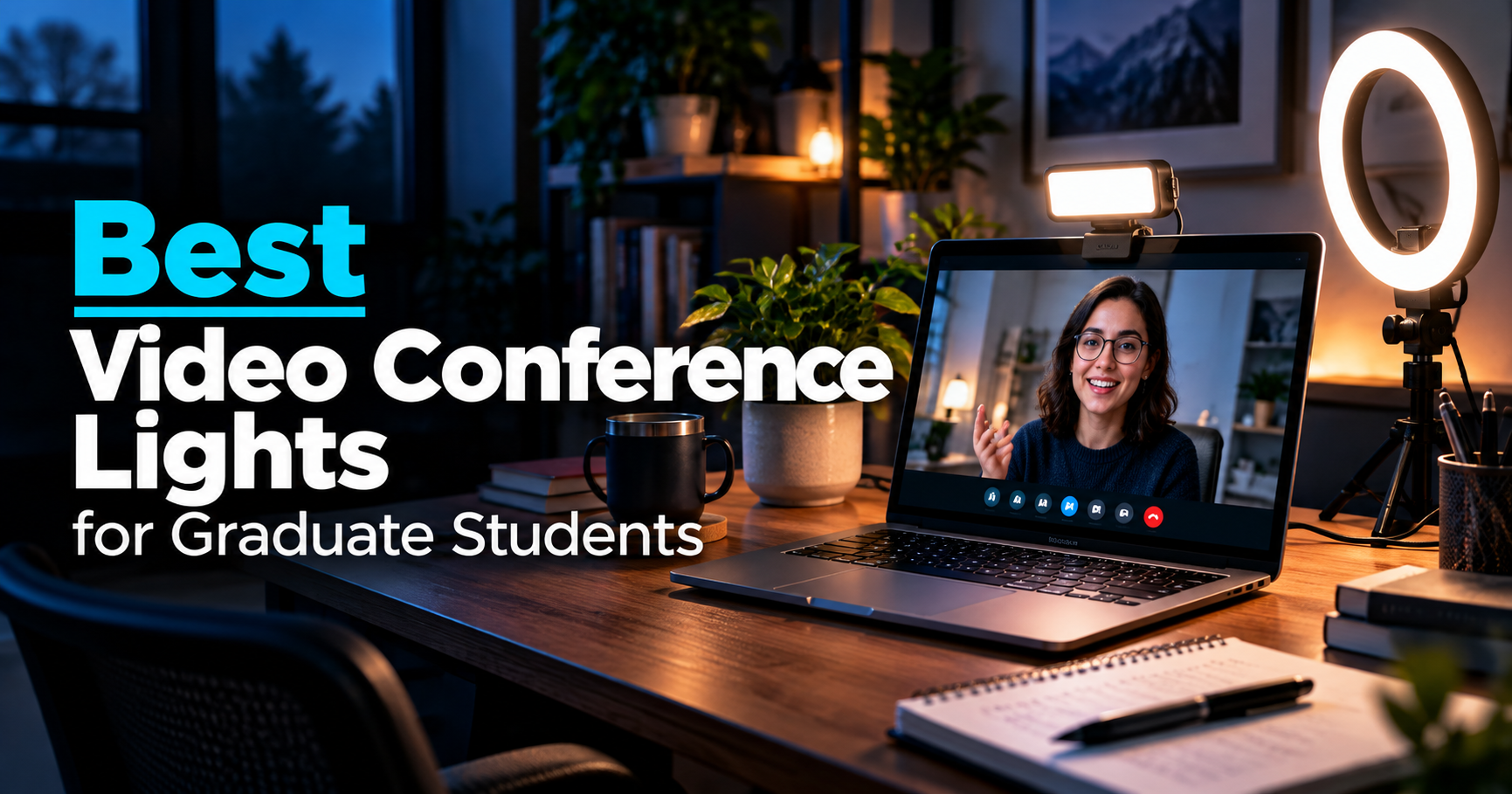
Finding the best video conference lights for graduate students can make a noticeable difference during online research meetings, academic presentations, remote interviews, and virtual conferences. Even a good webcam can produce an unflattering image when your face is poorly lit or a bright window sits behind you.
Fortunately, improving your video setup does not necessarily require an expensive camera or professional studio equipment. A compact clip-on light, adjustable ring light, or monitor-mounted LED panel can help illuminate your face more evenly.
For graduate students, the ideal lighting setup depends on where and how you work. A portable light may be best for switching between home and campus, while a larger desk-mounted model can make more sense for a permanent workstation.
In this guide, we compare five video conference lights across different budgets and setups, focusing on lighting control, mounting options, portability, and practical features for graduate research.
If you are also considering a camera upgrade, see our guide to the best webcams for graduate students.
As an Amazon Associate, GradToolLab earns from qualifying purchases at no additional cost to you.
Editorial Note: GradToolLab selects products based on manufacturer specifications, publicly available product information, customer feedback, and suitability for graduate students and researchers. We have not independently tested the lights featured in this guide. Prices, product configurations, and availability may change.
Table of Contents
1. Logitech Litra Glow
BEST OVERALL
Best for: Graduate students who want an adjustable, space-saving light for regular video meetings, presentations, and interviews.
Pros
- Adjustable 2700K–6500K color temperature
- Maximum specified output of 250 lumens
- Logitech TrueSoft lighting system
- Integrated adjustable monitor mount
- Brightness and color controls through Logitech G HUB
- Compact light panel with diffusion
- Standard tripod mounting option
Cons
- More expensive than basic clip-on lights
- Requires USB power
- Full software functionality depends on a compatible computer
- One relatively small light may not be sufficient for every room
The Logitech Litra Glow is our best overall choice because it combines useful lighting controls, a compact design, and straightforward monitor mounting.
Unlike a basic ring light that mainly offers a few preset modes, the Litra Glow provides adjustable color temperature across a specified range of 2700K to 6500K. This makes it easier to adapt the light to different room conditions.
For example, a graduate student might work near a window during the day but join an international research meeting after sunset. The lighting conditions can change substantially between those two situations.
Being able to adjust both brightness and color temperature helps create a more consistent appearance without rearranging the entire workspace.
Logitech’s TrueSoft system combines a diffused light source with optics designed to distribute illumination across the face. Its diffusion system is particularly relevant for video conferencing, where an extremely harsh point light can create distracting shadows or reflections.
Another advantage is the mounting system.
The included monitor mount offers vertical extension and horizontal adjustment, allowing the light to sit above a display without occupying valuable desk space. It can also be removed to expose a standard tripod mounting thread.
For students with compact desks already filled with notebooks, keyboards, research equipment, and external monitors, that flexibility is valuable.
Logitech G HUB software provides additional control over brightness, color temperature, and lighting presets. Once you find a setup that works for your usual room, presets can simplify later adjustments.
The main limitation is cost. Students who attend only occasional online meetings may find a much less expensive clip-on light sufficient.
However, if video calls, teaching, interviews, or research presentations are a regular part of your academic schedule, the Litra Glow offers a well-balanced feature set.
The Litra Glow is particularly suitable for graduate students who work at one primary desk and participate in video meetings several times each week.
It makes sense for students who:
- Regularly attend online research group meetings
- Give virtual conference presentations
- Conduct remote interviews
- Record educational videos or research demonstrations
- Use an external webcam mounted on a monitor
- Want more control over lighting than basic ring lights provide
It is also a practical choice for students who use the same setup for thesis writing, data analysis, and online collaboration.
Instead of keeping a separate lighting stand beside the desk, you can mount the light above your screen and adjust it when needed.
If you frequently work in different buildings or travel with your laptop, however, the smaller NEEWER or Cyezcor models may be easier to pack.
- Lighting type: Diffused LED panel
- Color temperature: 2700K–6500K
- Maximum output: 250 lumens
- Color rendering: CRI 93, as specified by Logitech
- Power: USB
- Mounting: Adjustable monitor mount; standard 1/4-inch tripod thread
- Software: Logitech G HUB on supported systems
- Included cable: USB-C to USB-A, approximately 1.5 m
- Recommended USB connection: USB 3.0 port capable of supplying 5V/1A
Logitech notes that maximum brightness can vary depending on the USB power source. For the intended brightness and software functionality, connecting directly to a suitable computer port is preferable.
Before purchasing, also consider the position of your webcam. The light and camera may compete for the center of the monitor’s top edge.
2. Cyezcor Video Conference Lighting Kit
BEST BUDGET
Best for: Students who want an inexpensive, compact light for laptop calls and occasional online presentations.
Pros
- Affordable entry-level option
- Compact clip-on design
- Three color-temperature modes
- Five brightness levels
- USB-powered operation
- Adjustable positioning
- Suitable for both laptops and monitors
Cons
- Limited to preset lighting adjustments
- Less positioning flexibility than a separate adjustable arm
- Small lighting area
- Clip compatibility depends on device thickness and shape
- May require careful positioning to avoid blocking a webcam
The Cyezcor Video Conference Lighting Kit offers one of the simplest ways to improve webcam lighting without making a substantial investment.
For many graduate students, an inexpensive solution is enough.
If your main problem is that your face looks dark during Zoom meetings, you may not need software-controlled lighting, a large desktop stand, or a professional LED panel.
You may simply need a light positioned in front of you.
The Cyezcor light uses a compact circular design that attaches to a laptop screen or monitor with an adjustable clip. It runs from USB power and offers three color-temperature settings along with five brightness levels.
These controls are useful because the correct amount of light depends on the environment.
In a dark room, an overly bright setting can make your face look washed out. In a brighter room, the lowest setting might not be enough to balance the surrounding light.
Having several options allows you to adjust the appearance before a call rather than relying entirely on automatic webcam exposure.
The light is also small enough to move between different workspaces. You could keep it in a laptop bag and use it during an online class, a supervisor meeting, or a remote internship interview.
Its biggest limitation is the mounting design.
Clip-on lights are convenient, but they place the light close to the webcam and may not offer the most flattering angle. Depending on the laptop’s screen thickness and webcam location, you may need to attach the light slightly off-center.
There is also less control over light direction than with a larger adjustable desk arm.
Still, for basic video conferencing on a limited student budget, this is a sensible option.
Choose the Cyezcor light if you want a low-cost improvement for occasional or moderately frequent video meetings.
It is especially relevant for students who:
- Primarily use a laptop webcam
- Move between home and university
- Attend online classes or research seminars
- Need better lighting for virtual interviews
- Have limited desk space
- Do not want to install additional software
Imagine joining a research meeting from a small dorm room with a ceiling light behind you. Your face may appear relatively dark even though the room seems adequately illuminated.
A small front-facing light can help address that problem without requiring an entirely new webcam setup.
However, if you participate in lengthy video calls every day and want precise lighting control, the Logitech Litra Glow may be worth the additional cost.
- Lighting type: Compact LED ring light
- Approximate diameter: 5 inches
- Color temperature: Three modes, with a listed range of approximately 3200K–6800K
- Brightness: Five adjustable levels
- Power: USB
- Mounting: Adjustable clip
- Controls: Built-in lighting controls
- Primary use: Laptop and monitor video conferencing
Check the clip’s fit before purchasing, particularly if you use an unusually thick laptop display or a monitor with a built-in camera assembly.
The light requires a compatible USB power source; it should not be treated as a battery-powered accessory.
3. NEEWER Basics BR60 5-Inch Ring Light
BEST FOR LAPTOPS
Best for: Students who frequently move between workspaces and want a portable light with both clip and tabletop mounting options.
Pros
- Compact five-inch ring light
- Clip and mini tripod included
- Adjustable 3000K–6000K color temperature
- Five lighting modes
- Ten brightness levels
- Manufacturer-specified CRI above 97
- USB-powered design
- Lightweight construction
Cons
- Smaller light source than full-size desktop panels
- No built-in battery
- Requires suitable USB power
- Light and webcam positioning may conflict on narrow displays
- Mini tripod offers limited height compared with a full-size stand
The NEEWER Basics BR60 is a particularly interesting option for graduate students because it provides greater mounting flexibility than many inexpensive clip-on lights.
At approximately five inches across, the BR60 remains compact enough to transport, but its included clip and mini tripod allow it to be used in more than one configuration.
If you are working on a laptop in a university office, the clip can provide a simple installation.
If you return home and use an external webcam, the mini tripod gives you another way to position the light without attaching it to the screen.
This flexibility matters when your research involves multiple workspaces.
For example, a graduate student might give an online presentation from a campus meeting room one week and participate in an interview from home the next.
The lighting arrangements may be different, but the same portable light can potentially serve both situations.
NEEWER specifies 60 LEDs, a color-temperature range of 3000K–6000K, and ten brightness levels. It also lists a CRI rating above 97.
CRI, or Color Rendering Index, describes how accurately a light source renders colors compared with an appropriate reference source.
For ordinary Zoom meetings, a high CRI is not essential by itself. However, it is a useful consideration if you are concerned about natural-looking skin tones or frequently record educational content.
The manufacturer also specifies up to 450 lux at a distance of 0.5 meters. Keep in mind that lux measurements depend on distance and measurement conditions, so this number should not be directly compared with another product’s lumen rating.
One important limitation is power.
The BR60 is USB-powered and does not include a built-in rechargeable battery. You will need a suitable USB connection or external power source.
For students who want a compact light that can adapt to different situations, the BR60 offers a strong combination of portability and controls.
The BR60 is best suited to laptop-centered academic workflows.
Consider it if you:
- Move between classrooms, laboratories, and home
- Use both a laptop screen and an external monitor
- Need a portable light for remote interviews
- Record short demonstrations or online teaching videos
- Prefer simple physical controls
- Want more lighting options than a very basic clip-on model
Its included tripod is particularly useful if your laptop screen has an inconvenient camera position.
Rather than attaching the light directly beside the webcam, you can place it on the desk and experiment with different angles.
This flexibility can help reduce harsh reflections in glasses or overly bright highlights on the face.
- Model: NEEWER Basics BR60
- Lighting type: Five-inch LED ring light
- LED count: 60
- Color temperature: 3000K–6000K
- Brightness: Ten levels
- Lighting modes: Five
- Maximum specified illumination: 450 lux at 0.5 m
- Color rendering: CRI 97+
- Power: USB, 5V/2A, 10W maximum
- Cable length: Approximately 1.8 m
- Mounting: Clip and mini tripod
- Weight: Approximately 131 g with clip or 188 g with tripod
NEEWER specifies clip compatibility with displays up to approximately 2.5 cm thick. Verify your device’s dimensions and mounting arrangement before purchase.
4. UBeesize 10-Inch Desk Ring Light
BEST FOR DESK SETUPS
Best for: Graduate students who attend frequent video meetings from a permanent desk and want flexible positioning without using a large floor stand.
Pros
- Larger lighting surface than compact clip-on models
- Adjustable mounting arm
- Space-saving C-clamp
- Three lighting color modes
- Ten brightness levels
- Adjustable lighting direction
- Practical for permanent workstations
Cons
- Less portable than small clip-on lights
- Requires a compatible desk edge
- More visible equipment around the workstation
- Arm placement may interfere with shelves or nearby objects
- Installation takes more effort than clipping a light to a screen
The UBeesize 10-Inch Desk Ring Light is the option we would consider for students who want a more permanent video conferencing setup.
Its biggest advantage is not simply the size of the light. It is the adjustable desk-mounted arm.
Small clip-on lights are convenient, but they are generally positioned close to the webcam. That may be acceptable for occasional calls, but it limits the angles you can experiment with.
A desk-mounted arm gives you more freedom to place the light above, beside, or slightly in front of the monitor.
This matters because lighting direction can affect how shadows appear on the face.
For example, positioning a light slightly off-center and above eye level can create a more natural-looking result than pointing a bright light directly at the face from an uncomfortable angle.
The UBeesize model combines a large lighting head with a multi-angle arm and C-clamp. The clamp attaches to the edge of a desk, reducing the amount of working surface occupied by a conventional lamp base.
For a graduate student with a monitor, keyboard, papers, and laboratory notebooks on the same desk, that is an important practical advantage.
The light offers three color modes and ten brightness levels, according to the product specifications.
That gives users enough basic control to adapt the light to daytime meetings, evening presentations, and different room backgrounds.
This model is also relevant for students who occasionally record tutorials, explain research figures on camera, or produce academic videos.
However, the adjustable arm is not equally convenient in every room. A desk pushed directly against a wall or fitted with a large monitor shelf may have limited mounting space.
Make sure there is sufficient clearance before purchasing.
The UBeesize is best for students with a fixed research or study desk.
It is a good match if you:
- Attend video meetings almost every day
- Give online presentations from the same workstation
- Use a desktop computer with an external webcam
- Want flexible control over lighting direction
- Have enough desk-edge clearance for a clamp
- Occasionally record lessons or research demonstrations
For students who work primarily from home, a dedicated desk light can be easier to manage than repeatedly attaching and removing a portable clip-on model.
It may be less attractive for students who constantly travel between campus buildings or use shared workspaces.
- Lighting type: Approximately 10-inch LED lighting panel/ring-style fixture
- Mounting: Adjustable arm with desk C-clamp
- Color modes: Three
- Brightness: Ten levels
- Positioning: Multi-angle adjustment
- Controls: Inline lighting controls
- Primary use: Fixed home-office or desktop video conferencing setup
The product listing describes clamp compatibility with desks up to approximately 2.5 inches thick.
Check the available clearance around your monitor, desk edge, and nearby shelves before installation. Exact power and accessory configurations should be confirmed against the selected Amazon variation.
5. HumanCentric Video Conference Lighting Double Kit
BEST DUAL LIGHT SETUP
Best for: Students and researchers who use a fixed monitor setup and want light from both sides of the webcam.
Pros
- Two-light configuration
- Low-profile monitor-mounted design
- Adjustable brightness and color temperature
- USB-C-powered lighting system
- Designed for video conferencing
- Can provide more balanced left-right illumination
- Expandable system design
Cons
- More expensive than basic single-light kits
- Requires additional setup around the monitor
- Less convenient for frequent travel
- Monitor and webcam placement must be checked
- More components and cabling than a single clip-on light
The HumanCentric Video Conference Lighting Double Kit takes a different approach from the single-light products in this guide.
Instead of relying on one central light, it uses two LED light bars that can be positioned around a monitor.
This can be useful when one side of your face is significantly darker than the other.
For example, if your desk sits next to a window, natural light may illuminate one side of your face more strongly during daytime meetings. A second light positioned on the opposite side can help reduce that imbalance.
Similarly, if you participate in evening research discussions with limited room lighting, using two controlled light sources can help create a more even appearance.
HumanCentric designed the system around compact monitor mounting rather than large studio stands.
That makes it attractive for researchers who want improved lighting without turning their office into a video-production workspace.
The Double Kit includes a base light and an additional light, with adjustable brightness and color temperature controls.
The manufacturer also offers an expandable configuration that can support additional lights, which may appeal to users with wide or multi-monitor desk setups.
For a graduate student who regularly teaches online, gives presentations, or participates in recorded academic discussions, the two-light arrangement provides an alternative to a central ring light.
The main trade-off is complexity.
You need to consider where both light bars will sit, how their cables will be routed, and whether they conflict with your webcam or monitor’s top edge.
This is not the simplest solution for someone who only joins an occasional Zoom call.
However, for a permanent workspace where consistent lighting matters, it is a useful specialized option.
The HumanCentric Double Kit is most suitable for graduate students and researchers with dedicated workstations.
It may be particularly helpful for:
- Regular online teaching and seminars
- Recorded lectures and presentations
- Research meetings with a fixed webcam setup
- Home offices with uneven side lighting
- Larger or dual-monitor workstations
- Users who prefer monitor-mounted lights over desk stands
If you work from a laptop in many different locations, a portable ring light will probably be more convenient.
But if most meetings happen from the same desk, the additional flexibility of two separate lights may be worthwhile.
- Lighting type: Dual LED video conference light bars
- Configuration: One base light plus one add-on light
- Mounting: Monitor-mounted system
- Power: USB-C
- Lighting controls: Adjustable brightness and color temperature
- Expansion: Manufacturer offers configurations supporting up to four lights
- Primary use: Fixed monitor-based video conferencing
The Double Kit should be distinguished from the Single and Add-On Only versions.
Before purchasing, confirm that the selected Amazon variation includes the complete two-light kit rather than a single replacement or expansion light.
Also check webcam placement and the available mounting space on your monitor.
Quick Comparison: Which Video Conference Light Should You Choose?
| Product | Best For | Mounting Style | Main Advantage |
|---|---|---|---|
| Logitech Litra Glow | Best Overall | Monitor mount | Adjustable diffused lighting and software controls |
| Cyezcor Video Conference Lighting Kit | Best Budget | Clip-on | Affordable and simple |
| NEEWER Basics BR60 | Best for Laptops | Clip or mini tripod | Portable with flexible mounting |
| UBeesize 10-Inch Desk Ring Light | Best for Desk Setups | Adjustable arm and C-clamp | Flexible positioning |
| HumanCentric Double Kit | Best Dual Light Setup | Monitor-mounted light bars | Two-source lighting |
The best choice depends on whether you need portability, precise lighting control, or a permanent desktop installation.
For most graduate students who regularly attend video meetings from one workstation, the Logitech Litra Glow offers the most balanced combination of convenience and adjustment.
If you only need occasional lighting for online classes or interviews, the Cyezcor provides a much more affordable solution.
The NEEWER BR60 is more flexible for students moving between campus and home, while the UBeesize makes more sense for a permanent desk.
The HumanCentric Double Kit is worth considering when a single light does not provide sufficiently balanced illumination.
How to Choose the Best Video Conference Light for Graduate School
A video conference light does not need to be expensive to be useful.
What matters is whether it solves the lighting problem in your particular workspace.
Before purchasing, consider the following factors.
1. Brightness and Light Distribution
Brightness is important, but more light does not always mean better video.
An excessively bright light positioned close to your face can create washed-out highlights, visible glare, or uncomfortable illumination during long meetings.
A smaller light with adjustable brightness may provide a better result than a powerful lamp used at its maximum setting.
Light distribution matters as well.
A narrow, concentrated beam can produce harsher shadows. A larger or more heavily diffused source can often illuminate the face more evenly.
The Logitech Litra Glow uses a diffused LED panel, while the UBeesize provides a larger lighting surface.
Small ring lights, including the Cyezcor and NEEWER BR60, offer a compact alternative when desk space or portability is more important.
When comparing specifications, remember that lumens and lux describe different things.
Lumens measure total emitted light, while lux measures illuminance at a particular surface or distance.
A product specifying 450 lux at 0.5 meters is not directly comparable to another specifying 250 lumens without additional measurement information.
For video conferencing, practical positioning and adjustable output often matter more than chasing the highest advertised number.
2. Color Temperature
Color temperature describes whether the light appears warmer or cooler.
It is typically measured in Kelvin.
As a general reference:
- 2700K–3200K: Warm, yellowish lighting
- 3500K–4500K: Neutral or moderately warm white
- 5000K–6500K: Cooler, daylight-like white
No single color temperature works best in every room.
A warm light may look natural in a room with warm overhead lighting. A cooler light may blend more naturally with daylight from a window.
The goal is not necessarily to use the coldest or brightest setting.
Instead, try to make the light on your face reasonably consistent with the rest of the environment.
This is particularly useful if your research schedule includes both daytime meetings and late-evening calls with international collaborators.
Products such as the Logitech Litra Glow provide a broad adjustable temperature range, while budget models commonly offer several presets.
3. Clip-On, Monitor Mount, or Desk Clamp?
Mounting style is one of the most important differences between these products.
Clip-on lights are compact and inexpensive. They are convenient for students using laptop webcams and moving between workspaces.
However, the clip must fit the display, and the light may sit very close to the camera.
Monitor-mounted LED panels are suitable for permanent workstations. They can save desk space and place the light slightly above eye level.
The Logitech Litra Glow is designed around this approach.
Desk-clamp lights use a separate arm, allowing the light to be moved away from the webcam. This gives you more positioning flexibility but requires a suitable desk edge and sufficient clearance.
The UBeesize is a good example.
Dual-light systems position two sources around the monitor, making them useful when lighting from one direction leaves noticeable shadows.
The HumanCentric Double Kit follows this approach.
Before choosing a mount, inspect your desk and monitor rather than assuming that every light will fit.
4. Portability and Power
Graduate students rarely work in just one location.
You may move between a laboratory, library, classroom, university office, and home.
If your video setup changes frequently, portability should be a priority.
A compact USB-powered light is easier to transport than a larger lamp with a dedicated arm.
However, USB-powered does not mean battery-powered.
The Logitech, Cyezcor, NEEWER, and HumanCentric models discussed here depend on compatible external power connections. Do not assume they can operate wirelessly without an additional power source.
It is also important to check the available ports on your laptop.
A webcam, microphone, external keyboard, and video light can quickly occupy several USB connections.
If your computer has limited connectivity, our best USB-C hubs for graduate students guide covers ways to expand your available ports.
Before relying on a hub to power a light, confirm that it provides sufficient output for the device.
5. Webcam Compatibility
A common oversight is buying a video light without checking where the webcam will be placed.
Many webcams clip onto the center of the monitor’s top edge.
Unfortunately, that is also where some video conference lights are designed to sit.
If both accessories require the same space, you may have to move one off-center or use an alternative mounting method.
This can affect both the camera angle and the direction of the light.
A laptop with an integrated webcam may present a similar problem.
Placing a clip-on ring light directly over the camera can obstruct the lens or create an awkward setup.
Check the available mounting area before ordering.
A mini tripod, adjustable desk arm, or separate monitor mounting location can provide more flexibility.
6. Color Rendering and Skin Tones
Color Rendering Index, or CRI, describes how accurately a light source renders colors compared with a reference illuminant.
A higher CRI can be useful when you want skin tones and nearby objects to appear reasonably natural.
This may also matter when recording instructional videos involving physical samples, illustrations, or demonstrations.
For example, a researcher showing a printed figure on camera may want the colors to appear reasonably consistent.
However, lighting quality is not determined by CRI alone.
The webcam’s sensor, automatic white balance, exposure settings, room lighting, and video compression also affect the final image.
A light with a high CRI cannot guarantee perfect color reproduction through a webcam.
NEEWER specifies a CRI above 97 for the BR60, while Logitech lists a CRI of 93 for the Litra Glow.
Both specifications are useful points of comparison, but mounting and light distribution should remain major considerations.
Video Conference Light vs. Desk Lamp vs. Monitor Light Bar
These three product categories can look similar, but they are designed for different purposes.
A video conference light primarily illuminates the person in front of the camera.
Its ideal direction is generally toward the face, with enough diffusion or positioning control to avoid unpleasant glare.
A desk lamp primarily illuminates the working surface.
It may be useful for reading journal articles, writing notes, examining printed diagrams, or working with physical objects.
Some adjustable desk lamps can also be redirected toward the face, potentially serving both purposes.
Our best desk lamps for graduate students guide includes models designed for different research workstations, including a model that can also serve as a video-call light.
A monitor light bar usually directs illumination downward toward the desk and keyboard rather than directly at the user’s face.
That can improve workspace visibility without placing a conventional lamp base on the desk.
However, a typical monitor light bar should not be treated as a direct substitute for a dedicated webcam light.
If your main goal is lighting papers, notebooks, and the keyboard while working at a monitor, compare our best monitor light bars for graduate students.
The most practical solution depends on the problem you want to solve.
- Face appears dark during Zoom calls: Consider a video conference light.
- Papers and notebooks are difficult to see: Consider a desk lamp.
- Keyboard and desk need light without occupying desk space: Consider a monitor light bar.
- You want one product for desk tasks and video calls: Look for an adjustable lamp that can serve both roles.
Buying the right type of light is usually more useful than buying multiple products that perform overlapping tasks.
How to Set Up Lighting for Zoom Meetings and Academic Presentations
Even an excellent light can produce disappointing results if it is positioned poorly.
Fortunately, a few simple adjustments can improve almost any video conferencing setup.
Step 1: Place the Camera Near Eye Level
Start with the camera position.
If your laptop is far below eye level, the video may show an awkward upward angle regardless of lighting quality.
Raise the laptop or adjust the webcam until your face is framed naturally.
A camera near eye level is generally a good starting point for research meetings, interviews, and presentations.
Step 2: Put the Light in Front of You
Avoid relying exclusively on a bright light behind your head.
A window or lamp in the background can cause a webcam’s automatic exposure to darken your face.
Start by placing the video light in front of you and slightly above eye level.
Then adjust the angle to reduce distracting shadows.
You do not need to aim the light directly into your eyes.
With larger desk-mounted lights, placing the source slightly to one side may create a more comfortable and natural result.
Step 3: Match the Room’s Lighting
Try a neutral or moderately warm setting first.
If the room is illuminated by warm indoor lamps, an extremely cool front light may create an inconsistent appearance.
Likewise, a very warm light can look out of place in a room dominated by daylight.
Adjust the color temperature until your face looks natural in the actual webcam preview.
Step 4: Reduce Brightness Before Increasing It
Start at a moderate brightness level.
If your face appears overly white, flat, or reflective, lower the light output.
A brighter setting may help when the room is very dark, but maximum brightness is not necessarily the best option.
If you wear glasses, experiment with raising or moving the light to reduce visible reflections in the lenses.
Step 5: Test the Actual Meeting Application
Open the camera preview in Zoom, Microsoft Teams, Google Meet, or whichever application you normally use.
The image may look different from the preview in your computer’s camera software.
Check that your face is visible, your background is not excessively bright, and the light does not cause distracting reflections.
For academic presentations, test your setup before the meeting begins rather than making last-minute changes.
You can also explore our graduate student desk setup guide for ideas on organizing monitors, keyboards, lighting, and other workstation equipment.
Frequently Asked Questions
Do graduate students really need a video conference light?
Not everyone needs one.
If you usually attend video meetings in a room with good natural or artificial lighting, your existing setup may already be sufficient.
A dedicated light becomes more useful when your face regularly appears dark, your room lighting changes throughout the day, or you participate in frequent online presentations and interviews.
It is best viewed as a practical solution to a specific lighting problem rather than an essential purchase for every student.
Is a ring light or LED panel better for Zoom?
Both can work well.
A small ring light is convenient, affordable, and easy to position near a webcam.
A diffused LED panel may provide a different light distribution and can offer more control over the direction and appearance of illumination.
The better choice depends on the light’s size, diffusion, mounting options, brightness settings, and available space.
For a small laptop setup, a compact ring light may be sufficient. For a permanent desktop workstation, a monitor-mounted LED panel can be more convenient.
Can a video conference light improve a cheap webcam?
Yes, potentially.
Poor lighting can make even a capable webcam produce a noisy or poorly exposed image.
Providing more suitable illumination may help the camera maintain a clearer image.
However, lighting cannot correct every limitation.
A webcam with poor autofocus, low resolution, or weak image processing may still benefit from replacement.
Before spending money on a new camera, it can be worth improving your lighting and seeing whether the existing webcam meets your needs.
Is a 5-inch ring light enough for online meetings?
A five-inch ring light can be adequate for close-range video calls, particularly when you are sitting relatively near the laptop or monitor.
However, a compact light may struggle to illuminate a larger scene or provide the same flexibility as a bigger light source.
If you often stand during presentations or move around the room, consider a larger or more adjustable setup.
What color temperature is best for video conferencing?
There is no universal best setting.
A neutral white setting is often a practical starting point, but the surrounding lighting conditions matter.
Try to match the general appearance of the light to the room while checking your webcam preview.
An adjustable model is useful because you can adapt it to daylight, warmer evening lighting, or different workspaces.
Do video conference lights work with glasses?
Yes, but placement matters.
Reflections can appear when the light source is directly reflected toward the camera by your lenses.
Try placing the light slightly higher or farther to one side, then adjust the angle until reflections are less visible.
Reducing brightness can also help.
Can I use a monitor light bar as a webcam light?
Usually, a conventional monitor light bar is not the ideal replacement.
Most are designed to illuminate the desk while minimizing direct light toward the face or screen.
That is helpful for working with a keyboard and papers, but it may not solve a dark webcam image.
Some adjustable desk lights can serve both purposes, so check the intended light direction and mounting design.
Are USB-powered video conference lights compatible with Mac and Windows?
Many USB-powered lights can operate with either platform when supplied with appropriate power.
However, compatibility with dedicated lighting-control software may differ.
Some products are controlled entirely through physical buttons, while others offer additional software features.
Check both the power requirements and the manufacturer’s software compatibility information before buying.
Should I buy one light or two?
One light is often enough for ordinary student video meetings.
A second light becomes more useful when one side of your face remains dark, you need to balance strong side lighting, or you want greater control over the appearance of recorded video.
For most students, start by improving the position and brightness of one light before investing in a more complex setup.
Final Verdict
The best video conference lights for graduate students are the ones that fit their actual workspace and meeting habits.
For most students with a fixed desk, the Logitech Litra Glow is our best overall choice. Its adjustable light output, diffused design, and monitor mount offer a practical balance of features.
If budget is the main priority, the Cyezcor Video Conference Lighting Kit provides a simple and affordable way to add front-facing light to a laptop or monitor.
Students who frequently switch between campus and home should consider the NEEWER Basics BR60. Its compact form, clip, and mini tripod make it more flexible across different workspaces.
For a permanent desktop arrangement, the UBeesize 10-Inch Desk Ring Light offers an adjustable arm that allows more freedom in positioning the light.
Finally, the HumanCentric Double Kit is the most specialized option for users who want two light sources around a monitor.
Remember that good lighting does not require the most expensive equipment.
Start with the problem you actually have: a dark face, harsh shadows, uneven daylight, or an inconvenient mounting position.
Then choose the light that solves it without creating unnecessary clutter or complexity.
Prices and availability can change, so check the current product configuration before purchasing.