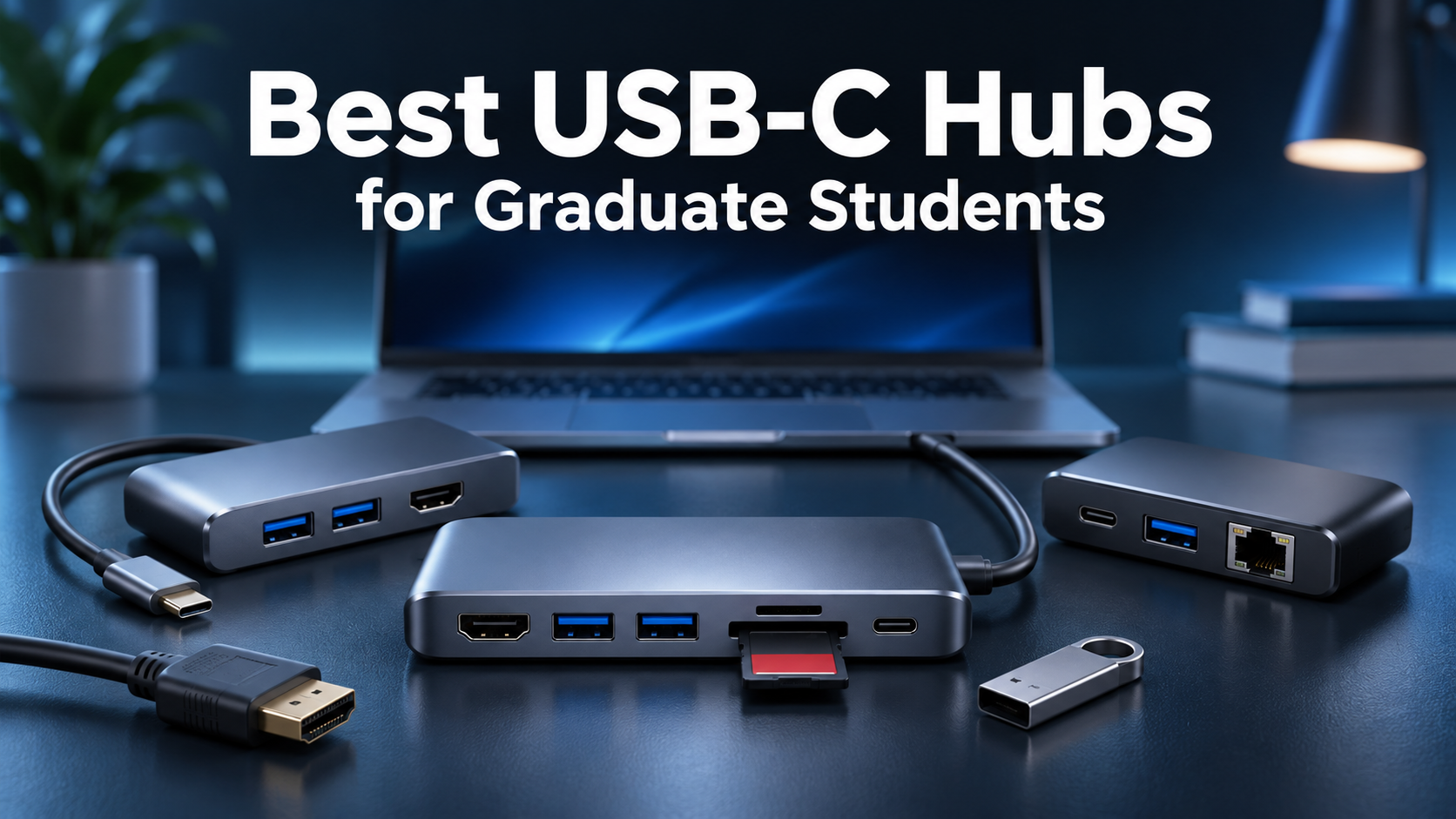
A USB-C hub can turn a laptop into a more practical workstation, making it easier to connect external monitors, storage drives, keyboards, and other research equipment.
The best USB-C hubs for graduate students combine reliable connectivity, useful ports, and reasonable prices without adding unnecessary complexity to a laptop setup.
Our top pick is the Anker 555 USB-C Hub (8-in-1), while the other four options offer alternatives for smaller budgets, portable setups, and dual-monitor workstations.
Amazon Affiliate Disclosure: As an Amazon Associate, GradToolLab earns from qualifying purchases at no additional cost to you.
Quick Comparison
| Product | Best For | Key Features | Price |
|---|---|---|---|
| Anker 555 USB-C Hub (8-in-1) | Best Overall | 4K/60Hz HDMI, 10Gbps USB, Ethernet, SD/microSD | $49.99 |
| Anker 332 USB-C Hub (5-in-1) | Best Budget | 4K/30Hz HDMI, 5Gbps USB, 85W charging | $19.99 |
| UGREEN Revodok Pro 109 (9-in-1) | Best Value | 4K/60Hz HDMI, 10Gbps USB, Ethernet, card readers | $42.94 |
| Anker 543 USB-C Hub (6-in-1) | Best Portable | Slim design, 4K/30Hz HDMI, Ethernet, 5Gbps USB | $39.99 |
| UGREEN Revodok Pro 210 (10-in-1) | Best for Dual Monitors | Dual HDMI, Ethernet, 5Gbps USB, 100W PD input | $59.99 |
Prices were observed on Amazon.com on November 1, 2026. Prices and availability may change. Display capabilities and charging performance depend on the connected laptop and other equipment.
1. Anker 555 USB-C Hub (8-in-1)
BEST OVERALL
Best for: Graduate students who want one versatile USB-C hub for external monitors, storage devices, wired networking, and everyday research equipment.
Pros
- 4K/60Hz HDMI output
- Three 10Gbps USB data ports
- Gigabit Ethernet connection
- SD and microSD card readers
- Up to 85W laptop charging
- Balanced selection of ports
- Suitable for portable and desk-based setups
Cons
- More expensive than basic USB-C hubs
- Only one HDMI output
- No USB-C video output
- Limited to UHS-I card readers
- Requires a compatible laptop for HDMI functionality
The Anker 555 is our best overall USB-C hub because it provides nearly everything a graduate student needs for a practical laptop workstation.
Its eight ports cover external displays, storage devices, wired networking, removable memory cards, and laptop charging.
Unlike cheaper hubs limited to 5Gbps transfers, the Anker 555 includes two USB-A data ports and one USB-C data port supporting up to 10Gbps.
This can be useful for students regularly transferring large datasets, research images, videos, or project files between a laptop and an external SSD.
The HDMI connection supports up to 4K at 60Hz.
For research involving spreadsheets, programming, academic writing, or image analysis, a compatible 4K monitor can provide considerably more workspace than a laptop screen.
The Gigabit Ethernet port is another practical advantage.
University Wi-Fi networks can become congested, and some research environments benefit from a dedicated wired connection.
At $49.99, the Anker 555 is not the cheapest option, but its combination of features makes it our preferred all-around choice.
We recommend the Anker 555 for graduate students who regularly connect several accessories to the same laptop.
It is particularly useful for:
- Writing papers with an external monitor
- Programming and computational research
- Transferring large files to external storage
- Connecting laboratory peripherals
- Working with SD and microSD cards
- Using wired Ethernet in offices or research labs
For example, a student analyzing experimental data could connect an external monitor, USB storage drive, keyboard, and Ethernet cable through the same hub.
Students building a more complete workstation can also explore our guide to the best monitors for graduate students.
The Anker 555 is less attractive if you only need a USB-A port and basic HDMI output. In that case, the Anker 332 offers better affordability.
| Specification | Details |
|---|---|
| Model | Anker 555 (A8383) |
| Total ports | 8 |
| HDMI | 1 × up to 4K/60Hz |
| USB-A data | 2 × up to 10Gbps |
| USB-C data | 1 × up to 10Gbps |
| Ethernet | Gigabit, up to 1Gbps |
| Card readers | SD and microSD, UHS-I |
| USB-C PD input | Up to 100W |
| Maximum laptop charging | Up to 85W |
| Dual external monitors | No |
| Observed Amazon price | $49.99 |
| Amazon rating | 4.3/5 |
| Monthly purchases | 5K+ |
Compatibility note: The laptop’s USB-C port must support DisplayPort Alt Mode or another compatible video-output mode for HDMI functionality. The hub’s USB-C data port does not support video output.
2. Anker 332 USB-C Hub (5-in-1)
BEST BUDGET
Best for: Students who need basic laptop connectivity at an affordable price.
Pros
- Affordable $19.99 observed price
- Compact and lightweight design
- Two USB-A data ports
- USB-C data connection
- Up to 85W laptop charging
- HDMI output for external monitors
- Simple everyday functionality
Cons
- HDMI limited to 4K/30Hz
- No Ethernet port
- No SD or microSD card reader
- Maximum USB transfer speed of 5Gbps
- Only one external display connection
Not every graduate student needs an expensive USB-C hub.
For students who primarily write papers, attend online meetings, browse academic literature, and use everyday peripherals, the Anker 332 covers the essentials at a much lower price.
Its five ports include HDMI, two USB-A data connections, one USB-C data connection, and a dedicated USB-C Power Delivery input.
The data ports support transfer speeds of up to 5Gbps.
While this is slower than the 10Gbps connections on the Anker 555, it remains sufficient for keyboards, mice, USB flash drives, and many ordinary file-transfer tasks.
The HDMI port supports resolutions up to 4K at 30Hz.
This is adequate for displaying documents, presentations, and static research material, although 60Hz is generally preferable for smoother scrolling and everyday desktop interaction.
Our main reason for selecting the Anker 332 is value.
At the observed Amazon price of $19.99, it offers a useful collection of ports without requiring students to pay for features they may never use.
The Anker 332 is particularly suitable for students who:
- Have a limited accessories budget
- Need additional USB-A connections
- Occasionally connect to an external monitor
- Use a wireless mouse receiver or keyboard
- Want a lightweight hub for everyday study
- Do not require Ethernet or card readers
It can also be useful during presentations.
For example, a student connecting a compatible USB-C laptop to an HDMI projector may appreciate having additional USB ports available simultaneously.
However, students using a 4K monitor throughout the day should consider a hub supporting 60Hz output instead.
If your laptop also needs a more powerful charger, our USB-C chargers guide explores suitable options for different laptop power requirements.
| Specification | Details |
|---|---|
| Model | Anker 332 (A8355) |
| Total ports | 5 |
| HDMI | 1 × up to 4K/30Hz |
| USB-A data | 2 × up to 5Gbps |
| USB-C data | 1 × up to 5Gbps |
| Ethernet | No |
| Card readers | No |
| USB-C PD input | Up to 100W |
| Maximum laptop charging | Up to 85W |
| Dual external monitors | No |
| Observed Amazon price | $19.99 |
| Amazon rating | 4.6/5 |
| Monthly purchases | 4K+ |
Compatibility note: The USB-C data port does not support video output. HDMI requires a compatible laptop USB-C connection with video-output support.
3. UGREEN Revodok Pro 109 (9-in-1)
BEST VALUE
Best for: Graduate students who want extensive connectivity and fast USB data transfers without paying for a premium docking station.
Pros
- Nine useful ports
- 4K/60Hz HDMI output
- Up to 10Gbps USB data transfers
- Gigabit Ethernet
- SD and microSD card readers
- USB-C Power Delivery support
- Strong balance of features and price
Cons
- Only one HDMI output
- Some USB ports are limited to 5Gbps
- Does not provide USB-C video output
- More expensive than entry-level hubs
- Maximum performance depends on the laptop
The UGREEN Revodok Pro 109 provides an attractive alternative to the Anker 555.
Both models offer HDMI, Ethernet, fast USB connections, and memory card readers.
However, the UGREEN provides nine total ports, including multiple USB-A connections.
The model selected for this article is the Revodok Pro 109, SKU 15532.
Its faster USB-C and USB-A data ports support up to 10Gbps, while two additional USB-A connections support up to 5Gbps.
That arrangement is particularly useful for research workstations.
A student could connect a fast external SSD to a 10Gbps port while reserving slower USB connections for a keyboard, mouse receiver, or other peripherals.
The HDMI port supports up to 4K/60Hz, while Gigabit Ethernet provides a wired network connection.
SD and microSD readers add flexibility for research involving cameras, embedded devices, and removable storage.
At the observed Amazon price of $42.94, the Revodok Pro 109 offers a compelling collection of features.
Nevertheless, the Anker 555 remains our overall recommendation because its port arrangement is particularly straightforward for general-purpose laptop setups.
We recommend the UGREEN Revodok Pro 109 for students who frequently connect multiple USB devices.
Potential applications include:
- External SSDs and backup storage
- Laboratory instruments using USB connections
- Programming and embedded development
- Photography or imaging research
- Wired network access
- External monitors for data analysis
For example, a researcher working with measurement equipment may need several USB connections simultaneously.
Having dedicated ports for fast storage and ordinary peripherals can make a laptop-based setup more convenient.
Students who primarily need one inexpensive external display connection may prefer the Anker 332.
| Specification | Details |
|---|---|
| Model | Revodok Pro 109 |
| SKU | 15532 |
| Total ports | 9 |
| HDMI | 1 × up to 4K/60Hz |
| USB-C data | 1 × up to 10Gbps |
| USB-A data | 1 × up to 10Gbps; 2 × up to 5Gbps |
| Ethernet | Gigabit, up to 1Gbps |
| Card readers | SD and microSD |
| USB-C PD input | Up to 100W |
| External monitor support | One external display |
| Observed Amazon price | $42.94 |
| Amazon rating | 4.5/5 |
| Monthly purchases | 1K+ |
Compatibility note: Check the exact model number when purchasing. UGREEN sells several similarly named Revodok hubs with different port configurations.
4. Anker 543 USB-C Hub (6-in-1, Slim)
BEST PORTABLE
Best for: Students who frequently move between home, campus, libraries, and research labs while still needing wired Ethernet.
Pros
- Slim and portable design
- Gigabit Ethernet connection
- Two USB-A data ports
- USB-C data port
- HDMI output
- Up to 5Gbps USB transfers
- Convenient for mobile laptop setups
Cons
- HDMI limited to 4K/30Hz
- Maximum laptop charging of 53W
- No SD or microSD card reader
- Less versatile than larger hubs
- Not ideal for power-hungry laptops
Graduate students rarely work in only one location.
A typical week might involve writing at home, attending classes, collecting data in a laboratory, and preparing presentations in a shared university office.
The Anker 543 is designed for students who want to carry essential connectivity between these locations.
Its slim body provides six ports without the larger footprint of a full docking station.
These include HDMI, Gigabit Ethernet, two USB-A data ports, one USB-C data port, and a Power Delivery input.
The Ethernet connection is particularly useful.
Many compact laptop accessories omit wired networking, but university offices and laboratories sometimes provide Ethernet connections for more consistent network access.
The primary limitation is charging.
Although the Anker 543 accepts up to 65W through its Power Delivery input, the maximum power delivered to the laptop is 53W.
This makes it less suitable for laptops that require higher charging wattages during demanding workloads.
For students with compatible lower-power laptops, however, it provides a practical portable combination.
The Anker 543 is a good choice for students who:
- Regularly move between work locations
- Need Ethernet in university buildings
- Prefer a slim accessory
- Use USB-A and USB-C peripherals
- Occasionally connect to projectors or monitors
- Have laptops with modest charging requirements
It may be particularly useful for students who share laboratory desks or work in several different rooms throughout the day.
However, students who frequently connect high-resolution 4K monitors should consider the Anker 555 or UGREEN Revodok Pro 109 for smoother 60Hz output.
If you regularly transport your laptop and accessories, our laptop backpacks guide covers additional options for carrying your research equipment.
| Specification | Details |
|---|---|
| Model | Anker 543 (A8365) |
| Design | Slim USB-C hub |
| Total ports | 6 |
| HDMI | 1 × up to 4K/30Hz |
| USB-A data | 2 × up to 5Gbps |
| USB-C data | 1 × up to 5Gbps |
| Ethernet | Gigabit, up to 1Gbps |
| Card readers | No |
| USB-C PD input | Up to 65W |
| Maximum laptop charging | Up to 53W |
| Observed Amazon price | $39.99 |
| Amazon rating | 4.6/5 |
| Monthly purchases | 3K+ |
Compatibility note: Confirm that 53W charging is sufficient for your laptop. The HDMI output also requires a compatible USB-C video connection.
5. UGREEN Revodok Pro 210 (10-in-1)
BEST FOR DUAL MONITORS
Best for: Students using compatible Windows laptops who want two independent external monitors.
Pros
- Two HDMI outputs
- Up to dual 4K/60Hz on supported systems
- Gigabit Ethernet
- USB-A and USB-C data connections
- SD and microSD card readers
- Up to 85W laptop charging
- Extensive connectivity for desk setups
Cons
- Mac dual-display extension is limited
- USB data transfers limited to 5Gbps or slower
- Larger than basic portable hubs
- Higher price than simpler models
- Maximum display performance depends on the computer
For graduate students who regularly work with multiple applications, additional screen space can be extremely valuable.
A researcher might want one monitor for programming, another for graphs or experimental results, and the laptop screen for documentation.
The UGREEN Revodok Pro 210 is designed for this type of workstation.
Its defining feature is a pair of HDMI connections.
With a compatible Windows laptop, the hub can support two independent external displays at resolutions up to 4K/60Hz each.
This gives it a clear advantage over the other hubs in our comparison, which provide only one HDMI output.
The Revodok Pro 210 also includes Gigabit Ethernet, USB data connections, SD/microSD readers, and Power Delivery support.
There are limitations, however.
The USB data ports top out at 5Gbps or USB 2.0 speeds, depending on the connection.
More importantly, Mac users cannot obtain two independent external desktops through this particular hub. The external HDMI displays mirror each other.
For compatible Windows laptop users who need a dual-monitor setup, the additional connectivity can justify the higher price.
We recommend the UGREEN Revodok Pro 210 for students who:
- Use a compatible Windows laptop
- Want two independent external monitors
- Regularly write code or analyze datasets
- Compare documents and research papers
- Work with multiple productivity applications
- Prefer a workstation with numerous connections
A dual-monitor setup can be particularly useful for engineering and computational research.
For example, one screen could display Python code while another shows generated graphs, with the laptop screen available for research notes.
However, students using macOS should carefully review the external-display restrictions before purchasing.
| Specification | Details |
|---|---|
| Model | Revodok Pro 210 |
| Manufacturer model number | 15534 |
| Total ports | 10 |
| HDMI | 2 outputs |
| Maximum dual-display output | Up to 4K/60Hz each on supported systems |
| USB-C data | 1 × up to 5Gbps |
| USB-A data | 1 × up to 5Gbps; 2 × USB 2.0 |
| Ethernet | Gigabit, up to 1Gbps |
| Card readers | SD and microSD |
| USB-C PD input | Up to 100W |
| Maximum laptop charging | Up to 85W |
| Observed Amazon price | $59.99 |
| Amazon rating | 4.4/5 |
| Monthly purchases | 1K+ |
Important Mac compatibility warning: The two HDMI displays mirror each other on macOS when connected through this hub. Independent dual-monitor extension requires a different compatible solution.
How to Choose the Best USB-C Hub for Graduate School
A USB-C hub can make a laptop much more useful, but choosing the right one requires more than comparing port counts.
Graduate students often connect external monitors, storage devices, keyboards, mice, and research equipment. The ideal hub depends on which of these devices you actually use.
Here are seven important factors to consider before buying.
1. Check Your Laptop’s USB-C Compatibility
The first step is understanding what your laptop’s USB-C port supports.
Although USB-C connectors look similar, their capabilities can differ significantly.
Depending on the laptop, a USB-C port may support:
- USB data transfer
- USB-C Power Delivery charging
- DisplayPort Alt Mode for video output
- Thunderbolt or USB4 connectivity
This distinction matters because a USB-C hub cannot automatically add features that your laptop does not support.
For example, a hub with an HDMI port generally requires the laptop’s USB-C connection to support compatible video output.
If the laptop only supports USB data transfer, the hub’s HDMI connection may not work.
Before purchasing, check the manufacturer’s specifications for your exact laptop model.
Our recommendation: Confirm USB-C video-output and charging compatibility before comparing individual hubs.
2. Understand 4K/30Hz vs. 4K/60Hz HDMI
If you regularly use an external monitor, HDMI performance deserves attention.
A hub advertising 4K support does not necessarily provide a 60Hz refresh rate.
Some affordable models, including the Anker 332 and Anker 543, support up to 4K/30Hz.
More capable options, such as the Anker 555 and UGREEN Revodok Pro 109, support up to 4K/60Hz with compatible equipment.
The difference is noticeable during everyday desktop use.
At 60Hz, cursor movement, scrolling, and window animations generally appear smoother than at 30Hz.
For students who spend hours reading academic papers, programming, or analyzing spreadsheets, we recommend choosing 60Hz when using a compatible 4K monitor.
However, 4K/30Hz may still be sufficient for occasional presentations or working with relatively static content.
If you are also choosing a display, our guide to the best monitors for graduate students compares options for academic writing, research, and productivity.
3. Choose the Right USB Transfer Speed
USB data-transfer performance is particularly important for research involving large files.
Common USB-C hubs offer maximum data rates of 5Gbps or 10Gbps.
For everyday accessories such as keyboards, mice, and USB flash drives, 5Gbps is generally sufficient.
However, faster connections become more valuable when working with large datasets.
Examples include:
- High-resolution microscopy images
- Scientific camera recordings
- Simulation results
- Large programming projects
- Experimental measurement files
- External SSD backups
A 10Gbps connection provides a higher theoretical transfer limit than a 5Gbps connection.
For this reason, the Anker 555 and UGREEN Revodok Pro 109 are particularly attractive for students who regularly use fast external storage.
However, a faster USB port does not guarantee faster transfers in every situation.
Actual performance also depends on the SSD, cable, computer, and other devices sharing the hub’s connection.
Our recommendation: Choose 10Gbps USB support if large-file transfers are a regular part of your research workflow.
4. Pay Attention to Power Delivery
Many USB-C hubs advertise 100W Power Delivery, but this specification can be misleading.
In many cases, 100W refers to the maximum power accepted through the hub’s charging input—not the power delivered to the laptop.
The hub may reserve some power for its own operation.
For example, the Anker 555 supports up to 85W of laptop charging, while the slimmer Anker 543 supports up to 53W.
That difference can matter significantly.
A lightweight laptop may operate comfortably with 53W of charging power, while a more demanding workstation laptop may require considerably more.
Before choosing a hub, check the power rating of your laptop’s original charger.
Also remember that most USB-C hubs do not include a wall charger. You generally need to connect a separate compatible USB-C power adapter.
If you need a charger that can power both your laptop and other accessories, our best USB-C chargers for graduate students guide compares compact and high-output charging options.
Our recommendation: Prioritize the actual laptop charging wattage rather than the hub’s advertised PD input.
5. Consider Ethernet for Research and Laboratory Work
Ethernet is one of the most useful features that students sometimes overlook.
While university Wi-Fi networks are convenient, wired connections can be beneficial in laboratories, offices, and shared workspaces.
A Gigabit Ethernet port can be particularly useful for:
- Accessing network-attached storage
- Transferring research datasets
- Remote desktop connections
- Connecting to compatible laboratory networks
- Uploading large project files
- Maintaining a consistent connection during online meetings
Of course, Ethernet does not automatically guarantee faster internet.
Performance depends on the university network and connected infrastructure.
Nevertheless, having the option can be valuable.
Four of our five selected USB-C hubs include Gigabit Ethernet, making them practical choices for students who work across different university environments.
The Anker 332 is the exception.
If you do not need wired networking, choosing a simpler hub can save money.
6. Decide Whether You Need One or Two External Monitors
An external monitor can make academic work considerably more convenient.
For example, a graduate student might display a research paper on one screen while writing notes or analyzing data on another.
Most compact USB-C hubs support one external display.
However, some models offer multiple video outputs.
The UGREEN Revodok Pro 210 includes two HDMI ports and supports independent external displays on compatible Windows systems.
This makes it useful for students working with several applications simultaneously.
A possible research setup could include:
- Laptop display: Research notes and documentation
- External monitor 1: Programming or simulation software
- External monitor 2: Graphs, data, or academic papers
However, two HDMI ports do not automatically guarantee two independent external displays.
The laptop’s hardware, USB-C capabilities, and operating system all matter.
In particular, the UGREEN Revodok Pro 210 has an important limitation for Mac users: its two HDMI outputs mirror each other rather than providing two independent external desktops.
Before purchasing any dual-monitor hub, verify the display capabilities of your exact laptop model.
Our recommendation: Choose a dual-monitor hub only when your computer supports the display configuration you need.
7. Check Port Selection and Portability
Finally, consider how and where you use your laptop.
A student working at the same desk every day may benefit from a hub with numerous connections.
Someone who frequently moves between a library, laboratory, and home may prefer a smaller model.
Think about which accessories you regularly carry.
For example:
- USB-A wireless mouse receiver
- External SSD
- HDMI cable
- Ethernet cable
- SD or microSD card
- USB-C charging cable
A hub with ten ports is not necessarily better than one with five if you rarely use the additional connections.
Port placement also matters. Closely spaced connectors can make it difficult to use bulky USB devices simultaneously.
For students who carry several accessories between campus locations, a well-organized backpack can be just as important as the hub itself.
Our best laptop backpacks for graduate students guide covers practical options for protecting and organizing laptops, chargers, and smaller electronics.
Our recommendation: Choose the smallest hub that comfortably supports your regular equipment, with enough flexibility for future accessories.
USB-C Hub vs. Docking Station: Which Is Better?
USB-C hubs and docking stations serve similar purposes, but they are designed for somewhat different needs.
A USB-C hub is usually compact, relatively affordable, and easy to carry.
It expands a laptop’s connectivity through a single USB-C connection.
A docking station is typically designed for a more permanent workstation, often offering additional ports, higher-bandwidth connections, more extensive display support, or dedicated power.
However, docking stations are generally larger and can be considerably more expensive.
When a USB-C Hub Makes More Sense
We recommend a USB-C hub if you:
- Work from multiple locations
- Need additional USB ports
- Use one external monitor
- Want a compact accessory
- Have a limited budget
- Do not require a complex workstation
For many graduate students, a conventional USB-C hub provides everything necessary for everyday academic work.
The Anker 555 is a particularly versatile option because it combines video output, networking, USB data connections, and memory-card readers.
When a Docking Station Is Worth Considering
A docking station may be more appropriate if you:
- Have a permanent desk setup
- Regularly use multiple high-resolution monitors
- Connect numerous peripherals
- Need faster connections for demanding devices
- Want a more extensive one-cable workstation
For example, a researcher working with several external monitors, high-speed storage, and specialized equipment may benefit from a more capable docking solution.
However, we would not recommend spending significantly more on a docking station unless its additional capabilities solve a specific problem.
Our graduate student desk setup guide explains how monitors, keyboards, storage, and other accessories fit together into a practical research workstation.
Our verdict: Most graduate students should start with a USB-C hub. Consider a docking station when your workstation requirements exceed what a conventional hub can provide.
Frequently Asked Questions
Can I Use a USB-C Hub With Any Laptop?
Not necessarily.
A laptop must support the features required by the hub.
For example, HDMI output generally requires a compatible USB-C video-output mode.
Similarly, USB-C charging requires compatible Power Delivery support.
Before purchasing, check your laptop manufacturer’s specifications for USB data, video output, and charging.
Does a USB-C Hub Reduce Data Transfer Speed?
It can.
The available bandwidth is shared between the hub and its connected devices.
A fast external SSD connected through a 5Gbps USB port will be limited by that port’s maximum transfer rate.
Even a 10Gbps connection may deliver lower real-world performance because of device limitations and protocol overhead.
For students regularly transferring large research files, a hub with 10Gbps USB support is generally a better choice.
Can a USB-C Hub Charge My Laptop?
Yes, if the laptop supports compatible USB-C Power Delivery charging.
However, most hubs require a separate USB-C charger connected to their PD input.
You should also verify how much power the hub actually delivers to the laptop.
For example, a hub with a 100W PD input may deliver less than 100W after accounting for its own power requirements.
Is 4K/30Hz Good Enough for Graduate School?
For some students, yes.
A 4K/30Hz connection can be sufficient for presentations, static documents, and occasional monitor use.
However, 4K/60Hz generally provides smoother scrolling and cursor movement.
If you use an external 4K monitor for several hours each day, we recommend prioritizing 60Hz support.
Can I Connect Two Monitors to One USB-C Hub?
Some USB-C hubs support two external monitors, but compatibility depends on the computer.
For example, the UGREEN Revodok Pro 210 can support two independent external monitors on compatible Windows laptops.
However, Mac users face limitations with this particular model.
Always verify the number of independent displays your laptop supports before purchasing.
Do I Need Thunderbolt or USB4?
Not necessarily.
Many everyday research tasks can be handled by an ordinary USB-C hub.
Thunderbolt or USB4 becomes more relevant when you need higher bandwidth, advanced docking capabilities, or demanding external devices.
If you primarily use a monitor, keyboard, mouse, and external storage, a conventional USB-C hub may be sufficient.
Should I Choose Anker or UGREEN?
Both brands offer USB-C hubs with useful features for graduate students.
Rather than choosing solely by brand, we recommend comparing the exact products.
Anker’s 555 offers a particularly balanced collection of connections.
UGREEN’s Revodok Pro 109 provides extensive USB connectivity, while the Revodok Pro 210 stands out for its dual HDMI outputs.
The best choice depends on your laptop and the equipment you need to connect.
Which USB-C Hub Should You Choose?
After comparing the five selected models, our recommendation depends primarily on your budget and research workflow.
For most graduate students, we recommend the Anker 555 USB-C Hub (8-in-1).
It combines 4K/60Hz HDMI, 10Gbps USB connections, Gigabit Ethernet, SD/microSD readers, and laptop charging.
This makes it a practical all-around choice for academic writing, programming, data analysis, and everyday workstation use.
If price is your main concern, the Anker 332 USB-C Hub (5-in-1) offers excellent affordability.
It covers basic USB connectivity and HDMI output without requiring a large investment.
The UGREEN Revodok Pro 109 (9-in-1) is particularly attractive for students who frequently connect multiple USB devices and external storage.
For students who move between different work locations, the slim Anker 543 USB-C Hub (6-in-1) provides a convenient combination of portability and wired networking.
Finally, the UGREEN Revodok Pro 210 (10-in-1) is our preferred option for compatible Windows laptops requiring two independent external monitors.
The most important factor is not the total number of ports.
It is whether those ports support the equipment you actually use.
Final Verdict: Best USB-C Hubs for Graduate Students in 2026
A well-chosen USB-C hub can make a laptop considerably more versatile without the cost and complexity of a full docking station.
Here are our final recommendations:
| Category | Recommended USB-C Hub |
|---|---|
| Best Overall | Anker 555 USB-C Hub (8-in-1) |
| Best Budget | Anker 332 USB-C Hub (5-in-1) |
| Best Value | UGREEN Revodok Pro 109 (9-in-1) |
| Best Portable | Anker 543 USB-C Hub (6-in-1, Slim) |
| Best for Dual Monitors | UGREEN Revodok Pro 210 (10-in-1) |
Our top pick is the Anker 555 USB-C Hub.
Its combination of connectivity, data-transfer performance, and display support makes it the most balanced option in our comparison.
However, there is no single USB-C hub that suits every graduate student.
A budget-conscious student may be better served by the Anker 332, while someone building a dual-monitor workstation may benefit more from the UGREEN Revodok Pro 210.
Before buying, confirm your laptop’s USB-C capabilities, charging requirements, and external-display support.
The best USB-C hub is not necessarily the one with the most ports. It is the one that makes your research workflow easier without paying for features you do not need.