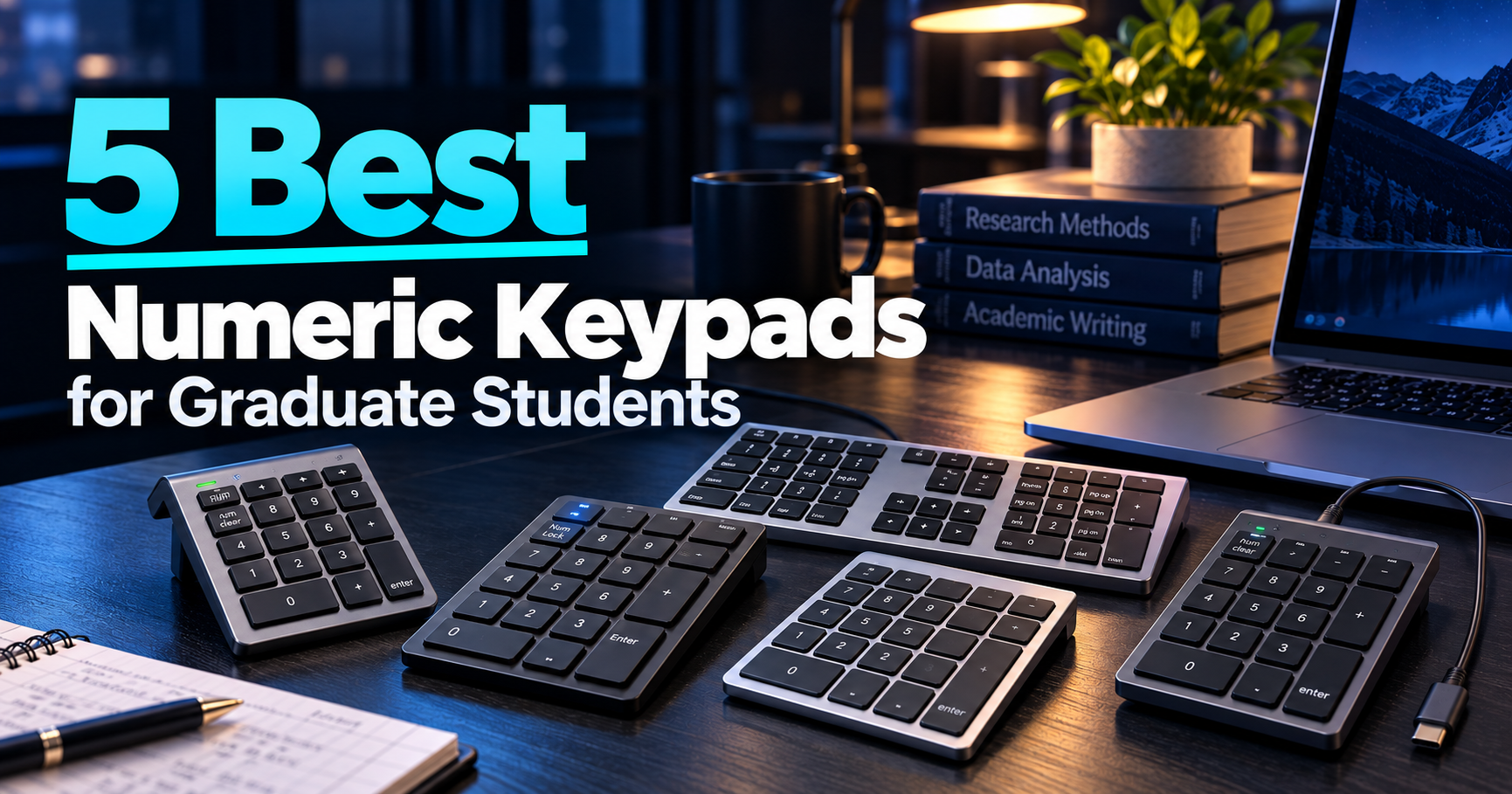
The best numeric keypads for graduate students can make repetitive data entry more convenient, especially when working with Excel spreadsheets, experimental measurements, statistical datasets, and research budgets.
Many modern laptops and compact keyboards do not include a dedicated number pad. While the number row is sufficient for occasional calculations, entering hundreds of measurements, sample identifiers, or numerical values can become cumbersome without a familiar numeric layout.
An external numeric keypad adds a dedicated set of number keys without requiring you to replace your entire keyboard. Depending on the model, it may also provide arrow keys, navigation controls, calculator shortcuts, and wireless connectivity.
In this guide, we’ve selected five numeric keypads for graduate students, covering affordable Windows options, compact Bluetooth models, extended layouts, Mac-friendly designs, and dependable USB-C wired connections.
As an Amazon Associate, GradToolLab earns from qualifying purchases at no additional cost to you.
Editorial Note: Our recommendations are based on manufacturer specifications, publicly available product information, Amazon customer feedback, and practical use cases for graduate students and researchers. We have not independently tested these numeric keypads. Prices, availability, ratings, and compatibility information may change. Keyboard shortcuts and special keys can behave differently depending on the operating system, application, and device configuration.
Table of Contents
1. Macally BTNUMKEY22 Bluetooth Numeric Keypad
BEST OVERALL
Best for: Graduate students who want a compact wireless numeric keypad with dedicated arrow keys for Excel, spreadsheets, and everyday research data entry.
Pros
- Compact 22-key layout with dedicated arrow keys
- Bluetooth connection without a USB receiver
- Compatible with supported Windows and Mac computers
- Scissor-switch keys designed for relatively quiet typing
- Tilted design for comfortable desktop positioning
- Practical for moving between home and university workspaces
Cons
- Fewer navigation controls than extended 34-key models
- Requires a compatible Bluetooth connection
- Battery replacement is necessary with the selected BTNUMKEY22 model
- Key functions may differ between operating systems
- Not a replacement for a complete keyboard
The Macally BTNUMKEY22 earns our Best Overall recommendation because it combines the features most graduate students actually need: dedicated numerical input, convenient spreadsheet navigation, and wireless portability.
Graduate students frequently work with numerical information. Depending on the research field, this may include measurements collected from laboratory instruments, experimental conditions, sample identifiers, statistical results, or research expenses.
For example, a student analyzing device measurements might create an Excel spreadsheet containing voltage, current, temperature, or other experimental parameters.
Entering those values using the number row of a compact laptop keyboard can be less convenient than using a dedicated numeric layout.
The Macally BTNUMKEY22 provides the familiar number-pad arrangement while remaining small enough to sit beside a laptop.
Its dedicated arrow keys are particularly useful.
In Excel and other spreadsheet applications, arrow keys allow users to move between cells without reaching back to the laptop keyboard.
This makes the keypad more versatile than a basic numeric-only accessory.
For a student repeatedly entering measurement values into adjacent spreadsheet cells, the combination of number keys, Enter, and directional navigation can create a more convenient workflow.
Bluetooth connectivity is another advantage.
The keypad does not require a dedicated USB receiver, which is useful for modern laptops with only a few ports.
Students can position the keypad wherever it feels comfortable without being restricted by a cable.
The compact layout also makes it convenient to carry between a research laboratory, home desk, and university library.
We particularly appreciate that Macally focuses on practical data-entry functionality rather than adding a large number of specialized keys that many students may never use.
The main tradeoff is that it does not provide the full range of navigation and shortcut controls found on larger extended keypads.
For students who regularly use Home, End, Page Up, Page Down, and other navigation functions, a 34-key model may be more suitable.
However, for everyday numerical input and spreadsheet work, the BTNUMKEY22 offers an appealing combination of functionality and simplicity.
This keypad is especially suitable for graduate students who use compact laptops or keyboards without a built-in number pad.
It is a strong choice for students who regularly work with Excel, Google Sheets, or other applications involving numerical data entry.
Researchers in engineering, physics, chemistry, economics, and other quantitative fields may find it useful when organizing measurements or working with structured datasets.
It can also help students entering research expenses, grant-related figures, or numerical information into administrative systems.
The Bluetooth connection makes it suitable for students who alternate between a home workstation and portable laptop use.
Because the keypad supports compatible Mac and Windows systems, it is also useful for students who want flexibility across different computer platforms.
However, students who prefer to avoid batteries or wireless pairing should consider the Macally USB-C Wired model instead.
- Brand: Macally
- Model: BTNUMKEY22
- Connection: Bluetooth
- Number of keys: 22
- Navigation: Four dedicated arrow keys
- Key mechanism: Scissor-switch
- Power: Replaceable AAA battery
- Design: Compact, tilted numeric keypad
- Supported platforms: Compatible Mac and Windows computers
- Primary applications: Excel data entry, spreadsheets, calculations, and research measurements
The BTNUMKEY22 should not be confused with newer or similarly named Macally rechargeable variants.
The established BTNUMKEY22 model uses a replaceable AAA battery rather than USB-C charging. Macally also sells other keypad models with different power systems and layouts.
Bluetooth compatibility does not guarantee identical operation of every special key across different operating systems.
Users should check the manufacturer’s compatibility information for their specific computer before purchasing.
For spreadsheet-heavy tasks, confirm that the arrow keys, Enter key, and any required navigation controls operate as expected in your application.
2. havit Bluetooth Number Pad 26 Keys
BEST BUDGET
Best for: Windows users who want an affordable rechargeable Bluetooth number pad for numerical data entry, spreadsheets, and everyday academic work.
Pros
- Affordable compared with many premium keypads
- 26-key layout with additional function keys
- Rechargeable battery eliminates regular disposable-battery replacement
- Bluetooth connection without a separate USB receiver
- Dedicated calculator shortcut
- Scissor-switch keys designed for quiet operation
- Suitable for supported Windows laptops and desktops
Cons
- Manufacturer states that macOS is not supported
- Not suitable for students who need a Mac-compatible keypad
- Bluetooth connection may be restricted on managed computers
- Additional functions depend on supported software and key mappings
- Charging cable is for battery charging rather than a normal wired data connection
The havit Bluetooth Number Pad 26 Keys earns our Best Budget recommendation because it combines an accessible purchase price with a useful selection of numeric and shortcut keys.
Not every graduate student needs an expensive aluminum keypad or an extended 34-key layout.
For students who simply want to enter numbers more conveniently, an affordable wireless number pad can be a worthwhile addition to an existing laptop.
The havit provides a 26-key layout, giving users more functionality than a minimal 18-key numerical keypad.
Alongside the standard numeric keys, it includes additional controls such as Num Lock, Escape, Delete, and a calculator shortcut.
These features may be useful for students who frequently move between spreadsheets and calculations.
For example, a student processing laboratory measurements might enter several values into Excel before checking an average, converting units, or performing a quick calculation.
The dedicated calculator shortcut can simplify access to the operating system’s calculator application where supported.
The rechargeable battery is another practical advantage.
Unlike keypads that use replaceable disposable batteries, this model can be charged using its supplied cable.
That reduces the need to keep spare batteries available at a research desk.
The manufacturer also describes scissor-switch keys intended to provide comfortable, relatively quiet typing.
This matters in shared graduate offices and university libraries, where loud or repetitive keyboard noise can be distracting.
One reason we find this model particularly attractive is its strong Amazon sales activity.
At the time of our comparison, the selected listing showed more than 2,000 purchases in the past month, alongside thousands of customer reviews.
That suggests meaningful consumer demand, although popularity does not guarantee long-term durability or compatibility.
The most important limitation is operating-system support.
The manufacturer explicitly states that this keypad is not compatible with macOS.
That makes it a Windows-focused recommendation rather than a universal Bluetooth keypad.
The havit 26-key keypad is best suited to graduate students using Windows laptops or desktop computers.
It is particularly useful for students who frequently enter numerical values into Excel, accounting software, statistical tables, or laboratory records.
Students using compact Windows laptops without dedicated numeric keypads may find it a convenient and inexpensive accessory.
The rechargeable battery also makes it suitable for students who prefer not to purchase replacement batteries.
It may be a good choice for students creating a budget-friendly workstation using an existing laptop and a small collection of external accessories.
However, students using MacBooks should avoid this model because the manufacturer identifies macOS as unsupported.
Researchers using institutionally managed computers should also verify that Bluetooth peripherals are permitted before purchasing.
- Brand: havit
- Product: Bluetooth Number Pad 26 Keys
- Model family: smart26
- Connection: Bluetooth
- Number of keys: 26
- Power: Rechargeable lithium battery
- Charging: USB charging cable
- Additional controls: Num Lock, Escape, Delete, calculator shortcut, and other function keys
- Key mechanism: Scissor-switch
- Primary platform: Windows
- macOS compatibility: Not supported according to the manufacturer
- Primary applications: Numerical data entry, spreadsheets, accounting, and everyday productivity
The USB cable supplied with this product is intended for charging. Users should not assume that connecting it by cable provides normal wired keyboard functionality.
The advertised operating time depends on usage and charging conditions.
Bluetooth connection quality may also vary with the host computer, wireless interference, and power management settings.
The product should be selected specifically for compatible Windows systems rather than treated as a universal Mac and Windows keypad.
3. Lekvey Bluetooth Number Pad 34 Keys
BEST EXTENDED KEYPAD
Best for: Graduate students who want an expanded wireless numeric keypad with additional navigation and function keys for spreadsheet-heavy workflows.
Pros
- Extended 34-key layout
- Dedicated arrow keys and additional navigation controls
- Rechargeable battery
- Bluetooth connectivity
- Slim aluminum construction
- Useful for larger spreadsheets and frequent numerical entry
- Compatible with supported Mac and Windows systems for basic functions
Cons
- Larger footprint than compact numeric-only keypads
- Some special keys may not function identically on macOS
- Higher price than basic budget options
- Bluetooth requires pairing and periodic charging
- Extended layout may be unnecessary for occasional calculations
The Lekvey Bluetooth Number Pad 34 Keys earns our Best Extended Keypad recommendation because it provides more than the standard numeric layout.
While compact number pads are convenient for entering measurements, graduate students often need to navigate large spreadsheets containing many columns and rows.
For example, a researcher may be organizing experimental results across multiple measurement conditions, sample groups, or dates.
A spreadsheet might contain numerical measurements alongside identifiers, formulas, notes, and calculated results.
In these situations, numerical entry is only one part of the workflow. Moving between cells, navigating different sections, and reviewing previously entered values can also take considerable time.
The Lekvey addresses this need with an expanded 34-key configuration.
Its layout includes the standard number pad along with directional and additional navigation controls.
This allows users to perform more actions from the external keypad instead of repeatedly reaching across to the laptop keyboard.
The additional keys may be particularly helpful for students working on extensive Excel worksheets or structured numerical records.
Another advantage is its Bluetooth connection.
The keypad can be positioned independently of the laptop, giving users flexibility to arrange their desk.
For example, a student working with an external monitor may keep the laptop on a stand, use a compact keyboard in front of the monitor, and position the numeric keypad beside a mouse.
This creates a modular input setup where the keypad can be moved or removed depending on the task.
The slim aluminum construction is also attractive for students who want an extended keypad without a bulky traditional desktop design.
Its rechargeable battery eliminates the need for routine disposable-battery replacement.
However, an important limitation is that compatibility does not necessarily mean full functionality on every operating system.
Some special keys may behave differently on macOS, depending on the device and software.
We therefore recommend the Lekvey primarily for students who will benefit from its expanded layout, rather than users who simply want the smallest possible number pad.
The Lekvey is particularly well suited to graduate students who spend significant time entering and navigating numerical data.
It may be useful for students processing experimental measurements, managing large spreadsheets, performing statistical data preparation, or working with research budgets.
Researchers who frequently switch between entering values and navigating worksheet cells may appreciate the additional controls.
The wireless design also makes it suitable for home offices and research workstations where users prefer a clean desk without extra cables.
Students using compatible Windows systems may find the extended controls especially practical.
Mac users should verify the behavior of any required special keys before purchasing.
If you only need basic number entry, a smaller and less expensive keypad such as the havit or Macally BTNUMKEY22 may be more appropriate.
- Brand: Lekvey
- Product: Bluetooth Number Pad 34 Keys
- Number of keys: 34
- Connection: Bluetooth
- Power: Rechargeable lithium battery
- Charging: USB-C
- Construction: Slim aluminum-alloy design
- Navigation: Numeric keys, arrow keys, and additional function/navigation controls
- Supported platforms: Compatible Windows and Mac devices, with potential differences in special-key functions
- Primary applications: Spreadsheet navigation, numerical analysis, data entry, and research administration
The number pad’s extended layout provides additional functionality, but special-key behavior depends on the operating system and application.
For example, certain navigation or shortcut functions may require different key combinations on macOS.
Bluetooth connection also requires a suitable host device, and the rechargeable battery must be maintained.
Before purchasing, check whether the particular navigation keys you use in Excel, statistical software, or another application are supported on your computer.
The Lekvey is best viewed as an expanded input accessory rather than a replacement for a complete keyboard.
4. Satechi Bluetooth Extended Numeric Keypad 34 Keys
BEST FOR MAC
Best for: Graduate students using compatible MacBooks, iMacs, or other Apple devices who want an extended Bluetooth numeric keypad with macOS-oriented shortcut keys.
Pros
- Extended 34-key layout
- Dedicated numeric, navigation, and macOS shortcut keys
- Bluetooth wireless connectivity
- Rechargeable battery with USB-C charging port
- Slim aluminum design
- Particularly suitable for compatible Apple devices
- Useful for spreadsheet work and Mac productivity workflows
Cons
- More expensive than basic numeric keypads
- Full shortcut functionality is designed around Apple systems
- Some keys may behave differently on Windows and other platforms
- Requires charging and Bluetooth pairing
- Larger than a compact numeric-only keypad
- Charging instructions specify a USB-C to USB-A cable
The Satechi Bluetooth Extended Numeric Keypad earns our Best for Mac recommendation because it combines a complete numeric layout with additional controls designed around macOS productivity.
Many MacBook models use compact keyboard layouts without a dedicated number pad.
This is convenient for portability, but it can be less comfortable when repeatedly entering numerical information.
Graduate students who use MacBooks for research may regularly work with Excel, spreadsheets, financial records, programming tools, and data-processing applications.
An external number pad can add dedicated numerical input without requiring a full-size external keyboard.
The Satechi offers an extended 34-key layout, including standard numeric keys, navigation controls, and macOS-oriented shortcuts.
Its design is particularly appealing for students who already use Apple laptops and want an accessory that fits naturally into their workflow.
For example, a student using a MacBook Air for research writing may also need to organize large collections of numerical data.
With a separate keypad, the student can keep the laptop’s compact keyboard while gaining easier access to numerical keys during spreadsheet sessions.
The extended controls may also be useful when switching between data entry and other productivity tasks.
Another advantage is its rechargeable battery.
Satechi provides a USB-C charging port and an included USB-C to USB-A charging cable.
The manufacturer advertises up to approximately 50 hours of use per charge, depending on conditions.
This can be convenient for students who use the keypad intermittently throughout the week.
The aluminum design is another distinctive feature.
Its appearance complements many Apple devices, although visual consistency is less important than actual functionality and compatibility.
One important consideration is the keypad’s operating-system-specific behavior.
Satechi states that the layout is based on standard macOS and iOS settings.
Users connecting the keypad to a Windows computer or another platform may find that certain shortcut keys behave differently.
We therefore recommend this model primarily for graduate students who work in the Apple ecosystem.
This keypad is a strong choice for MacBook Air and MacBook Pro users who frequently enter numerical data.
It is particularly useful for students working with spreadsheets, budgets, experimental records, and data-processing tasks on macOS.
Researchers who use an external monitor with their MacBook may also appreciate the ability to position a separate keypad alongside their existing keyboard.
The Bluetooth connection makes it suitable for desks where cable management and flexible device positioning are important.
Students using compatible iPads or other Apple devices may also find it useful, although individual key behavior should be checked for the intended application.
For budget-conscious students who only need basic numerical input, the Macally BTNUMKEY22 may offer better value.
Windows users should consider a product designed with their platform in mind rather than paying extra for macOS-specific features.
- Brand: Satechi
- Product: Bluetooth Extended Numeric Keypad
- Model family: ST-XLABKS / ST-XLABKM
- Number of keys: 34
- Connection: Bluetooth
- Charging port: USB-C
- Included charging cable: USB-C to USB-A
- Power: Rechargeable battery
- Advertised battery life: Up to approximately 50 hours
- Additional controls: Navigation keys and macOS-oriented shortcuts
- Construction: Slim aluminum design
- Primary applications: MacBook numerical input, spreadsheets, and Apple productivity workflows
Satechi maintains a device compatibility list for this keypad family.
Compatibility should be checked against the exact computer model rather than assuming that every Apple device supports every function.
The manufacturer’s user manual specifies charging with the included USB-C to USB-A cable and notes that USB-C to USB-C charging is not supported for this model.
The USB-C port is used for charging; the keypad’s normal connection method is Bluetooth.
Special-key behavior can differ on non-Apple operating systems, even when basic number input works.
For the most reliable experience, use the keypad with a supported device and the operating system for which its extended layout is intended.
5. Macally USB-C Wired Numeric Keypad 22 Keys
BEST WIRED
Best for: Graduate students who prefer a simple USB-C wired numeric keypad without Bluetooth pairing, battery replacement, or charging.
Pros
- Direct USB-C wired connection
- No Bluetooth pairing required
- No battery charging or replacement needed
- 22-key layout with dedicated arrow keys
- Approximately five-foot cable for flexible positioning
- Scissor-switch keys designed for relatively quiet operation
- Useful for compatible Windows and Mac computers
Cons
- Cable takes up desk space
- Requires an available USB-C port
- Less convenient for students who prefer entirely wireless peripherals
- Fewer function keys than 34-key extended models
- USB-C compatibility must be confirmed for older computers
The Macally USB-C Wired Numeric Keypad earns our Best Wired recommendation because it provides the essential benefits of a dedicated number pad without the additional considerations of wireless connectivity.
Bluetooth peripherals are convenient, but they are not always the best choice for every working environment.
Graduate students sometimes use university-managed computers, shared laboratory workstations, or specialized systems where Bluetooth access is restricted or inconvenient to configure.
In these situations, a wired keypad may offer a simpler solution.
The Macally connects directly through USB-C and is designed for plug-and-play operation on supported systems.
There is no need to pair the keypad through Bluetooth settings or maintain a rechargeable battery.
For students who use a dedicated workstation for long periods, this simplicity can be valuable.
For example, a graduate student may spend several hours entering numerical measurements into Excel after completing laboratory experiments.
A wired numeric keypad allows that work to continue without interruptions caused by a depleted wireless battery.
The 22-key layout also includes dedicated arrow keys.
This is an important advantage for spreadsheet tasks because students can move between cells and enter numerical values without relying entirely on the laptop keyboard.
The manufacturer specifies an approximately five-foot cable, which provides flexibility in positioning the keypad beside a laptop or desktop keyboard.
The keypad also uses scissor-switch keys, intended to provide smooth and relatively quiet typing.
Another advantage is its compact footprint.
Although it uses a cable, the keypad does not require the desk space of a full-size external keyboard.
This is useful for students who want to maintain a minimalist workstation while improving numerical entry.
The main limitation is portability.
A wireless model is often more convenient when moving frequently between workspaces, while a wired keypad is better suited to a relatively stable desk.
Students should also check whether their computer has an available USB-C port.
If the laptop has only one or two ports, using a hub may be necessary.
This keypad is particularly suitable for graduate students who prefer wired peripherals or work at a dedicated desk.
It is a practical choice for students frequently entering experimental measurements, creating spreadsheets, or processing numerical records.
Researchers using compatible laboratory desktop computers may appreciate that the keypad does not depend on Bluetooth pairing.
It may also be useful for students whose workstations restrict wireless peripherals, provided the system permits USB keyboards.
The keypad can fit well into a home research setup alongside a laptop stand, external display, or compact keyboard.
However, students who often carry a keypad between locations may prefer the wireless Macally BTNUMKEY22.
Those who need extensive navigation controls should consider one of the extended 34-key models.
- Brand: Macally
- Model: UCNUMKEY22
- Connection: Wired USB-C
- Number of keys: 22
- Navigation: Four dedicated arrow keys
- Key mechanism: Scissor-switch
- Cable length: Approximately 5 ft
- Power: Supplied through USB
- Battery required: No
- Supported platforms: Compatible Windows, macOS, and selected USB-C devices
- Primary applications: Numerical data entry, spreadsheets, research measurements, and wired workstations
The selected UCNUMKEY22 model uses a wired USB-C connection, not Bluetooth.
It does not require a separate battery or wireless receiver.
Macally advertises plug-and-play functionality on supported systems, although institutional computers may have USB peripheral restrictions.
Before purchasing, verify that your computer has a suitable USB-C port and supports external keyboard input.
The dedicated arrow keys may be useful in Excel and other spreadsheet applications, but special-key behavior can still vary by operating system and software.
Quick Comparison: Which Numeric Keypad Should You Choose?
Not every graduate student needs the same type of numeric keypad. Some prioritize portability and low cost, while others want extended navigation controls, Mac compatibility, or the simplicity of a wired connection.
| Numeric Keypad | Best For | Keys | Connection |
|---|---|---|---|
| Macally BTNUMKEY22 | Best Overall | 22 | Bluetooth |
| havit Bluetooth Number Pad | Best Budget | 26 | Bluetooth |
| Lekvey Bluetooth Number Pad | Best Extended Keypad | 34 | Bluetooth |
| Satechi Bluetooth Extended Keypad | Best for Mac | 34 | Bluetooth |
| Macally UCNUMKEY22 | Best Wired | 22 | USB-C Wired |
For most students who want numerical input and convenient spreadsheet navigation, the Macally BTNUMKEY22 offers the strongest overall balance.
Windows users looking for a less expensive rechargeable option should consider the havit 26-key model.
For more navigation controls, the Lekvey and Satechi extended keypads are worth comparing.
And if Bluetooth is inconvenient or unavailable, the Macally USB-C Wired keypad provides a straightforward alternative.
How to Choose the Best Numeric Keypads for Graduate Students
Choosing a numeric keypad involves more than simply counting the number of keys.
The right product depends on your operating system, preferred connection method, desk setup, and the kind of numerical work you perform.
1. Choose the Right Number of Keys
Numeric keypads come in several layouts.
A basic numeric keypad typically contains the familiar numbers, arithmetic operators, decimal key, and Enter key.
However, some products add arrow keys, navigation controls, or shortcuts.
18-Key Numeric Keypads
Compact 18-key models prioritize basic numerical entry.
They are useful when you simply need to type numbers, but they may offer fewer navigation controls.
For students entering values into a spreadsheet and then moving between cells, the limited layout may require more interaction with the main keyboard.
22-Key Numeric Keypads
A 22-key layout can provide a useful balance of compactness and functionality.
The Macally BTNUMKEY22 and UCNUMKEY22 include dedicated directional keys, making them particularly convenient for Excel and other spreadsheet applications.
Students can enter numbers and navigate nearby cells using the same accessory.
26-Key Numeric Keypads
A 26-key model may add more controls for everyday productivity.
The havit keypad includes additional keys such as Num Lock, Escape, Delete, and a calculator shortcut.
This can be useful when working with numerical information and simple calculations.
34-Key Extended Keypads
Extended keypads provide a larger collection of navigation or shortcut controls.
The Lekvey and Satechi models are examples.
These are more appropriate for students who frequently navigate complex spreadsheets or want additional functions beside their main keyboard.
More keys are not automatically better. Choose a layout that supports the actions you actually perform.
2. Decide Between Bluetooth and Wired USB-C
Connection type is one of the most important differences between numeric keypads.
Bluetooth Numeric Keypads
Bluetooth models connect wirelessly to compatible devices.
Their main advantage is flexible placement.
You can keep the keypad beside your laptop, move it closer when entering data, or put it away when writing.
This can be useful for graduate students who alternate between laboratory work, research writing, and other tasks.
Bluetooth keypads are also convenient when your laptop has very few USB ports.
However, they require batteries or charging, and pairing may occasionally need attention.
Wired USB-C Numeric Keypads
A wired model connects directly to the computer.
The Macally UCNUMKEY22 is an example.
It does not require Bluetooth pairing or battery maintenance.
This can be useful for permanent workstations and compatible laboratory computers where Bluetooth connections are unavailable or restricted.
The tradeoff is the additional cable and occupied USB-C port.
If your laptop has limited connectivity, our guide to the best USB-C hubs for graduate students covers accessories that can add more ports to your workspace.
3. Check Windows and macOS Compatibility
Not every Bluetooth keypad works equally well with Windows and Mac computers.
This is especially important when purchasing a product with navigation controls or shortcuts.
The havit 26-key keypad in this guide is intended for Windows systems, and its manufacturer states that macOS is unsupported.
The Satechi Bluetooth Extended Keypad, by contrast, is designed around macOS-oriented functionality.
Macally and Lekvey offer models that can work with supported systems on both platforms, although certain special keys may behave differently.
For example, a key designed to open the Windows calculator may not perform the same action on macOS.
Likewise, some navigation keys may behave differently depending on the spreadsheet application.
Before purchasing, check:
- Your computer’s operating system
- Whether Bluetooth or USB-C connection is supported
- The product’s specific operating-system compatibility
- Whether any special keys are essential to your work
For students using university-managed computers, also consider whether wireless devices or additional USB keyboards are permitted.
4. Think About Excel and Spreadsheet Navigation
For many graduate students, Excel is one of the strongest reasons to purchase an external numeric keypad.
Numerical data may come from laboratory measurements, surveys, calculations, experimental observations, or administrative records.
A dedicated numeric layout makes repeated number entry more convenient for users who prefer the traditional number-pad arrangement.
However, spreadsheet work involves more than entering values.
You may also need to move between cells, edit existing measurements, and review calculations.
This is where arrow keys and navigation controls can become valuable.
For example, imagine a spreadsheet containing columns for:
- Sample ID
- Measurement date
- Applied voltage
- Measured current
- Temperature
- Calculated result
A student may enter a sequence of values for each experimental sample.
A compact numeric keypad with arrow keys allows movement between adjacent cells without reaching back to the main laptop keyboard.
Extended models can provide more navigation controls, although the benefit depends on the application and operating system.
Remember that a numeric keypad does not automatically improve calculation speed or data accuracy. Its main purpose is to provide a more convenient input layout.
5. Consider Battery Life and Charging
Wireless numeric keypads generally use either replaceable batteries or rechargeable batteries.
Each option has advantages.
Replaceable batteries can provide long periods of use, and replacement is straightforward when the battery is depleted.
Rechargeable models avoid the need to purchase disposable batteries repeatedly.
However, they require periodic charging and may use different charging cable arrangements.
For example, the Satechi Extended Keypad has a USB-C charging port but specifies charging through a USB-C to USB-A cable.
The Macally BTNUMKEY22 model selected in this guide uses a replaceable AAA battery.
The havit and Lekvey models use rechargeable batteries.
For students who frequently travel between university and home, battery life may be more important than for someone who leaves the keypad permanently on a desk.
If you prefer not to consider batteries at all, a wired model is the simplest solution.
6. Consider Desk Space and Working Position
A numeric keypad is relatively small, but its placement can affect how comfortably you work.
Some students prefer placing it to the right of their main keyboard, similar to a traditional full-size keyboard.
Others may prefer placing it on the left to keep the mouse closer to the keyboard.
A separate keypad provides more flexibility than a fixed numeric section built into a full-size keyboard.
This is particularly useful for students with compact desks or multi-monitor workstations.
However, adding a keypad does not automatically create a more ergonomic setup.
Consider your normal arm position, how far you need to reach, and whether the keypad remains stable during use.
A slim or slightly tilted design may feel more comfortable to some users, but personal preference matters.
If you’re building a complete research workstation, our best wireless keyboards for graduate students guide compares compact, full-size, and ergonomic options.
You can also explore our best wireless mice for graduate students to create an input setup that works well for your desk size and preferred working position.
Are External Numeric Keypads Worth It for Graduate Students?
An external numeric keypad is useful for some graduate students but unnecessary for others.
Its value depends mainly on how frequently you enter numbers.
For students who primarily read papers, write essays, or prepare presentations, the number row on a laptop keyboard may be sufficient.
However, students who regularly enter long sequences of numerical values may appreciate having a dedicated keypad.
Laboratory Data Entry
Some experiments involve measurement values that must be recorded manually.
An external keypad may be helpful when entering those values into Excel or another data-management application.
However, when instruments support reliable direct data export, importing measurement files is generally preferable to manually retyping hundreds of results.
Manual transcription introduces opportunities for mistakes.
A numeric keypad should therefore be viewed as a tool for necessary manual entry, not as a substitute for automated data collection.
Statistical Data Preparation
Graduate students conducting survey research or numerical analysis sometimes need to correct, organize, or supplement datasets.
A keypad can be convenient for entering numeric codes, counts, and other values.
However, statistical software may use its own shortcut system, so additional keys do not always provide identical functionality across applications.
Research Budget Management
Graduate students may track equipment purchases, travel expenses, research budgets, or reimbursement records.
An external numeric keypad can be helpful when entering amounts into spreadsheets or financial systems.
This is one of the more straightforward applications because the task often involves repeated number entry.
Programming and Technical Work
For programming, the benefit depends on personal preference.
Some developers prefer entering numbers through the main keyboard because it keeps their hands close to the letter keys.
Others may appreciate a separate keypad for numerical parameters or data-entry tasks.
If your work involves many keyboard shortcuts, an extended keypad may be useful, but it will not replace the functionality of a programmable macro keyboard.
Numeric Keypad vs. Full-Size Keyboard: Which Is Better?
A common question is whether it makes more sense to purchase an external numeric keypad or replace an existing keyboard with a full-size model.
Both approaches have advantages.
When a Numeric Keypad Makes Sense
A separate numeric keypad is especially useful when you already like your laptop or compact keyboard.
It allows you to add numerical input without replacing the device you use for writing.
You can also position it independently and remove it when it is no longer needed.
This flexibility is particularly useful for students with limited desk space.
When a Full-Size Keyboard Makes Sense
A full-size keyboard may be a better choice if you need numeric input throughout the day and want everything in one device.
It can also provide a more consistent typing arrangement for students who primarily work at a fixed desk.
However, full-size keyboards occupy more horizontal space.
They may push the mouse farther away, depending on desk layout and personal positioning.
There is no universal winner.
If you already own a compact keyboard you enjoy using, adding a separate keypad is often the more economical change.
If you’re replacing your entire keyboard anyway, a full-size model with a built-in number pad may be more convenient.
How to Use a Numeric Keypad Efficiently in Excel
Buying a keypad is only the first step. Knowing how to organize your spreadsheet workflow can make a larger difference.
Prepare Your Spreadsheet Before Data Entry
Set up column headings, units, sample identifiers, and formatting before entering a large collection of measurements.
This reduces the need to interrupt data entry to reorganize the sheet.
For example, use separate columns for voltage, current, temperature, and sample information rather than combining multiple values into one cell.
Use Enter and Tab Appropriately
In many spreadsheet configurations, Enter moves the selected cell downward and Tab moves it horizontally.
These controls can make structured data entry easier.
However, behavior may depend on application settings and the direction of selection.
Practice with a small dataset before entering large amounts of important information.
Use Arrow Keys for Corrections
Dedicated arrow keys can make it easier to return to nearby cells when reviewing numerical entries.
This is one reason we favor the Macally BTNUMKEY22 over models that offer only the most basic numeric layout.
Maintain Consistent Units
For scientific data, consistency matters more than typing speed.
Avoid mixing units such as milliamperes and amperes in the same numerical column without clear conversion.
Use column labels to identify the units and preserve raw measurement records when appropriate.
Verify Important Values
External keypads do not prevent typing errors.
For critical research measurements, use suitable validation procedures.
Depending on the task, this may include reviewing entries, comparing them with original records, or importing data directly from equipment.
Where possible, retain an unmodified copy of the original data.
Common Mistakes to Avoid When Buying a Numeric Keypad
Assuming Every Bluetooth Keypad Supports macOS
Some models are designed specifically for Windows.
Always check the manufacturer’s compatibility information.
Confusing USB-C Charging with USB-C Data Connection
A keypad with a USB-C charging port is not necessarily a wired USB-C keyboard.
Some products use Bluetooth for normal operation even while charging through USB.
Choosing a Larger Layout Without Needing It
A 34-key model offers more controls, but additional keys may provide little benefit if you only enter occasional numbers.
Ignoring Arrow Keys
For spreadsheet work, dedicated arrow keys can be nearly as important as the number keys.
Check the actual layout rather than relying only on the advertised number of keys.
Assuming Wireless Keypads Never Need Maintenance
Bluetooth devices may require battery replacement, charging, or reconnection.
If your workstation must remain simple and predictable, consider a wired model.
Using Manual Entry When Direct Data Export Is Available
Manually entering large research datasets can introduce errors.
When equipment supports verified file export, consider importing the data rather than retyping it.
Frequently Asked Questions
What is the best numeric keypad for graduate students?
For most graduate students, the Macally BTNUMKEY22 is our Best Overall recommendation.
It combines a compact 22-key layout, Bluetooth connection, and dedicated arrow keys that are useful for Excel and other spreadsheet applications.
Students on a budget using Windows may prefer the havit 26-key model.
Are numeric keypads useful for Excel?
Yes, particularly when entering numerical values repeatedly.
Dedicated number keys, Enter, and directional controls can provide a convenient alternative to the number row on a compact laptop keyboard.
However, the benefit depends on your typing preferences and workflow.
Should I buy an 18-key, 22-key, or 34-key keypad?
An 18-key model is suitable for basic numerical entry.
A 22-key model with arrow keys offers additional spreadsheet navigation.
A 34-key extended keypad may be better for users who frequently need dedicated navigation and shortcut controls.
Choose the layout based on the functions you actually use.
Do Bluetooth numeric keypads work with MacBooks?
Some do, but not all.
The Satechi Bluetooth Extended Keypad is designed with Apple devices in mind, and the Macally BTNUMKEY22 supports compatible Mac systems.
The havit 26-key model specifically states that macOS is unsupported.
Always check the selected model.
Can I use a numeric keypad with Google Sheets?
Generally, compatible numeric keypads can enter numbers into Google Sheets.
However, special navigation and shortcut functions may vary depending on the operating system, browser, and keypad.
Can a numeric keypad be used with statistical software?
Often, yes, for ordinary numeric input.
However, special keys and shortcuts may behave differently in applications such as MATLAB, RStudio, SPSS, or other software.
Compatibility should be checked for specific functions that matter to your workflow.
Are wired numeric keypads better than Bluetooth models?
Neither is universally better.
Wired keypads avoid battery maintenance and Bluetooth pairing.
Bluetooth models allow more flexible placement and keep a USB port available.
A wired connection is particularly useful for compatible shared or managed computers where Bluetooth is restricted.
Can I use a Bluetooth numeric keypad while charging it?
This depends on the model.
Some wireless keypads may continue operating over Bluetooth while charging, but charging does not necessarily convert them into wired USB keyboards.
Consult the manufacturer’s instructions for your particular device.
Do I need a numeric keypad if my laptop already has one?
Probably not, unless you prefer a separate keypad’s position, layout, or features.
If your built-in number pad is comfortable and fully functional, purchasing another may provide limited benefit.
Can a numeric keypad improve research productivity?
It may make repeated numerical entry and spreadsheet navigation more convenient.
However, the magnitude of any productivity benefit depends on how frequently you use it and how your workflow is organized.
A keypad does not replace data validation or reliable automated measurement export.
Are rechargeable numeric keypads worth it?
Rechargeable keypads can be convenient for students who prefer not to replace disposable batteries.
However, they require occasional charging.
If you want to avoid both charging and battery replacement, a wired USB-C model may be more practical.
Can I use a numeric keypad with a USB-C hub?
Yes, if the keypad uses a compatible USB connection and the hub supports the required function.
Bluetooth keypads do not normally require a USB hub for data connectivity, although charging arrangements may differ.
What other accessories help with numerical research work?
An external monitor can make it easier to display large spreadsheets and research data alongside analysis software.
A comfortable keyboard and mouse can also improve the convenience of a workstation.
For students who need more screen space, our best monitors for graduate students guide compares displays suitable for writing, programming, and data analysis.
Final Verdict: Which Numeric Keypad Should You Buy?
For most graduate students, we recommend the Macally BTNUMKEY22 Bluetooth Numeric Keypad.
Its compact 22-key layout, dedicated arrow keys, and Bluetooth connection make it particularly practical for Excel, spreadsheets, and everyday numerical data entry.
If you want an affordable option for a Windows computer, the havit Bluetooth Number Pad 26 Keys is a strong budget choice. It combines rechargeable power and additional shortcut keys at a relatively low price.
For users who regularly navigate large spreadsheets and want more dedicated controls, the Lekvey Bluetooth Number Pad 34 Keys offers an extended layout.
MacBook users looking for a premium Apple-oriented design should consider the Satechi Bluetooth Extended Numeric Keypad, especially if its macOS shortcut keys are useful for their workflow.
And for students who prefer a dependable wired connection without battery maintenance, the Macally USB-C Wired Numeric Keypad is our recommended alternative.
Ultimately, the right numeric keypad depends on how frequently you enter numerical information, which operating system you use, and whether you prefer wireless or wired connectivity.
For students who move regularly between home, libraries, classrooms, and laboratories, a compact external keypad can be a convenient addition to a laptop bag. Our best laptop backpacks for graduate students guide covers ways to organize laptops and small accessories while commuting or traveling for academic work.
A numeric keypad does not need to be expensive or complicated to be useful. Choose one with the keys and compatibility you actually need, and it can become a practical part of your research workspace.