
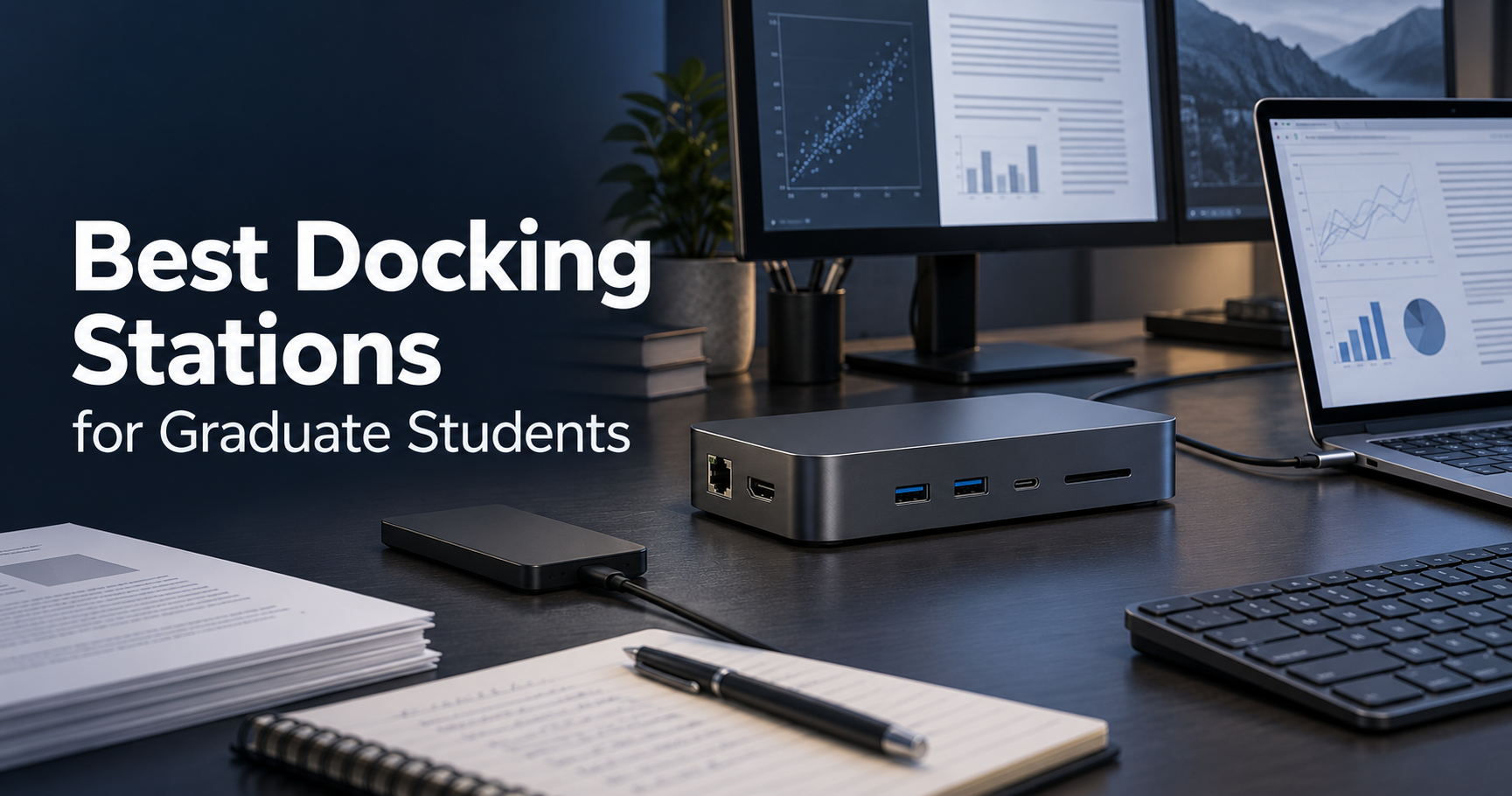
A good docking station can completely change the way you use a laptop for graduate school.
Instead of connecting a monitor, charger, external drive, keyboard, mouse, Ethernet cable, and other accessories one by one every time you sit down, a docking station lets you connect most of your desk setup through a single cable.
That can be especially useful for graduate students who use the same laptop in multiple places. You might take your laptop to the lab, library, office, or classroom during the day, then connect it to a larger desktop setup when you get home.
The challenge is that docking stations vary significantly in price, port selection, charging power, display support, and compatibility. A dock that works perfectly with one Windows laptop may have different display limitations on a MacBook, while an inexpensive USB-C hub may not provide the bandwidth or power required for a more demanding research workstation.
For most graduate students, you do not need the most expensive dock available. You need one that matches the devices you actually use.
After comparing connectivity, charging, monitor support, and overall value, these are five of the best docking stations for graduate students in 2026.
Table of Contents
Quick Comparison
| Docking Station | Best For | Connection | Laptop Charging | Key Strength |
|---|---|---|---|---|
| CalDigit TS4 | Best Overall | Thunderbolt 4 | Up to 98W | Excellent port selection |
| UGREEN Revodok Max 213 | Best Value | Thunderbolt 4 | Up to 90W | Strong features for the price |
| Plugable TBT4-UDZ | Best for Multi-Monitor Workstations | Thunderbolt 4 / USB4 | Up to 100W | Extensive display connectivity |
| Plugable TBT-UDM | Best for MacBook | Thunderbolt 4 / USB4 | Up to 100W | Simple dual-monitor Mac setup |
| Anker Prime TB5 Docking Station | Best for High-End Workstations | Thunderbolt 5 | Up to 140W | Next-generation performance |
1. CalDigit TS4 — Best Overall
The CalDigit TS4 is our best overall docking station for graduate students because it combines an unusually large number of useful ports with strong charging, fast networking, and excellent support for high-performance peripherals.
It is not the cheapest dock in this list, but it is one of the most complete.
The TS4 provides 18 ports in total. These include three Thunderbolt 4 ports, three 10Gbps USB-C ports, five 10Gbps USB-A ports, DisplayPort 1.4, 2.5Gb Ethernet, full-size SD and microSD card readers, and multiple audio connections.
For a graduate student building a permanent desk setup, that means you are unlikely to run out of places to connect accessories.
You could have your monitor, keyboard, mouse, external SSD, audio device, wired network, card reader, and other research peripherals connected to the dock while still having ports available for temporary devices.
This can also reduce the need to stack several smaller adapters together. If your current setup consists of a laptop surrounded by several dongles, a full docking station like the TS4 can make the entire desk much cleaner.
Excellent for a Research Desk
The port selection is particularly useful if you work with large amounts of data.
The TS4 includes 2.5Gb Ethernet, which can be useful if your university, lab, NAS, or home network supports speeds beyond standard Gigabit Ethernet.
It also provides multiple 10Gbps USB ports, giving you plenty of places to connect high-speed storage.
If you frequently move datasets, videos, microscopy images, simulation files, or other large research files, pairing the TS4 with one of the best external SSDs for graduate students can create a much more convenient desktop workflow.
The SD and microSD card slots are another advantage for students who work with cameras, embedded systems, measurement equipment, or other devices that store data on removable media.
Strong Laptop Charging
The host connection supplies up to 98W to a compatible laptop.
That is enough for many thin-and-light laptops and a wide range of higher-performance notebooks, allowing one Thunderbolt cable to handle power, data, and display connectivity simultaneously.
The dock also includes a front USB-C port capable of delivering up to 20W, which can be useful for charging a phone or another portable device while you work.
If charging multiple devices is a larger priority than desktop expansion, you may also want to compare it with our guide to the best USB-C chargers for graduate students.
Display Support
The TS4 can support high-resolution external displays, although the exact number and resolution depend on the laptop and operating system you connect.
This distinction is important.
A docking station cannot bypass every display limitation built into your laptop. Some MacBook models, for example, support fewer external displays than higher-end Apple silicon models.
If your main reason for buying a dock is to build a multi-monitor setup, check your exact laptop model before ordering.
For most students running one or two external displays, however, the TS4 offers plenty of flexibility.
You can also combine it with one of our best monitors for graduate students if you are putting together a full research or writing workstation.
Who Should Buy the CalDigit TS4?
The TS4 makes the most sense for students who want to build one high-quality desk setup and keep it for several years.
It is particularly suitable for PhD students, researchers, programmers, engineering students, photographers, and anyone who regularly connects several peripherals at the same time.
Its main disadvantage is price. If you only need a monitor, keyboard, mouse, and charger, you can get away with something much simpler.
But if your laptop is your primary computer and you want one dock capable of handling almost everything on your desk, the TS4 is our strongest all-around choice.
Pros
- 18 total ports
- Three Thunderbolt 4 ports
- Multiple 10Gbps USB-A and USB-C ports
- Up to 98W laptop charging
- 2.5Gb Ethernet
- SD and microSD card readers
- Excellent choice for permanent desk setups
Cons
- Expensive
- More connectivity than some students need
- Display capabilities still depend on the connected laptop
2. UGREEN Revodok Max 213 — Best Value
The UGREEN Revodok Max 213 is our best-value choice because it offers many of the features you would expect from a premium Thunderbolt dock while typically costing less than the most expensive options in this category.
It is a 13-in-1 Thunderbolt 4 docking station with a strong combination of high-speed connectivity, laptop charging, display support, Ethernet, and card readers.
The dock includes one Thunderbolt 4 upstream connection for your laptop and two downstream Thunderbolt 4 ports. It also provides DisplayPort 1.4, USB-C, multiple USB-A ports, 2.5Gb Ethernet, SD and microSD card slots, and a 3.5mm audio connection.
For most graduate students, that covers nearly everything you would normally keep connected to a desk.
A Good Middle Ground
The biggest reason to consider the Revodok Max 213 is balance.
A small USB-C hub is cheaper, but you usually get fewer high-speed ports, less charging power, and fewer options for external displays.
At the other end, flagship docks such as the CalDigit TS4 provide even more connectivity but cost considerably more.
The UGREEN sits between those two approaches.
You still get Thunderbolt 4 bandwidth and two downstream Thunderbolt connections, making it possible to connect high-speed devices without giving up all your USB-C connectivity.
The dock also includes four USB-A ports, which is helpful if your desk still uses traditional USB peripherals such as a keyboard, mouse receiver, flash drive, measurement device, or older external storage.
90W Laptop Charging
The upstream Thunderbolt connection can provide up to 90W of laptop charging.
That is sufficient for many laptops used by graduate students and means you can normally leave your laptop’s original charger in your bag rather than moving it back and forth between your desk and campus.
UGREEN includes a 180W GaN power adapter with the dock, allowing the unit to provide power to both the host laptop and connected devices.
The front USB-C port can also provide up to 20W, making it convenient for charging a smartphone or smaller device.
Useful Display Connectivity
The Revodok Max 213 supports high-resolution displays through its Thunderbolt and DisplayPort connections, including dual 4K setups on compatible systems.
Again, the capabilities of your laptop matter.
The fact that a dock has multiple video-capable ports does not automatically mean every laptop can drive the same number of independent displays.
MacBook buyers should pay particular attention to the external-display capabilities of their specific chip.
For a compatible system, however, the Revodok Max 213 provides enough display flexibility for common graduate-school setups such as a laptop plus two desktop monitors.
If you also travel frequently between home, campus, and conferences, a fixed desktop dock can be complemented by one of the best portable monitors for graduate students rather than trying to transport your entire workstation.
Who Should Buy the UGREEN Revodok Max 213?
The UGREEN is a strong option if the CalDigit TS4 looks appealing but you do not need all 18 of its ports.
It gives you many of the important features—Thunderbolt 4, fast Ethernet, dual-monitor potential, card readers, and substantial laptop charging—without going all the way to the highest price tier.
It is particularly attractive for students building their first serious laptop-based workstation.
Pros
- 13-in-1 connectivity
- Thunderbolt 4
- Two downstream Thunderbolt 4 ports
- Up to 90W laptop charging
- 2.5Gb Ethernet
- SD and microSD card readers
- Good balance of features and price
Cons
- Fewer ports than the CalDigit TS4
- Only one dedicated USB-C data port outside the Thunderbolt connections
- Still more expensive than basic USB-C hubs
3. Plugable TBT4-UDZ — Best for Multi-Monitor Workstations
If external displays are the center of your desk setup, the Plugable TBT4-UDZ is the most interesting dock in this list.
The TBT4-UDZ is a 16-in-1 docking station built around Thunderbolt 4 and USB4 connectivity, with two HDMI outputs and two DisplayPort outputs.
That makes it much easier to connect monitors directly without filling your desk with additional video adapters.
For a graduate student working with several windows simultaneously—papers, MATLAB, Python, Excel, statistical software, reference managers, PDFs, and communication tools—additional screen space can make a noticeable difference.
Designed Around Multiple Displays
The TBT4-UDZ supports two HDMI 2.0 outputs and two DisplayPort outputs.
On supported Windows Thunderbolt 4 or USB4 systems, it can drive as many as four 4K displays at 60Hz.
That is far beyond what most graduate students need, but it gives the dock unusual flexibility for more complex workstation configurations.
On Macs, support is different because macOS and Apple silicon have their own external-display restrictions.
Compatible M4 and M5 Mac systems can use dual 4K displays through the dock, while older Apple silicon models vary.
The important point is that the TBT4-UDZ gives you plenty of physical display outputs, but your computer still determines how many of them can operate independently.
For most students, two external 4K monitors are already more than enough.
A setup like this can be particularly useful if you want one display dedicated to reading papers or code while keeping analysis, notes, or communication tools open on another.
Plenty of Connectivity Beyond Displays
The TBT4-UDZ is not only a display dock.
It includes USB-C and multiple USB-A connections, 2.5Gb Ethernet, SD and microSD card readers, audio connectivity, and up to 100W Power Delivery to the host laptop.
That makes it viable as the center of a complete workstation rather than just a monitor adapter.
The 2.5Gb Ethernet connection is useful for students working with network-attached storage or transferring large files over a compatible wired network.
Its numerous USB ports also make sense for experimental or engineering environments where your laptop may need to connect to several devices at the same time.
100W-Class Laptop Charging
The dock provides up to 100W Power Delivery, with 98W certified charging to the host.
That is enough for many performance-oriented laptops and means the same cable carrying display and data signals can also keep your computer charged.
This is one of the biggest practical advantages of moving from a basic hub to a powered Thunderbolt dock.
You arrive at your desk, connect one cable, and your monitors, Ethernet, storage, peripherals, and laptop power are ready.
Horizontal or Vertical Placement
Plugable includes a stand that allows the dock to be used vertically, helping reduce the amount of desk space it occupies.
This may seem like a small detail, but graduate-student desks are often crowded with notebooks, textbooks, electronics, coffee cups, and other equipment.
If space is especially limited, pairing a docking station with one of the best laptop stands for graduate students can help turn a laptop into a more organized desktop workstation without taking up much additional room.
Who Should Buy the Plugable TBT4-UDZ?
Choose the TBT4-UDZ if monitor connectivity matters more to you than having multiple downstream Thunderbolt ports.
It is particularly useful for Windows users who want three or four displays, as well as Mac users with supported models who want a straightforward dual-4K setup.
For a simple one-monitor desk, it is probably excessive.
But for data-heavy work, programming, financial modeling, engineering software, or any workflow where screen space matters, the TBT4-UDZ offers exceptional display flexibility.
Pros
- 16-in-1 design
- Two HDMI and two DisplayPort outputs
- Up to four 4K displays on supported Windows systems
- Dual 4K support on compatible Macs
- Up to 100W Power Delivery
- 2.5Gb Ethernet
- SD and microSD card readers
Cons
- Display capabilities vary significantly by computer
- Overkill for single-monitor setups
- No spare downstream Thunderbolt 4 port like some competing docks
4. Plugable TBT-UDM — Best for MacBook
The Plugable TBT-UDM is our favorite option in this list for graduate students who primarily use a modern MacBook.
Its biggest advantage is simplicity.
Instead of building the dock around unusual display configurations or a huge number of ports, Plugable focuses on the connections many Mac users actually want: dual HDMI monitors, Thunderbolt connectivity, USB ports, charging, Ethernet, card readers, and audio.
The result is a 13-in-1 dock that fits naturally into a MacBook-based desk setup.
Dual 4K Without Extra Display Drivers
The TBT-UDM supports dual 4K 60Hz displays on compatible M4 and M5 Macs without requiring additional display software.
That is important because some multi-display docks rely on DisplayLink software to create additional external displays.
DisplayLink can be useful, but not every user wants another background application or software layer controlling their monitors.
With the TBT-UDM, supported Macs can use their native display capabilities.
M3 MacBooks can support dual displays under specific clamshell conditions, while base M1 and M2 systems remain limited by their native external-display support.
Students with Pro or Max variants of earlier Apple silicon generations may also have broader display support.
Because Apple’s display rules vary by chip, always confirm the exact MacBook model you own before buying any dock specifically for multi-monitor use.
13 Useful Ports
The dock includes one downstream Thunderbolt 4 connection, USB-C, four USB-A ports, dual HDMI, Ethernet, SD and microSD readers, and audio connectivity.
This is a particularly sensible mix for a MacBook because current Apple laptops themselves offer relatively few traditional USB-A connections.
You can leave your keyboard, mouse, storage, Ethernet, and displays attached to the dock and connect the MacBook with one cable when you return to your desk.
The downstream Thunderbolt 4 port is also useful for attaching a fast external SSD, Thunderbolt storage device, or another compatible peripheral.
Up to 100W Charging
The TBT-UDM can supply up to 100W to the connected laptop.
For many MacBook Air and MacBook Pro configurations, that provides enough power for everyday use without keeping a separate charging cable connected.
Students who frequently take their MacBook between campus and home may appreciate this more than someone whose laptop rarely leaves the desk.
Instead of unplugging five or six devices before leaving, you disconnect one Thunderbolt cable.
Who Should Buy the Plugable TBT-UDM?
The TBT-UDM is best for students who use a MacBook as their primary computer and want a clean, predictable desktop setup.
It is especially appealing if dual external displays are important but you do not need the extreme connectivity of the CalDigit TS4 or the four dedicated display outputs of the TBT4-UDZ.
It is also relatively easy to understand: connect the dock, connect your monitors, and use the Mac’s native display support without installing a separate display driver.
Pros
- Designed with modern MacBooks in mind
- Dual 4K 60Hz output on compatible Macs
- No DisplayLink driver required
- 13 ports
- Up to 100W laptop charging
- Downstream Thunderbolt 4
- SD and microSD card readers
Cons
- Base M1 and M2 MacBooks remain limited to one external display
- Less useful if you need more than two monitors
- Windows users have other equally strong options
5. Anker Prime TB5 Docking Station — Best for High-End Workstations
The Anker Prime TB5 Docking Station is the most advanced dock on this list.
It is also the least necessary for the average graduate student.
That might sound contradictory, but it is exactly why we chose it as the best option for high-end workstations rather than our best overall pick.
If you own a Thunderbolt 5 laptop and regularly work with extremely fast storage, high-resolution displays, or other bandwidth-intensive peripherals, the Anker Prime provides capabilities that Thunderbolt 4 docks cannot fully match.
If you mainly connect a keyboard, mouse, and single monitor, however, it is much more dock than you need.
Thunderbolt 5 Performance
The dock provides one Thunderbolt 5 upstream port and two downstream Thunderbolt 5 ports.
Thunderbolt 5 can provide substantially more bandwidth than Thunderbolt 4, including bandwidth boost modes reaching up to 120Gbps for display-intensive workloads.
That opens the door to more demanding display and data configurations.
The dock supports high-resolution monitor setups, including up to 8K output depending on the connected system and configuration.
For students working with large video projects, advanced visualization, engineering workloads, or professional creative applications, that extra bandwidth can become useful.
For typical paper writing and browser-based research, it will not make Microsoft Word run any faster.
Up to 140W Laptop Charging
One of the strongest features is the upstream port’s maximum 140W Power Delivery.
That gives the Anker significantly more charging headroom than the Thunderbolt 4 docks in this guide.
High-performance laptops can consume considerably more power than thin ultrabooks, so this can be useful if your research machine includes a powerful CPU or discrete GPU.
Anker also integrates active cooling into the dock to help manage heat during demanding operation.
14-in-1 Connectivity
Despite being focused on Thunderbolt 5, the Anker still provides the everyday connections you would expect from a full desktop dock.
These include USB-C, USB-A, 2.5Gb Ethernet, an audio connection, SD and TF card slots, and display connectivity through HDMI 2.1 or DisplayPort 2.1.
The two downstream Thunderbolt 5 ports are particularly valuable for high-speed peripherals.
If future external SSDs, displays, or other devices take greater advantage of Thunderbolt 5 bandwidth, this dock is better positioned than a Thunderbolt 4 model.
Do Graduate Students Actually Need Thunderbolt 5?
Most do not.
Thunderbolt 4 is already fast enough for the overwhelming majority of graduate-school workloads.
The reason to buy the Anker Prime is not that Thunderbolt 4 has suddenly become slow. It is that some users are building genuinely high-end workstations and want the dock to remain capable as their storage and display requirements increase.
For example, students working in video production, computational imaging, large-scale data visualization, machine learning, or other hardware-intensive fields may have a much stronger reason to consider Thunderbolt 5.
Everyone else can save money with one of the first four docks in this guide.
Who Should Buy the Anker Prime TB5?
Buy it if you already own—or are planning to buy—a Thunderbolt 5 laptop and intend to connect high-performance peripherals.
It is also worth considering if you use a workstation-class laptop that benefits from up to 140W charging.
For ordinary USB accessories and one or two basic monitors, the CalDigit, UGREEN, or Plugable models provide better value.
Pros
- Thunderbolt 5
- Up to 120Gbps bandwidth in supported modes
- Up to 140W laptop charging
- Two downstream Thunderbolt 5 ports
- High-resolution display support
- 2.5Gb Ethernet
- Active cooling
- Strong long-term workstation potential
Cons
- Expensive
- Unnecessary for most graduate students
- Requires compatible hardware to take advantage of Thunderbolt 5
- Compatibility is more limited than simpler USB-C docks
Which Docking Station Should You Choose?
For most graduate students who want the most complete desktop setup, the CalDigit TS4 is our first choice.
Its 18 ports, 98W charging, multiple high-speed USB connections, 2.5Gb Ethernet, card readers, and Thunderbolt connectivity make it difficult to outgrow.
If you want most of the benefits of a premium Thunderbolt dock while spending less, the UGREEN Revodok Max 213 is an excellent alternative.
Students focused on multi-monitor productivity should look closely at the Plugable TBT4-UDZ, especially Windows users who have a compatible Thunderbolt 4 or USB4 computer.
MacBook users who simply want a clean dual-monitor workstation should consider the Plugable TBT-UDM.
Finally, the Anker Prime TB5 Docking Station is aimed at users with more demanding hardware. It is the dock to consider if Thunderbolt 5, very high-speed storage, high-resolution displays, or 140W laptop charging are genuinely useful to your workflow.
The best choice is ultimately determined by what you connect to your laptop every day.
Do not pay for 18 ports if you only use five.
At the same time, buying a dock that barely covers your current setup may leave you shopping for another adapter as soon as you add a second monitor or external drive.
What to Look for in a Docking Station for Graduate School
1. Thunderbolt vs. USB-C
USB-C describes the connector, not necessarily the performance behind it.
Two laptops can have USB-C ports that look identical while supporting completely different combinations of data speed, charging, video output, USB4, and Thunderbolt.
Thunderbolt 4 provides up to 40Gbps of bandwidth and a more standardized set of capabilities.
Thunderbolt 5 goes significantly further but is currently most useful for premium workstations.
If you do not need Thunderbolt-level performance, one of the best USB-C hubs for graduate students may be enough and can cost significantly less.
2. Monitor Support
Always check your laptop’s display capabilities before buying a dock.
This is especially important for MacBooks.
A dock cannot automatically turn a laptop that supports one external display into a system that natively supports three.
Look at both the dock specifications and the specifications of your exact laptop processor.
3. Laptop Charging
A good powered dock can replace your laptop charger while it is connected to your desk.
Around 90–100W is enough for many laptops.
More demanding mobile workstations may benefit from higher charging power, such as the 140W provided by the Anker Prime TB5.
Remember that the laptop determines how much power it actually accepts.
4. Port Selection
Count what you use now before looking at the total number of ports.
For example:
- Monitor
- Keyboard
- Mouse
- External SSD
- Ethernet
- Headphones or speakers
- SD card
- Webcam
- Microphone
- Phone charging cable
A 13-port dock might sound excessive until you realize your desk already has eight devices connected to it.
5. USB-A vs. USB-C
New devices increasingly use USB-C, but research equipment and older accessories often still rely on USB-A.
Graduate students may need to connect older measurement hardware, development boards, flash drives, external HDDs, keyboards, or institutional equipment.
A good dock should match the equipment you actually use rather than simply having the newest connectors.
6. Ethernet
Wired Ethernet remains useful for large downloads, network storage, remote workstations, and locations where Wi-Fi is unreliable.
2.5Gb Ethernet is becoming increasingly common on premium docks.
You only benefit from the additional speed if the rest of your network also supports it, but it gives the dock more room to grow with future equipment.
7. Desk Space
Large docking stations are intended to stay on your desk.
If you need something that fits in your backpack every day, a compact USB-C hub will usually make more sense.
For a permanent home or lab workstation, a larger powered dock can be worth the extra space because it allows you to leave all your peripherals connected.
A docking station becomes more useful as your desk setup grows, but not every graduate student needs one. Our graduate student desk setup guide compares 12 essential equipment categories, helping you plan a practical workstation and avoid spending money on unnecessary accessories.
FAQ
Is a docking station worth it for graduate students?
A docking station is worth it if you regularly connect your laptop to several desktop peripherals.
It can be particularly useful if you use external monitors, storage, Ethernet, a keyboard, mouse, and charger at the same desk.
Instead of reconnecting everything individually, you can connect the laptop with one cable.
If you only connect one or two USB accessories, a smaller USB-C hub is usually enough.
What is the difference between a USB-C hub and a docking station?
USB-C hubs are generally smaller, cheaper, and more portable.
Docking stations are usually designed for permanent desk setups and may include their own power supply, higher laptop charging power, more ports, faster networking, and stronger display support.
Thunderbolt docking stations can also provide substantially more bandwidth for high-speed devices.
Do I need Thunderbolt 4 for graduate school?
No.
Thunderbolt 4 is useful if you connect fast external storage, multiple displays, networking, and several peripherals through one cable.
Students with simpler setups can often save money with a standard USB-C hub.
Is Thunderbolt 5 worth paying for?
For most graduate students, not yet.
Thunderbolt 4 already provides enough performance for typical research, writing, programming, and productivity tasks.
Thunderbolt 5 is most useful for students with compatible high-performance laptops who work with very fast storage or demanding display configurations.
Can a docking station charge my laptop?
Yes, powered docking stations can usually charge a compatible laptop through the same USB-C or Thunderbolt cable used for data.
The models in this guide offer between approximately 90W and 140W of host charging.
Always check how much power your laptop requires and how much USB Power Delivery it supports.
Can I connect two monitors to a MacBook through a dock?
It depends on the MacBook.
Some Apple silicon models support multiple external displays natively, while others are more limited.
M4 and M5 systems generally provide more flexibility than early base M1 and M2 MacBooks, but the exact capabilities vary by chip and configuration.
Check Apple’s specifications for your exact model before buying a dock primarily for dual-monitor use.
Can a docking station improve laptop performance?
Not directly.
A docking station does not make your processor or GPU faster.
What it can do is improve your workspace by allowing you to use larger monitors, faster wired networking, external storage, and desktop peripherals more conveniently.
For many students, the productivity improvement comes from the workstation around the laptop rather than increased computing performance.
Should I buy a dock for my home desk or lab?
A dock makes the most sense in whichever location has the most peripherals.
If you regularly connect your laptop to monitors and other devices at home, keep the dock there.
If your laboratory desk includes displays, Ethernet, external storage, or measurement hardware, it may be more useful in the lab.
Some researchers eventually keep a dock in both locations so the same laptop can move between two complete workstations.
Final Thoughts
The best docking station for graduate students is not necessarily the one with the highest bandwidth or the most ports.
It is the one that turns your laptop into the workstation you actually need.
For most students who want a premium dock that can handle almost any normal desktop setup, the CalDigit TS4 is our best overall choice.
The UGREEN Revodok Max 213 provides a strong combination of Thunderbolt 4 connectivity and value.
The Plugable TBT4-UDZ stands out for multi-monitor setups, while the Plugable TBT-UDM is particularly well suited to modern MacBooks.
And for students building a genuinely high-performance Thunderbolt 5 workstation, the Anker Prime TB5 Docking Station offers the most advanced connectivity of the group.
A good dock is easy to overlook because it does not directly make your research faster.
But if you connect and disconnect the same laptop every day, reducing an entire desk full of cables to one connection is one of those upgrades that quickly becomes difficult to give up.