Switching between a personal laptop and a laboratory computer can become frustrating when both need the same monitor, keyboard, and mouse.
The best KVM switches for graduate students simplify dual-computer workstations by allowing multiple computers to share displays and USB peripherals without constantly reconnecting cables.
Our top pick is the UGREEN Dual Monitor HDMI KVM Switch, while the other four options provide alternatives for smaller budgets, single-monitor setups, and more advanced laptop workstations.
Amazon Affiliate Disclosure: As an Amazon Associate, GradToolLab earns from qualifying purchases at no additional cost to you.
Quick Comparison: Best KVM Switches for Graduate Students
| Product | Best For | Key Feature | Price |
|---|---|---|---|
| UGREEN Dual Monitor HDMI KVM (55455) | Best Overall | Dual 4K/60Hz monitors, USB 3.0 | $69.99* |
| BENFEI USB 3.0 HDMI KVM | Best Budget | Single monitor, 8K/60Hz, desk clamp | $25.99 |
| UGREEN 8K HDMI KVM (25961) | Best for Single Monitor | 8K/60Hz, four USB ports | $64.99* |
| TESmart HKS201-P23-V2 | Best for EDID | EDID emulation, 4K/60Hz | $123.49* |
| AV Access iDock C10 | Best for Laptop & Desktop | Dual displays, USB-C dock, 60W charging | $203.99 |
Prices were observed on Amazon.com on November 5, 2026. Asterisks indicate Prime-member prices; regular prices were higher. Prices and availability may change. Maximum display performance depends on connected computers, monitors, and cables.
1. UGREEN Dual Monitor HDMI KVM Switch (55455)
BEST OVERALL
Best for: Graduate students who want to share two external monitors, a keyboard, and a mouse between two computers.
Pros
- Supports two external monitors
- Up to 4K/60Hz output on compatible systems
- Four USB 3.0 peripheral ports
- USB-A and USB-C peripheral connections
- Wired remote switching controller
- Includes HDMI and USB connection cables
- Strong Amazon purchase activity
Cons
- Each computer needs two video-output connections
- Both monitors display the selected computer
- No laptop Power Delivery charging
- HDMI-based setup requires several cables
- No keyboard hotkey switching
The UGREEN Dual Monitor HDMI KVM is our Best Overall pick because it offers a practical combination of display connectivity, USB sharing, and reasonable pricing.
For graduate students using two computers, managing multiple monitors can quickly become complicated.
A research desktop might handle simulations or experimental data, while a personal laptop is used for writing papers, preparing presentations, and communicating with collaborators.
Instead of maintaining separate displays and peripherals for each computer, this KVM allows both systems to share one dual-monitor workstation.
The switch supports two HDMI displays at up to 4K/60Hz, provided the computers, monitors, and cables support the required configuration.
It also offers four shared USB 3.0 ports, including three USB-A connections and one USB-C peripheral connection.
These can accommodate keyboards, mice, USB storage, and other compatible accessories.
At the observed Prime price of $69.99, it provides considerably more display flexibility than many basic single-monitor KVM switches.
However, the dual-monitor configuration is important: each computer must supply two separate video signals.
We recommend this model for students who regularly use two monitors with both a desktop and laptop.
It is particularly useful for:
- Programming and computational research
- Data analysis across multiple applications
- Comparing academic papers and experimental results
- Working with CAD or visualization software
- Switching between university and personal computers
Students building a dual-monitor workstation can also explore our guide to the best monitors for graduate students.
| Specification | Details |
|---|---|
| Model | UGREEN 55455 |
| Computers | 2 |
| Monitors | 2 |
| Video interface | HDMI |
| Maximum resolution | Up to 4K/60Hz |
| Shared USB ports | 3 × USB-A, 1 × USB-C |
| USB data speed | Up to 5Gbps |
| Switching | Main button and wired controller |
| Host video requirements | Two HDMI signals per computer |
| Laptop charging | No |
| Observed Amazon price | $69.99 Prime / $79.99 regular |
| Amazon rating | 4.0/5 |
| Monthly purchases | 1K+ |
Compatibility note: The KVM switches both monitors to the same selected computer. It does not independently assign one monitor to each computer. Laptops with only one video output may need additional compatible hardware to provide two independent signals.
2. BENFEI USB 3.0 HDMI KVM Switch
BEST BUDGET
Best for: Students who want to share one monitor and several USB peripherals without spending much.
Pros
- Affordable $25.99 observed price
- Supports one HDMI monitor
- Advertised maximum 8K/60Hz output
- Four USB 3.0 ports
- Adjustable desk-edge clamp
- Compact installation
- USB transfer speeds up to 5Gbps
Cons
- Only supports one monitor
- High-resolution output requires compatible equipment
- No USB-C laptop charging
- Limited advanced switching features
- Clamp installation may not suit every desk
The BENFEI USB 3.0 HDMI KVM stands out because of its exceptionally affordable price.
At $25.99, it costs considerably less than the other products in our comparison.
Despite its low price, it supports two computers sharing one HDMI monitor, keyboard, mouse, and additional USB accessories.
BENFEI advertises video output up to 8K/60Hz and USB 3.0 data transfers up to 5Gbps.
These are maximum supported specifications rather than performance guarantees for every computer and monitor combination.
However, the feature that makes this product particularly interesting is its adjustable clamp.
The switch can attach to a suitable desk edge or monitor edge measuring approximately 5–36mm thick.
This helps keep the device off the main working surface.
For students working at smaller desks, this design can be more convenient than leaving another electronic accessory beside the keyboard.
Although it lacks the flexibility of more expensive dual-monitor models, it provides the core functionality many students actually need.
The BENFEI is ideal for students who:
- Use one external monitor
- Want to minimize spending
- Have limited desk space
- Share a keyboard and mouse between two PCs
- Prefer a compact workstation
It is particularly suitable for small university offices, shared research desks, and home study environments.
If you only need to share USB peripherals without switching monitor video, our guide to the best USB switches for graduate students covers simpler alternatives.
| Specification | Details |
|---|---|
| Product | BENFEI USB 3.0 HDMI KVM |
| Computers | 2 |
| Monitors | 1 |
| Video interface | HDMI |
| Advertised maximum resolution | 8K/60Hz |
| Shared USB ports | 4 × USB-A 3.0 |
| Maximum USB data speed | 5Gbps |
| Mounting | Adjustable clamp |
| Supported edge thickness | Approximately 5–36mm |
| Laptop charging | No |
| Observed Amazon price | $25.99 |
| Amazon rating | 4.2/5 |
| Monthly purchases | 100+ |
Amazon review counts and bestseller labels may reflect multiple variants within the same listing.
Compatibility note: Confirm that your computer, monitor, and HDMI cables support the desired resolution and refresh rate. The clamp must also fit a suitable mounting surface.
3. UGREEN 8K HDMI KVM Switch (25961)
BEST FOR SINGLE MONITOR
Best for: Students who want a dedicated single-monitor KVM with multiple USB connections and high-resolution HDMI support.
Pros
- Supports one monitor at up to 8K/60Hz
- Four USB 3.0 peripheral ports
- Three USB-A ports and one USB-C port
- Wired desktop switching controller
- HDMI 2.1 support
- Compact aluminum construction
- Includes connection cables
Cons
- More expensive than BENFEI
- Cannot switch two monitors
- No EDID emulation
- No laptop charging
- No keyboard hotkey switching
Not every graduate student needs two monitors.
For a workstation built around one large display, the UGREEN 25961 offers a more focused alternative.
This HDMI KVM allows two computers to share one monitor and up to four USB peripherals.
Its advertised maximum resolution is 8K/60Hz, although most academic setups will use lower resolutions.
For example, a compatible 4K monitor can provide ample workspace for programming, academic writing, spreadsheets, and scientific visualization.
The switch includes three USB-A ports and one USB-C data port, supporting peripheral connections up to 5Gbps.
A wired desktop controller makes it easier to switch computers when the KVM itself is positioned behind a monitor.
Compared with BENFEI, the UGREEN provides a different enclosure design and USB-C peripheral connectivity.
However, its higher price is difficult to justify if your only requirement is switching one ordinary monitor and a keyboard.
We recommend choosing it when its particular port arrangement and switching controls match your setup.
The UGREEN 25961 is suitable for students who:
- Use one high-resolution external monitor
- Regularly alternate between two computers
- Want a dedicated USB-C peripheral port
- Prefer a wired remote switching button
- Have a compact single-monitor workstation
It may also appeal to students who work with compatible high-resolution displays for image analysis or visualization.
| Specification | Details |
|---|---|
| Model | UGREEN 25961 / CM692 |
| Computers | 2 |
| Monitors | 1 |
| Video standard | HDMI 2.1 |
| Advertised maximum resolution | 8K/60Hz |
| Shared USB ports | 3 × USB-A, 1 × USB-C |
| USB data speed | Up to 5Gbps |
| Switching | Main button and wired controller |
| EDID emulation | No |
| Laptop charging | No |
| Observed Amazon price | $64.99 Prime / $79.99 regular |
| Amazon rating | 4.2/5 |
| Monthly purchases | 100+ |
Compatibility note: This model requires HDMI and USB connections from each computer. Its USB-C peripheral port does not replace the required HDMI video connection or provide laptop charging.
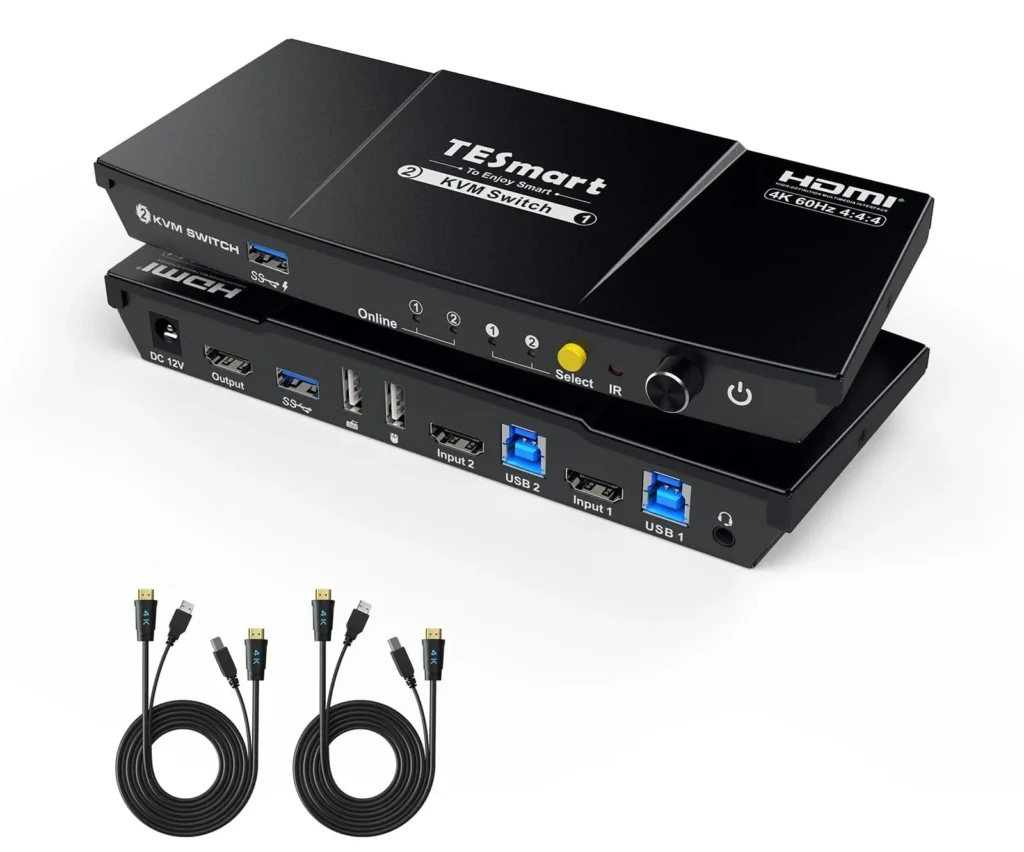
4. TESmart HKS201-P23-V2
BEST FOR EDID
Best for: Students who frequently switch computers and want to reduce display reconnection problems.
Pros
- EDID emulation
- Supports 4K/60Hz HDMI output
- USB 3.0 peripheral sharing
- Front-panel switching
- Infrared remote included
- Keyboard hotkey support
- Automatic scanning feature
Cons
- Expensive for a single-monitor KVM
- Only one monitor supported
- Requires external power
- Advanced keyboard features may depend on connection mode
- No laptop Power Delivery charging
The TESmart HKS201-P23-V2 focuses on an issue that basic KVM switches sometimes overlook: display stability.
When a computer loses its connection to a monitor, the operating system may rearrange windows, change display settings, or temporarily treat the monitor as disconnected.
This can be particularly frustrating when repeatedly switching between two research computers.
TESmart addresses the problem with EDID emulation.
EDID is information that a monitor communicates to a computer about its supported display modes.
By maintaining this information, an EDID-enabled KVM can reduce display reinitialization and help preserve window layouts when switching.
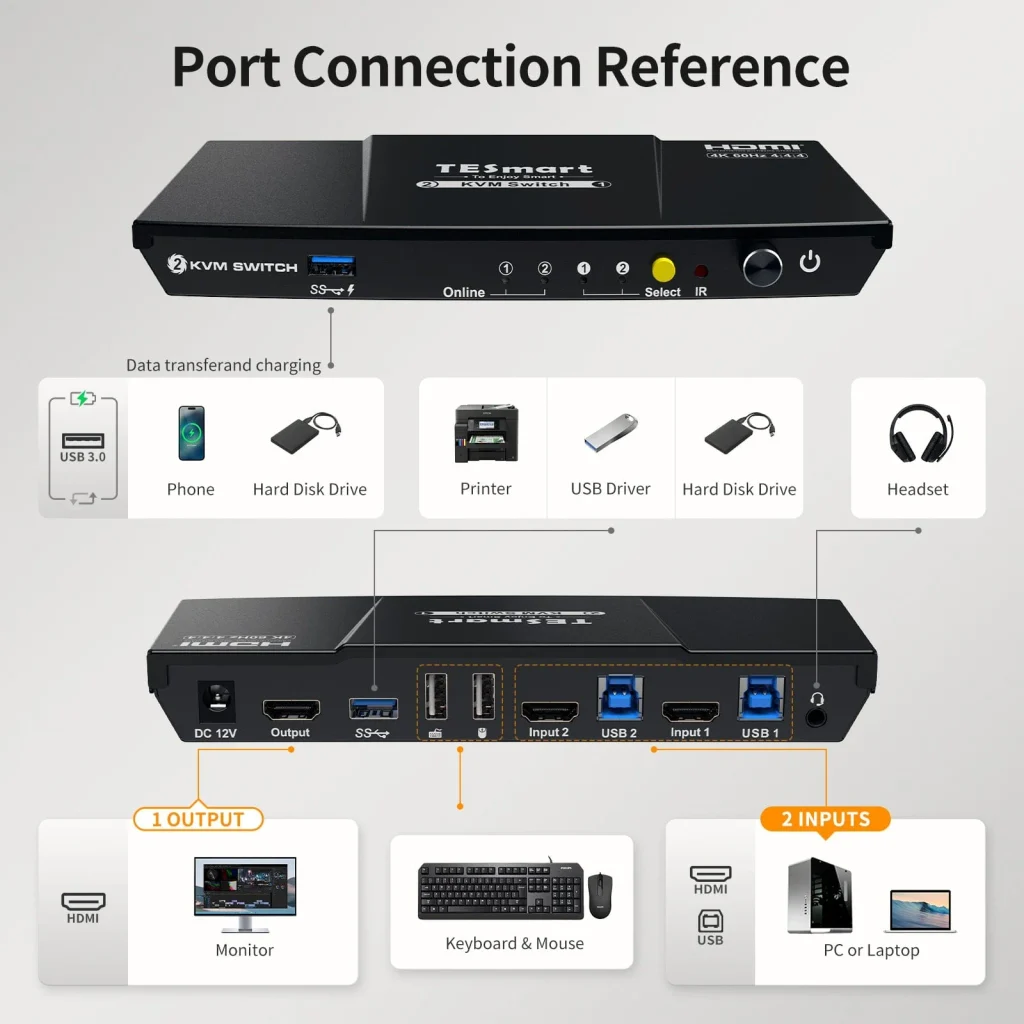
The TESmart also supports HDMI output up to 4K/60Hz and USB 3.0 peripherals.
Multiple switching methods provide additional flexibility, including front-panel controls, an infrared remote, and supported keyboard shortcuts.
At the observed Prime price of $123.49, it is significantly more expensive than the UGREEN and BENFEI single-monitor alternatives.
For occasional switching, the extra cost may not be justified.
However, students who frequently alternate between computers and value a consistent desktop layout may appreciate its specialized features.
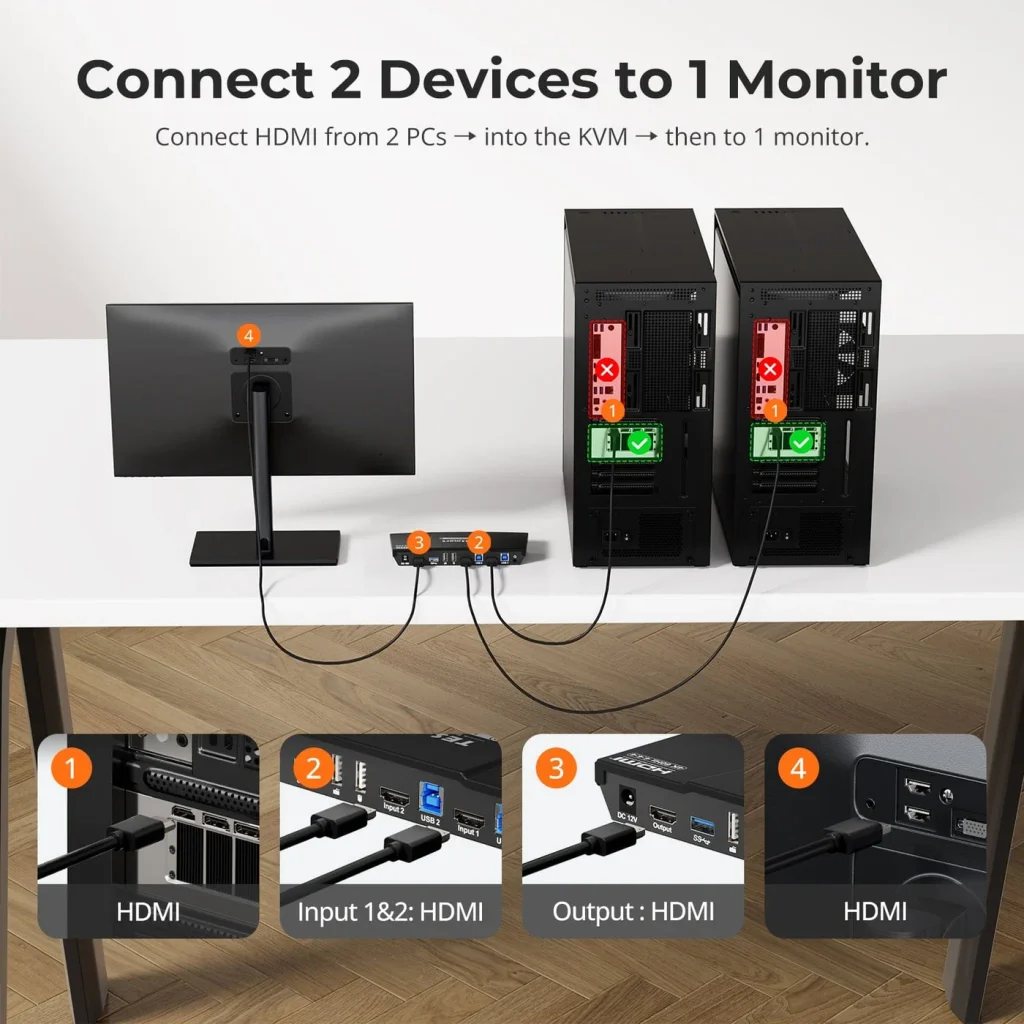
We recommend TESmart for students who:
- Switch computers frequently throughout the day
- Want to reduce window rearrangement
- Use one external monitor
- Prefer keyboard shortcuts or remote control
- Need a more configurable workstation
This may be useful in research environments where one computer operates specialized software while another handles documentation and analysis.
| Specification | Details |
|---|---|
| Model | TESmart HKS201-P23-V2 |
| Computers | 2 |
| Monitors | 1 |
| Video interface | HDMI 2.0 |
| Maximum resolution | 4K/60Hz |
| USB connectivity | USB 3.0 |
| EDID emulation | Yes |
| Switching | Front panel, IR remote, hotkeys |
| Automatic scanning | Supported |
| Laptop charging | No |
| Observed Amazon price | $123.49 Prime / $129.99 regular |
| Amazon rating | 4.1/5 |
| Monthly purchases | 100+ |
Compatibility note: EDID emulation can reduce display-related disruptions, but it cannot guarantee that every operating system and application will preserve window placement under all conditions. Some keyboard shortcut features also depend on the selected keyboard connection mode.
5. AV Access iDock C10
BEST FOR LAPTOP & DESKTOP
Best for: Students building a permanent workstation around a USB-C laptop and a desktop computer.
Pros
- Combines KVM switching and docking functions
- Two external monitor outputs
- Up to dual 4K/60Hz on supported systems
- 60W USB-C laptop charging
- Gigabit Ethernet
- Multiple USB ports
- EDID emulation
- SD card reader
Cons
- Most expensive option in our comparison
- Mac USB-C dual-display output is limited
- 60W charging may be insufficient for powerful laptops
- Larger than compact KVM switches
- More complicated initial setup
The AV Access iDock C10 is more than a conventional KVM switch.
It combines a dual-monitor KVM with docking-station features, making it particularly suitable for students who use both a personal laptop and a permanent desktop computer.
A compatible USB-C laptop can connect through one cable for video, USB connectivity, and up to 60W charging.
The desktop connects through separate HDMI, DisplayPort, and USB connections.
Once configured, both systems can share the connected monitors and peripherals.
The iDock C10 also provides Gigabit Ethernet for the laptop, USB connections, audio support, and an SD card reader.
EDID emulation helps reduce display reconnection issues during switching.
This arrangement can be attractive for students who regularly bring a laptop home from university but also maintain a desktop workstation.
However, compatibility requires careful attention.
On macOS, the USB-C laptop connection cannot provide two independent extended external displays through this model. The external monitors mirror each other.
At $203.99, the iDock C10 is a significant investment.
We recommend it only when its integrated docking features genuinely simplify your workstation.
The AV Access iDock C10 is most suitable for students who:
- Own a desktop and USB-C laptop
- Want a permanent dual-monitor workstation
- Need USB-C laptop charging
- Use wired Ethernet and several peripherals
- Prefer fewer cable changes
- Have a larger equipment budget
For students comparing ordinary laptop expansion with more advanced docking solutions, our best USB-C hubs for graduate students guide explains the differences.
| Specification | Details |
|---|---|
| Model | AV Access iDock C10 |
| Computers | 2: one laptop and one desktop |
| Monitors | 2 |
| Maximum video output | Up to dual 4K/60Hz |
| Laptop connection | USB-C |
| Desktop video inputs | HDMI + DisplayPort |
| USB data | Up to 5Gbps |
| Ethernet | Gigabit, laptop connection |
| EDID emulation | Yes |
| Laptop charging | Up to 60W |
| SD card reader | Yes |
| Observed Amazon price | $203.99 |
| Amazon rating | 4.0/5 |
| Monthly purchases | 50+ |
Important Mac compatibility warning: The iDock C10’s USB-C laptop connection does not support two independent extended external displays on macOS. Mac users requiring dual extended displays should consider a different compatible solution.
How to Choose the Best KVM Switch for Graduate School
KVM switches can make multi-computer workstations more convenient, but they also introduce compatibility requirements.
Before buying, consider the following factors.
1. Decide How Many Monitors You Need
The first decision is whether you want to share one or two monitors.
Single-monitor KVM switches are generally simpler and more affordable.
They are suitable for students who use one main display for writing, programming, or research.
Dual-monitor KVM switches offer more workspace but usually require additional connections.
For example, the UGREEN 55455 requires two HDMI video signals from each computer.
If your laptop has only one HDMI output, you may need compatible additional hardware to provide the second independent display signal.
Our recommendation: Choose the number of monitors first, then confirm that both computers can support the required connections.
2. Check HDMI, DisplayPort, and USB-C Compatibility
Different KVM switches use different connection types.
An HDMI KVM generally requires HDMI video connections from each computer.
A more advanced KVM dock may support a USB-C laptop connection alongside HDMI and DisplayPort inputs from a desktop.
Importantly, a USB-C port does not automatically support video output.
Some ports are intended only for USB data or charging.
When comparing products, check exactly which connectors carry video, data, and power.
This is particularly important for students connecting modern laptops to older research equipment.
3. Understand Resolution and Refresh Rate
A KVM switch must support the resolution and refresh rate you want to use.
For everyday research, 4K/60Hz is generally a practical target.
It provides a sharp image and smooth desktop interaction on a compatible monitor.
Some products advertise 8K/60Hz or higher refresh rates at lower resolutions.
However, achieving these specifications requires compatible graphics hardware, monitors, and cables.
Do not pay extra for 8K support unless your display setup can actually benefit from it.
For most academic writing, programming, and data analysis, a reliable 4K/60Hz connection is sufficient.
4. Consider EDID Emulation
EDID emulation is worth considering if you frequently switch between computers.
Without suitable display emulation, a computer may detect that its monitor has disconnected when switching away.
This can cause temporary display interruptions or window rearrangement.
EDID-enabled switches, such as the TESmart HKS201-P23-V2 and AV Access iDock C10, are designed to reduce these issues.
However, EDID emulation does not guarantee identical behavior across every operating system, graphics driver, or application.
Our recommendation: Prioritize EDID emulation when consistent window placement matters more than minimizing price.
5. Understand Mac Dual-Monitor Limitations
Mac users should be especially careful when choosing USB-C KVM docking stations.
Some Windows-oriented docks rely on Multi-Stream Transport, or MST, to provide multiple independent displays through a single connection.
macOS does not support MST-based dual extended displays in the same way.
As a result, a dock may support two independent external monitors on Windows but only mirrored output through its USB-C connection on a Mac.
The AV Access iDock C10 is one example.
Before purchasing, verify the exact Mac model, chip, available ports, and display configuration.
6. Consider Whether You Need Laptop Charging
Most conventional HDMI KVM switches do not charge laptops.
They switch video and USB connections, while the laptop continues using its normal charger.
Some KVM docking stations provide USB-C Power Delivery.
For example, the AV Access iDock C10 supports up to 60W laptop charging.
However, 60W may not be enough for a high-performance laptop under heavy workloads.
Check the original charger’s power rating and your laptop’s charging requirements before relying on a KVM dock for power.
Frequently Asked Questions
What Is the Difference Between a KVM Switch and a USB Switch?
A USB switch shares USB peripherals between computers.
A KVM switch also switches video signals, allowing computers to share a monitor along with a keyboard and mouse.
If you need to switch only USB devices, a basic USB switch may be more affordable.
Can I Connect Two Computers to One Monitor?
Yes.
A single-monitor KVM switch can connect two compatible computers to one display.
You select which computer appears on the monitor.
Can I Use a KVM Switch With a MacBook?
Yes, provided the MacBook supports the required connections.
However, USB-C docking stations and dual-monitor setups may have additional macOS compatibility restrictions.
Check the manufacturer’s specifications before buying.
Do KVM Switches Reduce Image Quality?
A compatible digital KVM should pass the supported video signal without intentionally reducing resolution.
However, an insufficiently rated KVM or cable can limit the available resolution or refresh rate.
Always verify the entire video connection.
Can I Use a Wireless Keyboard and Mouse?
Many KVM switches support wireless peripherals through compatible USB receivers.
Bluetooth-only devices may behave differently, and advanced keyboard functions may not work through every emulated keyboard port.
Consult the KVM manufacturer’s compatibility guidance.
Do I Need EDID Emulation?
Not necessarily.
For occasional switching, a basic KVM may be sufficient.
If switching computers regularly causes windows to move or display settings to change, an EDID-enabled model may provide a better experience.
Which KVM Switch Should You Choose?
For graduate students who use two external monitors, our preferred choice is the UGREEN Dual Monitor HDMI KVM (55455).
It combines dual 4K/60Hz support, USB 3.0 connectivity, and relatively accessible pricing.
If you only use one monitor and want to minimize spending, the BENFEI USB 3.0 HDMI KVM is the most affordable option in our comparison.
The UGREEN 25961 is suitable for students who prefer a dedicated single-monitor model with high-resolution HDMI support and USB-C peripheral connectivity.
The TESmart HKS201-P23-V2 is worth considering when EDID emulation and more flexible switching controls are priorities.
Finally, the AV Access iDock C10 is designed for students who want to combine a laptop, desktop, dual monitors, and docking features into one permanent workstation.
The right choice depends on the number of monitors you use, your computer connections, and how often you switch between systems.
Final Verdict: Best KVM Switches for Graduate Students in 2026
A KVM switch can simplify a research workstation by allowing two computers to share displays and peripherals.
Here are our final recommendations:
| Category | Recommended KVM Switch |
|---|---|
| Best Overall | UGREEN Dual Monitor HDMI KVM (55455) |
| Best Budget | BENFEI USB 3.0 HDMI KVM |
| Best for Single Monitor | UGREEN 8K HDMI KVM (25961) |
| Best for EDID | TESmart HKS201-P23-V2 |
| Best for Laptop & Desktop | AV Access iDock C10 |
Our top pick is the UGREEN Dual Monitor HDMI KVM Switch.
Its combination of dual-monitor support, USB connectivity, and pricing makes it an attractive choice for students who already use two displays.
However, the BENFEI provides a much cheaper option for single-monitor workstations.
For more demanding setups, the TESmart and AV Access models offer specialized features worth considering.
Before purchasing, confirm your computer’s video outputs, monitor requirements, and operating-system compatibility.
Choosing the right KVM switch can make working across multiple computers more convenient without requiring duplicate monitors and peripherals.