
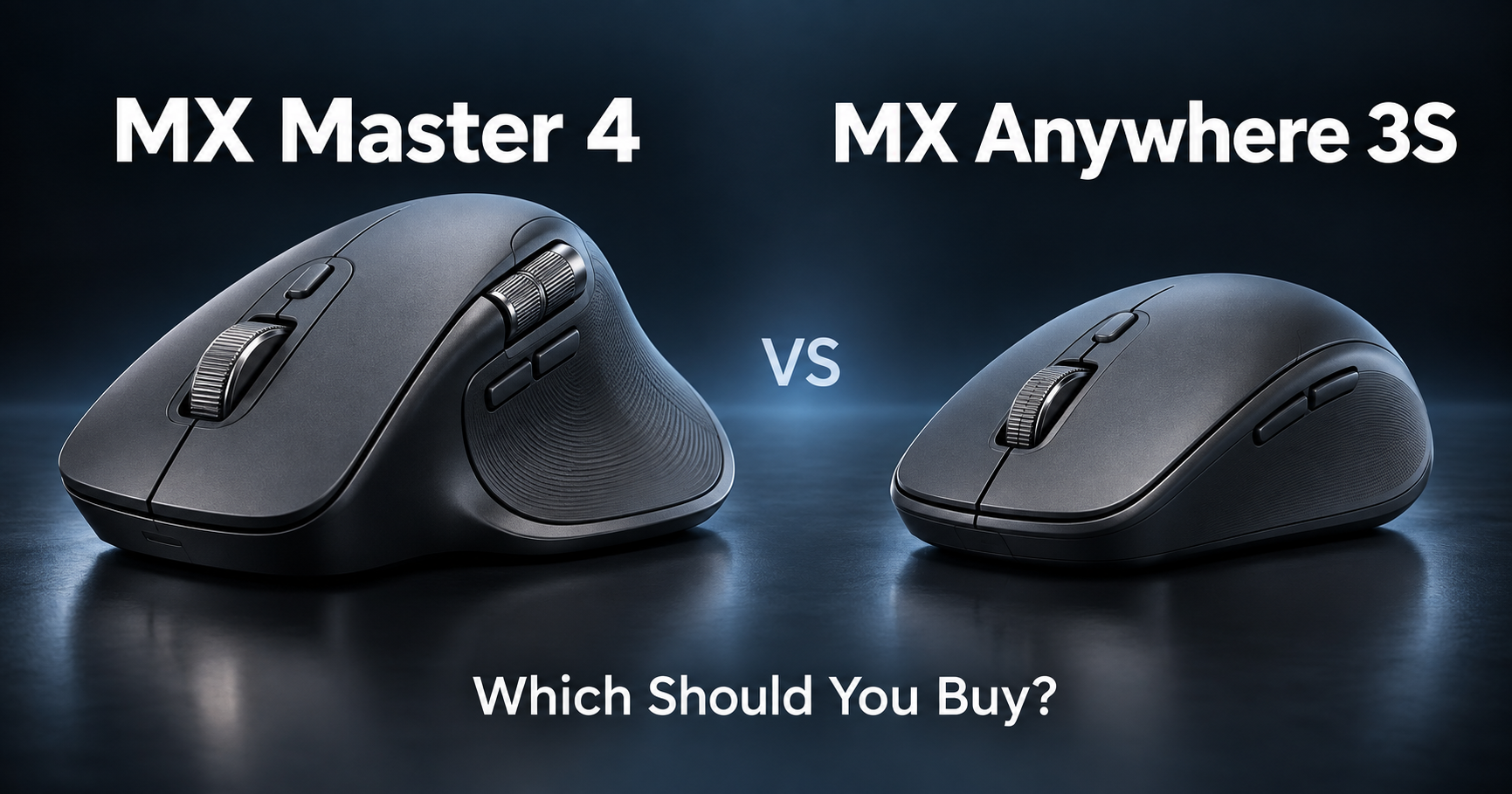
Logitech MX Master 4 or MX Anywhere 3S?
Both are premium wireless mice designed for productivity, and both use Logitech’s 8,000 DPI Darkfield tracking, MagSpeed scrolling, USB-C charging, and multi-device connectivity.
But they are built for very different kinds of work.
Here is the short answer:
Get the MX Master 4 if you spend most of your time working at a desk and want maximum comfort, controls, and customization.
Get the MX Anywhere 3S if you move between the lab, library, office, classroom, and cafés and want a much smaller mouse that is easy to carry.
The MX Master 4 weighs 150g and adds a thumb wheel, Haptic Sense Panel, Actions Ring, and more controls.
The MX Anywhere 3S weighs just 99g and gives you most of the important productivity features in a much smaller package. Logitech rates both for up to 8,000 DPI and up to 70 days of battery life.
If you are still comparing other options, see our best wireless mice for graduate students.
Table of Contents
Quick Comparison
| Logitech MX Master 4 | Logitech MX Anywhere 3S | |
|---|---|---|
| Best for | Permanent desk setups | Portable work |
| Weight | 150g | 99g |
| Maximum DPI | 8,000 | 8,000 |
| MagSpeed wheel | Yes | Yes |
| Thumb wheel | Yes | No |
| Haptic feedback | Yes | No |
| Actions Ring | Yes | No |
| Quiet clicks | Yes | Yes |
| Multi-device | Up to 3 | Up to 3 |
| Battery life | Up to 70 days | Up to 70 days |
| Quick charge | 1 min ≈ 3 hours | 1 min ≈ 3 hours |
| Glass tracking | Yes | Yes |
| Best advantage | Controls and workflow | Portability |
Logitech currently lists the MX Master 4 at $119.99 and the MX Anywhere 3S at $89.99 in the U.S., though Amazon pricing can change frequently.
Desk Work vs Portable Work
This is the easiest way to decide between them.
MX Master 4: Built for the desk
The MX Master 4 is a large productivity mouse.
It measures about 128.2 × 88.4 × 50.8 mm and weighs 150g.
That makes it much more substantial than the Anywhere 3S.
The larger body gives Logitech space for:
- a thumb wheel
- back and forward buttons
- gesture controls
- the Haptic Sense Panel
- the Actions Ring
- the MagSpeed main scroll wheel
If your mouse spends most of its life beside the same laptop or desktop monitor, the extra size is not really a problem.
MX Anywhere 3S: Built to move
The MX Anywhere 3S is only about 100.5 × 65 × 34.4 mm and weighs 99g.
That is a 51g difference.
You will notice that much more in a backpack than on a desk.
For graduate students who regularly move between different workplaces, the smaller size is a real advantage.
Desk setup → MX Master 4
Backpack → MX Anywhere 3S
Comfort and Long Work Sessions
MX Master 4 has the advantage.
If you regularly spend several hours at a time:
writing papers,
coding,
editing figures,
working in Excel,
or browsing research papers,
I would lean toward the MX Master 4.
Its larger, sculpted right-handed body is designed around extended desktop use.
The MX Anywhere 3S is much more compact.
That is excellent for portability, but the trade-off is that there is simply less physical mouse to support your hand.
This does not automatically mean everyone will find the MX Master 4 more comfortable — hand size and grip style matter.
But if portability does not matter, I would choose the larger mouse for long workstation sessions.
If you are building a permanent research setup, see our best monitors for graduate students.
Best choice: MX Master 4
Scrolling and Productivity
Both mice use Logitech’s MagSpeed electromagnetic scroll wheel.
That means both can switch between precise ratcheted scrolling and very fast free scrolling.
Logitech says the wheel can move through up to 1,000 lines per second.
That is useful for:
long PDFs,
large spreadsheets,
code,
web pages,
and long documents.
Where MX Master 4 pulls ahead
The MX Master 4 also has a separate thumb wheel for horizontal scrolling.
That becomes useful in:
Excel,
large timelines,
wide datasets,
video editing,
and applications with horizontal workspaces.
The MX Anywhere 3S can still perform horizontal scrolling through software/button combinations, but it does not have a dedicated thumb wheel.
For normal vertical scrolling, both are excellent.
For complex desktop workflows:
Best choice: MX Master 4
Customization and Haptic Controls
This is where the MX Master 4 becomes much more than just a larger Anywhere 3S.
Haptic Sense Panel
The MX Master 4 includes Logitech’s Haptic Sense Panel.
It can provide configurable tactile feedback during supported actions and also opens the Actions Ring.
The idea is simple:
instead of constantly moving your pointer to toolbars or memorizing keyboard shortcuts, you can open a radial menu around the cursor and trigger actions from there.
You can also customize controls for different applications through Logitech software.
For example:
Excel → horizontal scrolling or spreadsheet actions
PowerPoint → zooming or object controls
creative software → application-specific shortcuts
Logitech also supports app-specific button assignments.
MX Anywhere 3S keeps things simpler
The Anywhere 3S has six main buttons and supports customization through Logi Options+.
You can assign functions and create application-specific workflows, but it lacks the dedicated haptic system and Actions Ring hardware of the Master 4.
For most users, this is not essential.
For people who genuinely customize their workflow:
Best choice: MX Master 4
Tracking and Different Surfaces
This is basically a tie.
Both mice use Logitech’s Darkfield sensor and support up to 8,000 DPI.
Both are also designed to track on glass and other difficult surfaces.
That matters more for graduate students than it might sound.
You may end up working on:
a library desk,
glass conference table,
hotel table,
lab bench,
café table,
or whatever small surface happens to be available.
You do not always have a mouse pad.
The MX Anywhere 3S especially makes sense here because its small size and surface flexibility reinforce the same use case: work wherever you happen to be.
What about 8,000 DPI?
You probably will not use the mouse at 8,000 DPI all the time.
But the higher range is useful if you work with:
4K monitors,
ultrawide displays,
multiple monitors,
or simply prefer high pointer sensitivity.
Tracking quality → Tie
Tracking + portability → MX Anywhere 3S
Multi-Device and Laptop Workflows
Both mice can work with multiple devices.
The MX Anywhere 3S can connect with up to three devices and switch between them.
The MX Master 4 also supports multi-device switching, including through its Easy-Switch controls and compatible Logitech software.
This is useful if your desk looks something like:
Windows research PC
personal MacBook
another laptop or tablet.
Instead of keeping a separate mouse for each device, you can use one mouse across several systems.
Logitech Flow can also allow compatible computers to share cursor movement and transfer items between systems through Logi Options+.
If you also switch between multiple computers regularly, pairing the mouse with one of our best wireless keyboards for graduate students can create a much cleaner workspace.
Best choice: Either
Battery Life and Charging
Another tie.
Logitech rates both mice for up to 70 days on a full charge.
Both also support fast USB-C charging, with roughly three hours of use from a one-minute charge.
That means battery life should not be the deciding factor.
You can go weeks without thinking about charging either mouse.
And if the battery is nearly empty before leaving for university, plugging it in for a few minutes can provide enough power for a work session.
One small consideration:
the MX Anywhere 3S consumer version supports Bluetooth and works with a Logi Bolt receiver, but Logitech notes that the Bolt receiver is not included with the standard consumer model.
If you specifically want a receiver rather than Bluetooth, check what is included with the exact Amazon listing you buy.
Best choice: Tie
Which One Is Better for Graduate Students?
For a permanent research desk: MX Master 4.
Imagine your normal day involves:
three hours writing,
two hours coding,
Excel,
PDFs,
browser research,
data analysis,
and multiple monitors.
The MX Master 4 makes more sense.
You get:
the larger body,
dedicated horizontal scrolling,
more controls,
haptic feedback,
Actions Ring,
and deeper workflow customization.
It is the mouse I would choose if I expected to use it at the same desk for several years.
For students who move around: MX Anywhere 3S.
Now imagine your day involves:
home,
university,
lab,
library,
café,
conference,
hotel.
In that situation, I would rather carry the 99g Anywhere 3S.
You still get:
8,000 DPI,
MagSpeed scrolling,
quiet clicks,
multi-device support,
USB-C charging,
and up to 70 days of battery life.
You lose some controls.
But you save weight and bag space.
For mobile setups, see our best laptop stands for graduate students for more portable desk options.
The Easiest Way to Decide
| Your situation | Buy this |
|---|---|
| I mainly work at one desk | MX Master 4 |
| I carry my mouse every day | MX Anywhere 3S |
| I want the lightest option | MX Anywhere 3S |
| I work for hours at a workstation | MX Master 4 |
| I use Excel heavily | MX Master 4 |
| I want a thumb wheel | MX Master 4 |
| I want haptic feedback | MX Master 4 |
| I want the Actions Ring | MX Master 4 |
| I work in cafés and libraries | MX Anywhere 3S |
| I need glass-surface tracking | Either |
| I use several computers | Either |
| I want up to 70-day battery life | Either |
| I want to spend less | MX Anywhere 3S |
So, Which Should You Buy?
Buy the Logitech MX Master 4 if:
You mostly work at a permanent desk.
You spend long hours using a mouse.
You want a dedicated horizontal scroll wheel.
You use spreadsheets or large timelines.
You want haptic feedback and Actions Ring shortcuts.
You like heavily customizing your productivity workflow.
You do not mind carrying a 150g mouse.
Buy the Logitech MX Anywhere 3S if:
You regularly take your mouse to university.
You work in libraries, cafés, labs, or conference venues.
You want a compact 99g mouse.
You still want MagSpeed scrolling and 8,000 DPI tracking.
You want strong battery life without paying for features you may never use.
You prefer portability over maximum controls.
Final Thoughts
The MX Master 4 and MX Anywhere 3S share more technology than their designs initially suggest.
Both give you:
8,000 DPI tracking,
MagSpeed scrolling,
quiet productivity-focused operation,
multi-device support,
USB-C charging,
and long battery life.
The real difference is where you work.
The MX Master 4 is a workstation mouse.
It makes the most sense when your mouse stays on the same desk and you can actually benefit from the extra controls, thumb wheel, haptics, and larger body.
The MX Anywhere 3S is a mobile productivity mouse.
It keeps the features that matter most, removes some of the advanced controls, and reduces the weight to just 99g.
So the simple answer is:
Permanent research desk → Logitech MX Master 4.
Laptop bag and mobile work → Logitech MX Anywhere 3S.
Still comparing mice?
See our best wireless mice for graduate students.
And if you are building a complete desk setup, see our best wireless keyboards for graduate students.