

If you’re opening Gamma for the first time, this guide will walk you through the entire process step by step. I’ll create a presentation from scratch so you can follow along on your own screen.
This article contains affiliate links. If you sign up through one of them, I may earn a commission at no extra cost to you.
Step 1: Open the Gamma dashboard
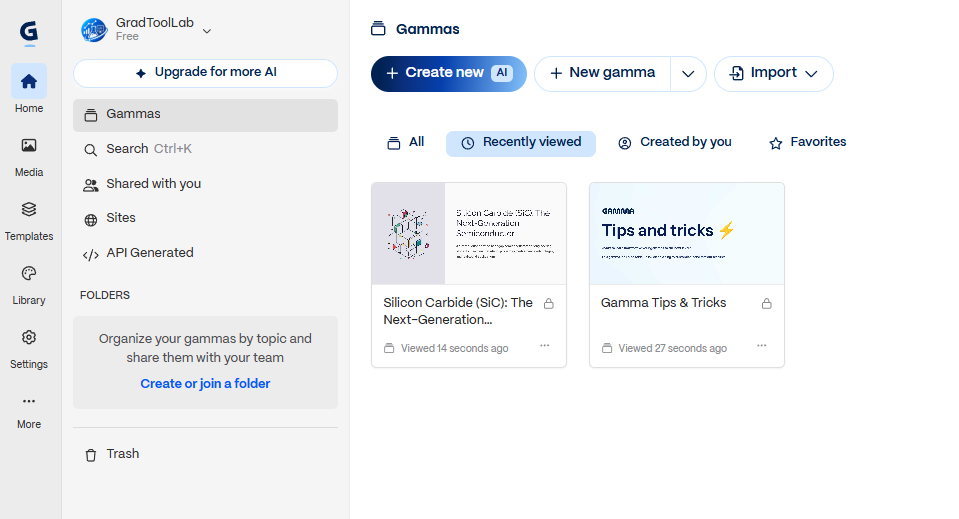
After signing in to Gamma, you’ll land on the main dashboard. From here, you can create a new presentation, import an existing file, or reopen projects you’ve already created.
Step 2: Choose how you want to create your presentation
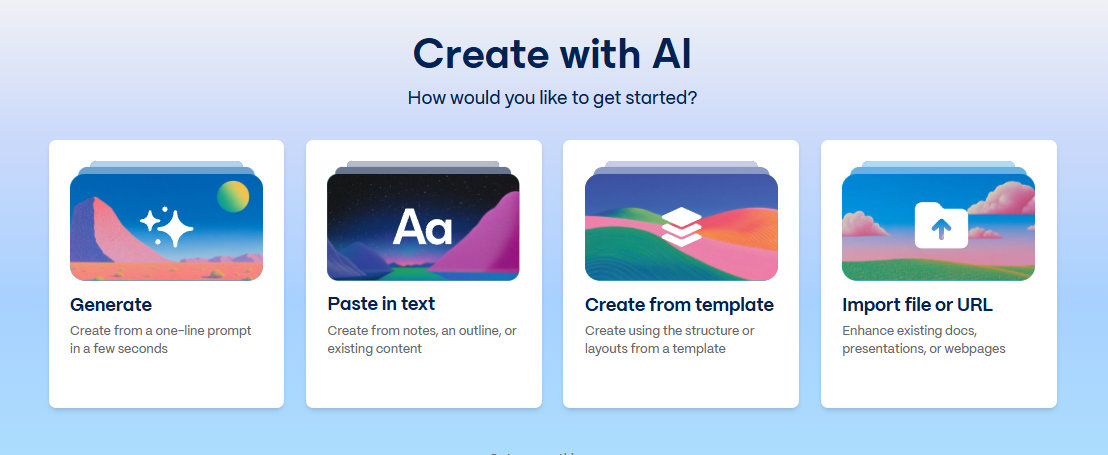
After clicking Create new AI, Gamma gives you several ways to get started. You can generate a presentation from a short prompt, paste in existing text, start from a template, or import a file or URL.
For this beginner guide, I’m starting from scratch, so I’ll choose Generate.
Step 3: Enter a prompt for your presentation
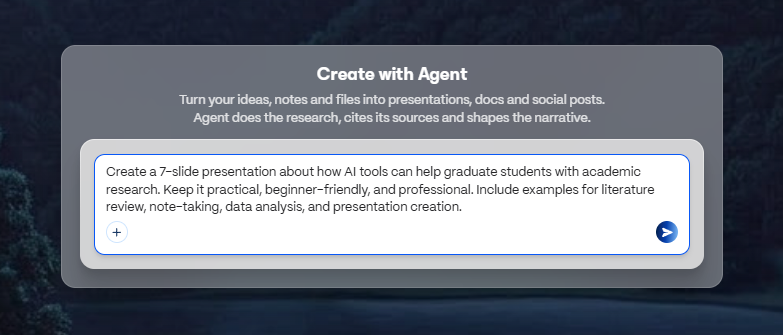
After choosing Generate, Gamma opens the Create with Agent prompt box. This is where you describe what you want Gamma to create.
You don’t need to write a complicated prompt. I recommend including the topic, intended audience, approximate number of slides, and a few things you want the presentation to cover.
For this example, I used:
“Create a 7-slide presentation about how AI tools can help graduate students with academic research. Keep it practical, beginner-friendly, and professional. Include examples for literature review, note-taking, data analysis, and presentation creation.”
Step 4: Review the AI-generated outline
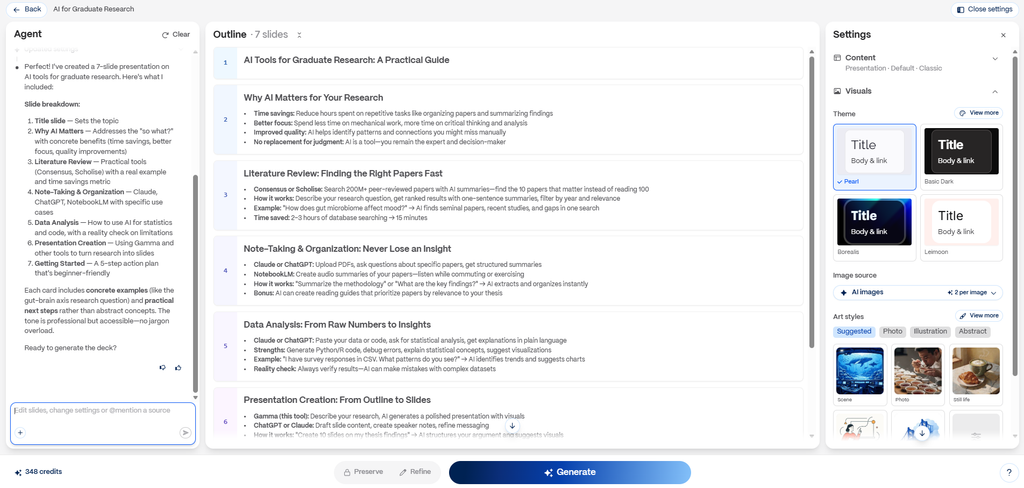
Gamma now creates an outline before generating the final presentation. In my case, it turned the prompt into a 7-slide structure covering why AI matters for research, literature review, note-taking, data analysis, presentation creation, and getting started.
This is a useful point to check whether Gamma understood your prompt correctly. You can edit the slide titles or content before generating the deck if anything looks off.
On the right side, you can also choose a theme, image source, and visual style. For this walkthrough, I’ll keep the default settings and see what Gamma creates automatically.
The first outline was already close to what I had in mind, so I didn’t make any manual changes.
Step 5: Let Gamma generate the presentation
Once you’re happy with the outline, click Generate. Gamma will start building the slides one by one, including the layout, text, and visuals.
In my test, Gamma created the full 7-slide presentation automatically. I didn’t choose a custom theme or manually arrange the slides beforehand, so this is the result using the default settings.
The first draft was already structured well enough to use as a starting point, although I would still review the wording, facts, and visuals before presenting it.
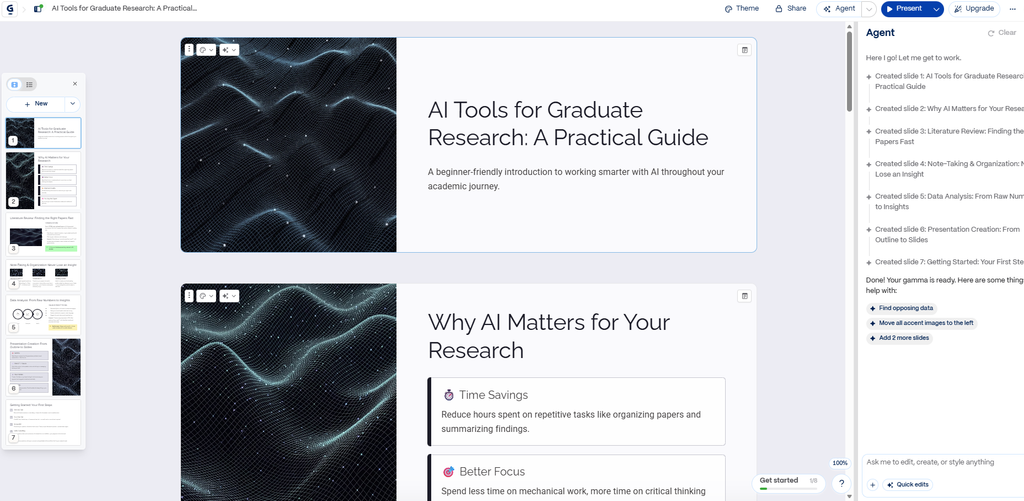
Step 6: Review and edit AI-generated claims
The first draft looked polished, but I noticed a claim I wouldn’t want to use without checking the source.
Gamma originally said that “2–3 hours of database searching” could be reduced to “15 minutes.” It also grouped different research tools under a specific paper-count claim.
Instead of editing everything manually, I asked Gamma’s Agent to revise only this slide, remove unsupported numerical claims, and add a reminder to verify original sources.
The revised version kept the same overall layout while replacing the questionable claims with more cautious wording.
This was a good reminder that Gamma can create a strong first draft very quickly, but I still wouldn’t use an AI-generated presentation without reviewing the facts myself.
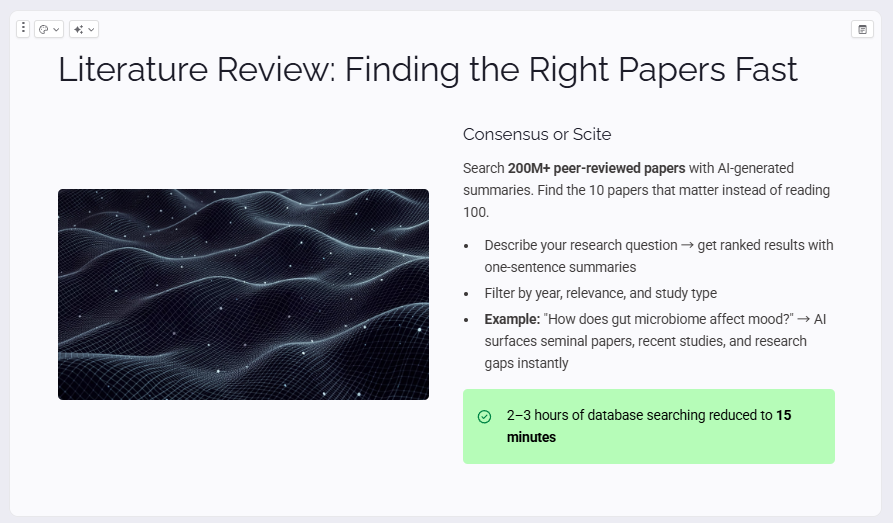
Before: Gamma’s original slide
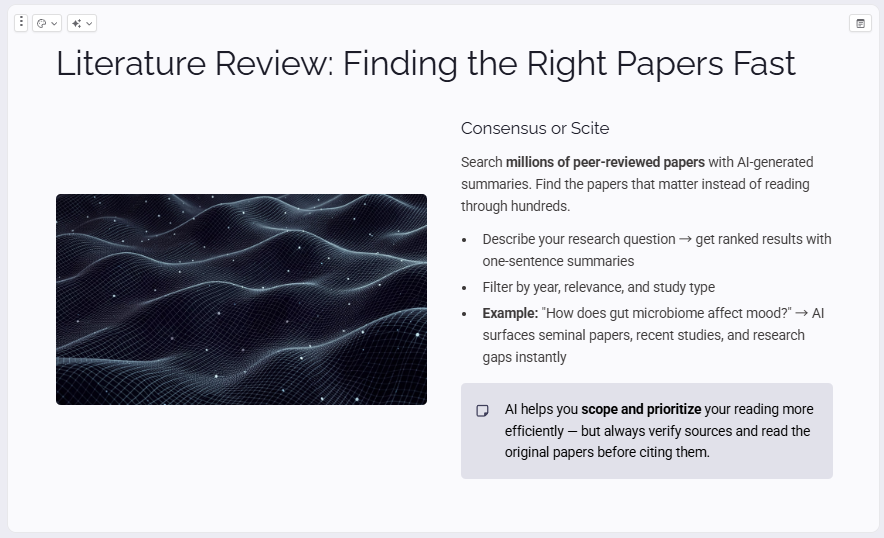
After: Revised with Gamma Agent
Prompt I gave Gamma Agent
Revise only this slide to make the claims more accurate and trustworthy. Keep the current layout and overall design. Remove the unsupported claim that 2–3 hours of database searching can be reduced to 15 minutes. Avoid specific time-saving claims unless they are supported by a source. Also avoid implying that every literature search tool covers the same number of papers. Keep the slide practical and beginner-friendly, and add a short reminder that AI can help find relevant papers faster, but researchers should still verify sources and read the original papers.
Gamma followed the instruction surprisingly well. It kept the overall design, removed the unsupported numerical claim, and added a more responsible reminder to verify the original sources.
Step 7: Export your presentation as a PDF
Once you’re happy with your presentation, click Share in the top-right corner and select Export.
Gamma lets you export all slides or only selected slides. You can also choose the export quality and download your presentation as a PDF, PowerPoint file, or send it to Google Slides.
For this tutorial, I kept the Standard (Default) quality setting and selected Export to PDF.
Before exporting, Gamma warned me that four slides contained overflowing content. Rather than changing the layout immediately, I exported the PDF first so I could check whether the warning actually affected the final file.
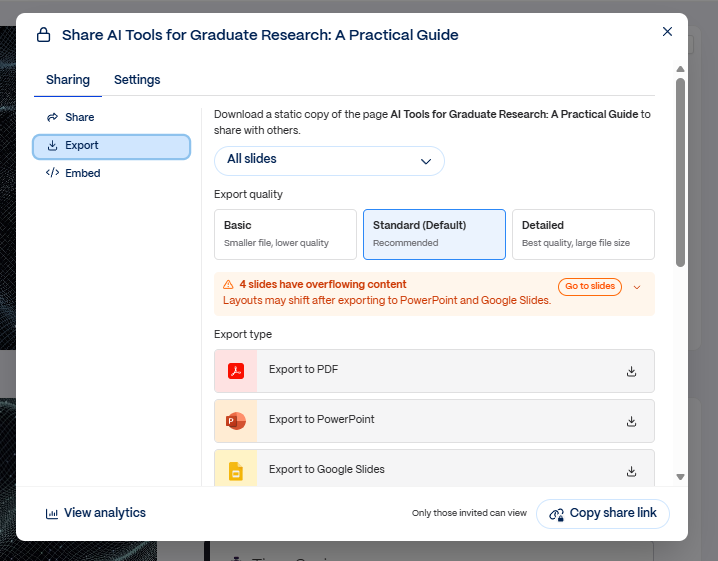
Step 8: Check the exported PDF
After exporting, I opened the PDF and checked each slide individually.
Gamma had warned me that four slides contained overflowing content, but in the exported PDF, all seven slides rendered correctly in my test. I didn’t notice any obvious text clipping or major layout problems.
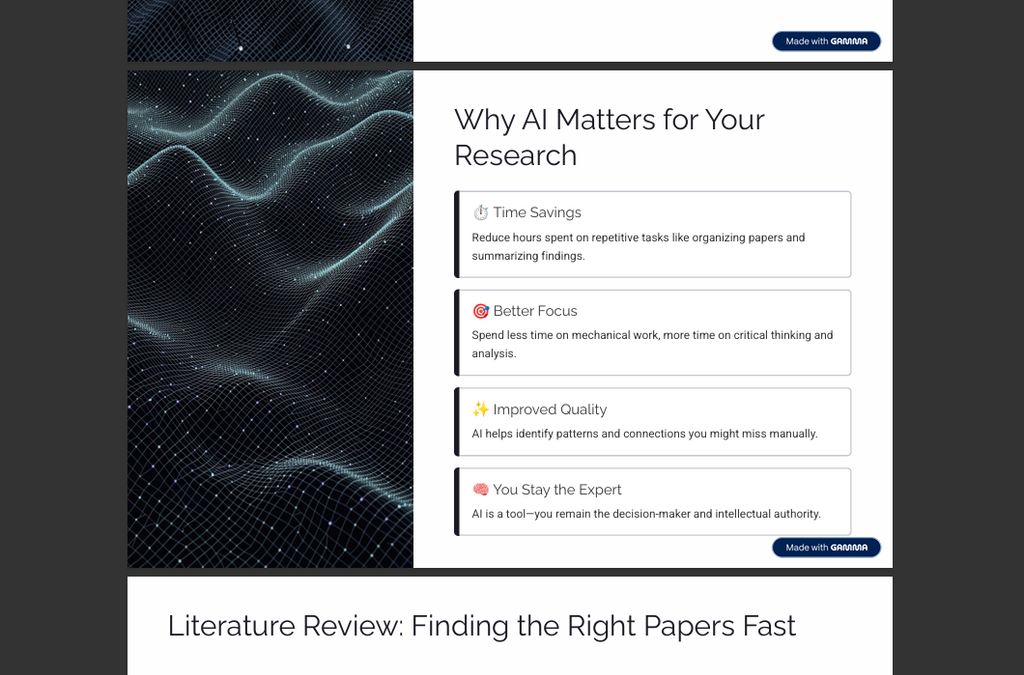
I’d still recommend checking every page yourself before sharing or presenting the file. The editing view and the exported version can look slightly different, and AI-generated content should also get a final accuracy check.
In this case, the overflow warning looked more serious than the final result actually was.
See the presentation I created with Gamma
Here’s the final presentation I created while writing this tutorial. I started with the prompt shown above, reviewed Gamma’s first draft, corrected an unsupported claim with Gamma Agent, and exported the finished presentation as a PDF.
Because I created and exported this presentation on Gamma’s free plan, the PDF includes a “Made with Gamma” watermark. This is worth keeping in mind if you plan to use Gamma for a formal presentation or client-facing material.
Final thoughts: Is Gamma easy to use for beginners?
After going through the process from scratch, I think Gamma is genuinely easy to get started with. The most useful part for me was how quickly it turned a simple prompt into a structured presentation that already looked polished.
That said, I wouldn’t treat the first draft as finished. In this tutorial, Gamma generated a specific claim that I wasn’t comfortable using without a source, so I asked the Agent to revise it. I also checked the exported PDF myself before considering the presentation finished.
For me, that’s probably the best way to use Gamma: let AI handle the first draft and layout, then use your own judgment to review and improve the result.
Want to try Gamma yourself?
If you want to follow the same steps, you can open Gamma and create your first presentation from scratch.