Using two computers at the same desk doesn’t mean you need separate keyboards, mice, and monitors.
Both USB switches and KVM switches can simplify a dual-computer setup, but they serve different purposes.
Choose a USB switch if you only need to share USB peripherals. Choose a KVM switch if you also want to share a monitor.
In this guide, we’ll compare their features, costs, compatibility, and practical uses to help you choose the right solution for your research or home workstation.
Amazon Affiliate Disclosure: As an Amazon Associate, GradToolLab earns from qualifying purchases at no additional cost to you.
Editorial Note: This comparison is based on manufacturer specifications, publicly available product information, and practical workstation requirements. We have not independently tested the products discussed. Prices, compatibility, and availability may change.
USB Switch vs KVM Switch: Quick Comparison
| Feature | USB Switch | KVM Switch |
|---|---|---|
| Primary purpose | Share USB peripherals | Share monitor and USB peripherals |
| Keyboard and mouse sharing | Yes | Yes |
| Monitor video switching | No, not directly | Yes |
| Printer and scanner sharing | Usually | Depends on USB ports |
| External storage sharing | Often supported | Depends on model |
| HDMI/DisplayPort connection | Usually not included | Usually included |
| Number of computers | Commonly 2 | Commonly 2–4 or more |
| Display resolution support | Not applicable to direct video | Depends on model |
| Installation complexity | Usually simple | More cables and compatibility checks |
| Typical cost | Generally lower | Generally higher |
| Best for | Sharing peripherals | Complete dual-computer workstations |
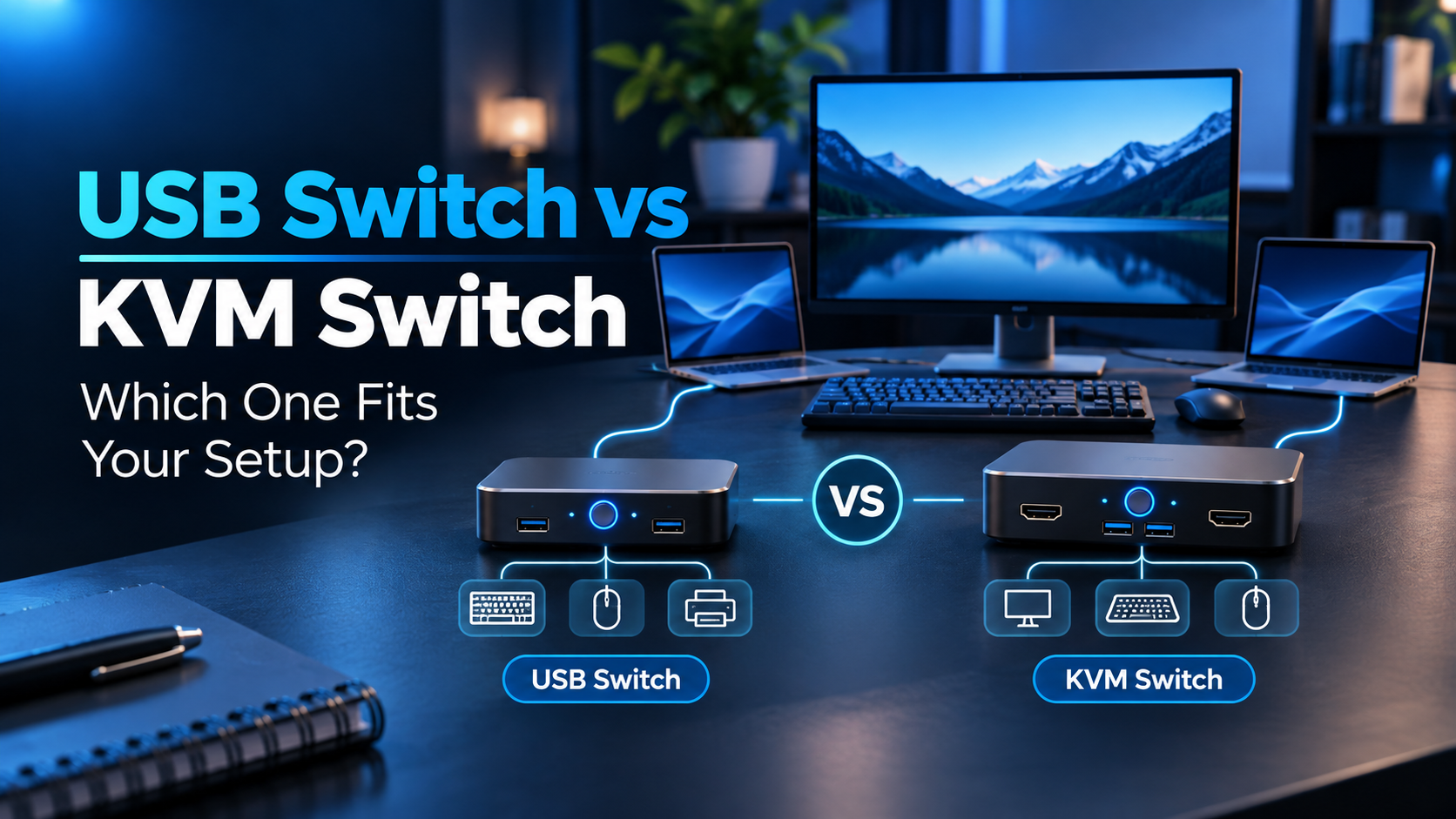
The biggest difference is monitor switching.
A conventional USB sharing switch controls which computer has access to connected USB devices.
A KVM switch can also route video from the selected computer to one or more connected monitors.
If you already have separate displays for each computer, a USB switch may be all you need.
However, if you want your laptop and desktop to share one monitor, a KVM switch is usually the more convenient solution.
What Is a USB Switch?
A USB switch is a device that allows multiple computers to share the same USB peripherals without constantly reconnecting cables.
For example, imagine using a personal laptop alongside a laboratory desktop computer.
Both computers need access to the same keyboard and mouse.
Without a USB switch, you may need to unplug these devices from one computer and connect them to the other whenever you change tasks.
A USB sharing switch eliminates much of this inconvenience.
Your keyboard and mouse remain connected to the switch, while separate USB connections link the switch to both computers.
Pressing a button changes which computer controls the connected peripherals.
Some models also include wired remote buttons that can be positioned conveniently on the desk.
What Can You Connect to a USB Switch?
Depending on the model, common compatible peripherals include:
- USB keyboards
- USB mice
- Printers
- Document scanners
- USB microphones
- USB flash drives
- External storage devices
- Compatible USB hubs
However, not every USB device works reliably with every switch.
High-power devices, specialized laboratory equipment, and certain USB docks may require additional compatibility checks.
What a USB Switch Cannot Do
A conventional USB peripheral sharing switch does not directly switch HDMI or DisplayPort video signals.
This is its most important limitation.
If your laptop and desktop share a monitor, you would normally need to change the monitor’s input separately or use another video-switching solution.
Some specialized USB docking systems can carry video over USB data connections, but this does not mean an ordinary USB sharing switch provides universal monitor switching.
For typical workstations, a KVM switch is the better choice when video switching is required.
Example: UGREEN USB 3.0 Switch (15705)
BEST FOR SHARING USB PERIPHERALS
Best for: Graduate students who want to share a keyboard, mouse, and other USB accessories between two computers without changing monitor connections.
The UGREEN USB 3.0 Switch (15705) is one of the representative USB sharing solutions featured in our existing product guide.
It offers three USB-A peripheral ports and one USB-C peripheral port, allowing users to connect up to four compatible accessories.
The switch supports USB 3.0 data transfer rates of up to 5Gbps under suitable conditions.
It also includes a wired remote switching button.
This allows users to position the main switching unit behind a monitor or beneath a desk while keeping the control button within easy reach.
For example, a graduate student could connect a USB keyboard, mouse, and printer to the switch.
The same peripherals could then be used with either a personal laptop or a laboratory desktop.
However, this model does not directly switch monitor video.
Also, its USB-C peripheral port should not be confused with a USB-C laptop charging or display connection.
Key Features
- Supports two computers
- Three USB-A peripheral ports
- One USB-C peripheral port
- USB 3.0 connectivity
- Up to 5Gbps theoretical USB data rate
- Wired remote switching button
- Optional auxiliary power input
- No direct monitor video switching
For more alternatives, including affordable USB-A switches and models designed for compatible USB hubs, read our guide to the 5 best USB switches for graduate students.
What Is a KVM Switch?
KVM stands for Keyboard, Video, and Mouse.
A KVM switch allows two or more computers to share a set of input devices and one or more monitors.
This makes it particularly useful for students who use several computers at the same desk.
For example, you might have a desktop computer dedicated to data analysis and a personal laptop used for writing papers.
Both computers could share the same monitor, keyboard, and mouse.
Rather than changing the monitor input and reconnecting USB devices separately, a KVM switch can handle both functions together.
Many modern KVM switches also include additional USB ports for compatible peripherals.
How Does a KVM Switch Work?
A typical two-computer KVM setup uses separate connections from each computer to the switch.
These may include:
- HDMI or DisplayPort cables for video
- USB cables for keyboards, mice, and other peripherals
- USB-C connections on compatible docking-style KVM models
The monitor and shared peripherals connect to the KVM switch.
When you change the active computer, the KVM routes the appropriate video signal and connected peripherals to the selected system.
Some KVM switches use physical buttons, while others support remote controls or keyboard shortcuts.
Why KVM Switches Are More Complex
KVM switches need to support both USB communication and video signals.
This introduces additional compatibility considerations.
For example, a KVM switch advertised as supporting 4K at 60Hz may not support 4K at 144Hz.
Likewise, a model designed for one monitor cannot necessarily support two external displays.
The video connections on your computer also matter.
A laptop with USB-C video output may require an appropriate adapter or docking solution to work with an HDMI-based KVM.
For this reason, it is important to verify the complete setup before purchasing.
Example: TESmart HKS201-P23-V2
BEST FOR DISPLAY MANAGEMENT
Best for: Students who want to share a 4K monitor, keyboard, and mouse between two computers while reducing display reconfiguration during switching.
The TESmart HKS201-P23-V2 is a two-computer, single-monitor HDMI KVM switch.
It supports video resolutions up to 3840 × 2160 at 60Hz, provided the computers, monitor, and cables support the required specifications.
The switch also includes USB 3.0 connectivity for sharing compatible peripherals.
One of its most interesting features is EDID emulation.
EDID stands for Extended Display Identification Data.
This information tells a computer about a connected monitor’s display capabilities.
Without appropriate display handling, switching between computers can sometimes cause windows to move, resolutions to change, or desktop layouts to rearrange.
The TESmart includes EDID emulation to help reduce these problems.
This can be particularly useful for graduate students who frequently switch between research applications on different computers.
The HKS201-P23-V2 also offers several switching methods, including a physical button, keyboard hotkeys, and a remote control.
However, its single-monitor design may not suit users who want to share two or more external displays.
Key Features
- Supports two computers
- One HDMI monitor output
- Up to 4K at 60Hz
- USB 3.0 peripheral sharing
- EDID emulation
- Multiple switching methods
- Dedicated keyboard and mouse connections
- Requires compatible HDMI and USB connections
For models with dual-monitor support, more affordable options, and integrated laptop docking features, explore our guide to the 5 best KVM switches for graduate students.
USB Switch vs KVM Switch: 5 Key Differences
Although both devices simplify multi-computer workstations, they differ in several important ways.
1. Monitor Sharing
The most significant difference is the ability to switch monitor video.
A standard USB switch does not directly control which computer sends video to your monitor.
You can share a keyboard and mouse, but you may still need to change the monitor’s input manually.
For example, if one computer connects through HDMI and another through DisplayPort, you might switch between those inputs using the monitor’s built-in controls.
A KVM switch integrates monitor switching with USB peripheral switching.
Pressing one button can change both the active display source and the computer receiving keyboard and mouse input.
This makes a KVM switch more convenient when several computers share one physical display.
Winner: KVM Switch
2. Price and Value
USB switches are generally less expensive because they do not require video-switching hardware.
Basic models can cost relatively little, especially when they only support one or two shared USB peripherals.
More advanced USB switches with multiple ports, remote controls, or additional power options cost more.
KVM switches are usually more expensive.
Prices increase with additional monitor outputs, higher video resolutions, refresh-rate support, USB capabilities, and docking features.
However, buying a KVM switch is not automatically better value.
If you only need to share a keyboard and mouse, paying extra for display switching may be unnecessary.
Conversely, a KVM may be worth the additional expense if it eliminates repeated monitor and cable changes.
Winner: USB Switch for lower-cost peripheral sharing
3. Ease of Installation
USB switches are typically straightforward to install.
You connect your peripherals to the switch and connect the switch to both computers using compatible USB cables.
Most basic models operate without specialized switching software.
However, certain devices may still require their normal drivers.
KVM installation usually involves more connections.
Each computer may need a video cable and a USB cable, while the monitor and shared peripherals connect to the KVM itself.
Some models also require an external power adapter.
The installation becomes more complicated when multiple monitors, high-refresh-rate displays, or USB-C docking features are involved.
For a simple keyboard-and-mouse setup, USB switches are usually easier.
Winner: USB Switch
4. Peripheral Compatibility
Both device categories can share compatible USB peripherals.
However, actual capabilities depend on the model.
USB switches are often designed specifically for sharing keyboards, mice, printers, and other USB accessories.
Some KVM switches also provide USB 3.0 ports for external drives, printers, or additional peripherals.
Others focus primarily on keyboard and mouse connections.
When choosing either device, consider the number of USB ports and whether they support the required USB standard.
For example, transferring research data from an external SSD through a switch may require more bandwidth than connecting a basic keyboard.
Storage devices also require careful handling.
Switching a USB drive between computers while data is being written can interrupt transfers or damage files.
Always stop active transfers and use the appropriate operating-system procedure before disconnecting or switching storage devices.
Winner: Depends on the model and connected devices
5. Desk Organization
Both USB switches and KVM switches can reduce the number of keyboards and mice required on a desk.
However, KVM switches can simplify the entire workstation when multiple computers share the same monitor.
This may be useful for students working with limited desk space in apartments, dormitories, or small research offices.
A USB switch can still create a cleaner environment when separate monitors are already available.
The best option depends on whether you want to share only USB accessories or consolidate the complete workstation.
Winner: KVM Switch for a fully shared desktop setup
Which Is Better for a Graduate Student’s Workstation?
The right choice depends on how you use your computers.
Here are four common academic scenarios.
Scenario 1: Personal Laptop and Laboratory Desktop
Imagine using a personal laptop for writing papers and a laboratory desktop for data analysis.
Both computers are located at the same desk.
If you want to share only a keyboard and mouse while using separate screens, a USB switch is usually sufficient.
However, if you want both computers to share one external monitor, a KVM switch is more convenient.
Recommendation: USB switch for peripheral sharing; KVM switch when sharing the monitor as well.
Scenario 2: Two Computers with One Large Monitor
Suppose you have a large monitor that you want to use with both a desktop PC and a laptop.
You also want to share the same keyboard and mouse.
A KVM switch is the more complete solution because it can switch both the display and USB peripherals.
However, you must verify the monitor’s resolution and refresh-rate requirements.
If you use a 4K monitor, choose a KVM that supports your intended video output.
If your monitor operates at a high refresh rate, check the exact specification rather than assuming that any 4K-compatible KVM will work.
Recommendation: KVM switch.
Scenario 3: Shared Printer, Scanner, and USB Accessories
Some graduate students work with several computers but only need access to shared USB equipment.
For example, you might want to use one document scanner or printer with two workstations.
In this situation, a KVM switch would introduce unnecessary complexity if no monitor sharing is required.
A USB switch can provide the needed functionality at a lower cost.
However, specialized laboratory instruments may require dedicated drivers or connection procedures and should not be assumed compatible.
Recommendation: USB switch.
Scenario 4: Research Desktop with a Dual-Monitor Setup
A student working with simulations, programming, or image analysis may use two external monitors.
If both computers need access to both displays, a dual-monitor KVM switch may be appropriate.
However, a single-monitor KVM will not automatically support two displays.
Check the number of monitor outputs, available video connections, resolution, and refresh-rate specifications.
Some configurations also require separate video outputs from each computer.
Recommendation: Dual-monitor KVM switch with verified compatibility.
Can You Use a USB Switch Instead of a KVM Switch?
Yes, in some situations.
If your monitor already has multiple video inputs, you may be able to combine a USB switch with the monitor’s built-in input selection.
For example:
- Computer A connects to the monitor through HDMI.
- Computer B connects through DisplayPort.
- Both computers connect to a USB sharing switch.
- The keyboard and mouse connect to the USB switch.
When switching computers, you change the active USB connection and the monitor input separately.
This can be a cost-effective alternative to a dedicated KVM switch.
It also allows you to retain an existing monitor setup without purchasing additional video-switching hardware.
However, the process requires two separate actions unless your monitor or another device offers compatible automation.
It may also be less convenient if you switch between computers frequently.
A KVM switch simplifies this process by combining video and USB switching into one device.
For occasional switching, a USB switch plus monitor input selection may be sufficient. For frequent switching, a KVM is often more convenient.
USB-C Docking Stations vs. KVM Switches
USB-C docking stations and KVM switches can look similar, but they are not necessarily interchangeable.
A typical USB-C docking station expands the connectivity of one computer.
For example, it may provide:
- External monitor connections
- USB-A and USB-C ports
- Ethernet
- Audio connections
- Laptop charging
This is useful for students who want to connect several devices through a single USB-C cable.
However, most ordinary docking stations are not designed to switch peripherals and displays between two independent computers.
A KVM switch is specifically intended to manage access to shared equipment.
Some modern devices combine KVM switching with USB-C docking features.
These can be useful for workstations involving a laptop and desktop PC.
However, they require careful compatibility checks.
USB-C connectors do not always support video output, and charging capabilities vary.
If you’re primarily trying to expand the connections available on one laptop, our guide to the best USB-C hubs for graduate students may be more relevant.
If you want to share peripherals and monitors between two computers, a compatible KVM switch is usually the more appropriate starting point.
Important Features to Check Before Buying
Whether you choose a USB switch or a KVM switch, several specifications deserve attention.
Number of Computers
Many entry-level switches support two computers.
However, some KVM switches support four or more.
Choose a model that accommodates your existing setup without unnecessary complexity.
Number of USB Ports
Count the peripherals you want to share.
For example, a keyboard, mouse, microphone, and printer would require four compatible USB peripheral connections unless you use a supported hub.
Also check whether the ports support USB 2.0, USB 3.0, or another standard.
Video Resolution and Refresh Rate
This applies primarily to KVM switches.
Check the supported resolution and refresh rate.
A KVM advertised as supporting 4K at 60Hz may not support a monitor’s higher refresh-rate modes.
Video performance also depends on compatible source devices and cables.
USB-A and USB-C Compatibility
USB-C connectors can support different functions depending on the device.
A USB-C port used for peripheral sharing does not necessarily support video output or laptop charging.
Similarly, an ordinary USB-C data cable does not guarantee compatibility with every docking-style KVM.
Always verify the exact requirements.
External Power Requirements
Some switches draw power through their USB connections, while others use an external power adapter.
Devices with several connected peripherals or advanced video-switching capabilities may require external power.
Insufficient power can cause disconnections or unreliable device operation.
Switching Method
Common switching methods include physical buttons, wired remotes, keyboard shortcuts, and wireless remote controls.
For students switching computers frequently, convenient controls may make a noticeable difference.
Common Mistakes When Choosing Between USB and KVM Switches
Buying a USB Switch Expecting Monitor Switching
A conventional USB peripheral switch cannot directly route HDMI or DisplayPort signals.
If monitor sharing is required, choose a suitable KVM or another compatible video-switching solution.
Ignoring Monitor Specifications
Not all KVM switches support the same resolutions, refresh rates, or number of displays.
Check your monitor and computer specifications before purchasing.
Assuming Every USB-C Port Supports Video
USB-C is a connector type.
Video output, data transfer, and charging capabilities depend on the actual device and supported technologies.
Overlooking USB Peripheral Compatibility
Some specialized keyboards, docks, external drives, and research instruments may not work correctly through every switch.
Check manufacturer documentation when connecting devices that require unusual drivers or power levels.
Switching External Storage During File Transfers
Changing computers while a storage device is actively writing data can interrupt operations.
For research datasets, always prioritize data integrity over switching convenience.
Frequently Asked Questions
What is the main difference between a USB switch and a KVM switch?
A USB switch shares compatible USB peripherals between computers.
A KVM switch can share USB peripherals and switch monitor video.
The need for monitor sharing is usually the deciding factor.
Is a KVM switch better than a USB switch?
Not necessarily.
A KVM switch provides more complete workstation switching, but it is generally more expensive and requires more connections.
If you only need to share USB accessories, a USB switch may offer better value.
Can a USB switch share a keyboard and mouse?
Yes.
Many USB switches are specifically designed to share keyboards, mice, and other peripherals between computers.
However, certain wireless receivers and specialized devices may have compatibility limitations.
Can a USB switch share a monitor?
A conventional USB sharing switch does not directly switch HDMI or DisplayPort video.
Some specialized USB docking configurations can carry video through USB data connections, but compatibility is not universal.
For straightforward monitor sharing, use a compatible KVM switch.
Can a KVM switch support two monitors?
Yes, if it is specifically designed for dual-monitor operation.
Single-monitor KVM switches generally cannot provide two independent monitor outputs.
Check the number of display outputs and supported video specifications before purchasing.
Do USB switches or KVM switches require software?
Many models operate through hardware controls without dedicated switching software.
However, connected peripherals may still require their normal drivers.
Compatibility depends on the selected switch and operating system.
Can I connect an external SSD through a USB switch?
Many USB switches support compatible external storage devices.
However, the available USB bandwidth, power delivery, and switching behavior should be checked.
Avoid switching computers during active file transfers.
Can a KVM switch charge my laptop?
Some docking-style KVM switches support USB-C laptop charging.
However, conventional HDMI KVM switches often do not.
Check the exact model’s power-delivery specifications before purchasing.
USB Switch vs KVM Switch: Which Should You Buy?
For most graduate students, the decision comes down to one question:
Do you need to share a monitor between your computers?
If the answer is no, a USB switch is usually the better starting point.
It can help you share keyboards, mice, printers, and compatible USB accessories while keeping costs and installation complexity relatively low.
If the answer is yes, a KVM switch is generally more convenient.
It allows compatible computers to share the same monitor and peripherals through a coordinated switching system.
Our recommendations are straightforward:
| Your Setup | Recommended Solution |
|---|---|
| Share keyboard and mouse only | USB Switch |
| Share printer or scanner | USB Switch |
| Share USB peripherals between two desktops | USB Switch |
| Share one monitor and peripherals | KVM Switch |
| Share two monitors between computers | Dual-Monitor KVM Switch |
| Laptop and desktop with one monitor | KVM Switch |
| Expand ports on one laptop only | USB-C Hub or Dock |
For specific product recommendations, explore our detailed guides:
5 Best USB Switches for Graduate Students in 2026
5 Best KVM Switches for Graduate Students in 2026
Both guides compare five products for different budgets and workstation configurations.
Final Verdict: USB Switch or KVM Switch?
USB switches and KVM switches solve related but different workstation problems.
A USB switch is ideal when you only need to share peripherals between computers.
It is generally simpler, more affordable, and easier to install.
A KVM switch is better suited for students who want to share a monitor alongside their keyboard, mouse, and other compatible accessories.
Although KVM switches often cost more, they can significantly simplify dual-computer workstations.
Choose a USB switch for peripheral sharing. Choose a KVM switch for complete monitor and peripheral switching.
For graduate students managing a personal laptop alongside a research desktop, either solution can make everyday work more convenient.
The best choice is the one that fits your existing equipment, supports your required connections, and eliminates unnecessary cable changes without adding features you don’t need.