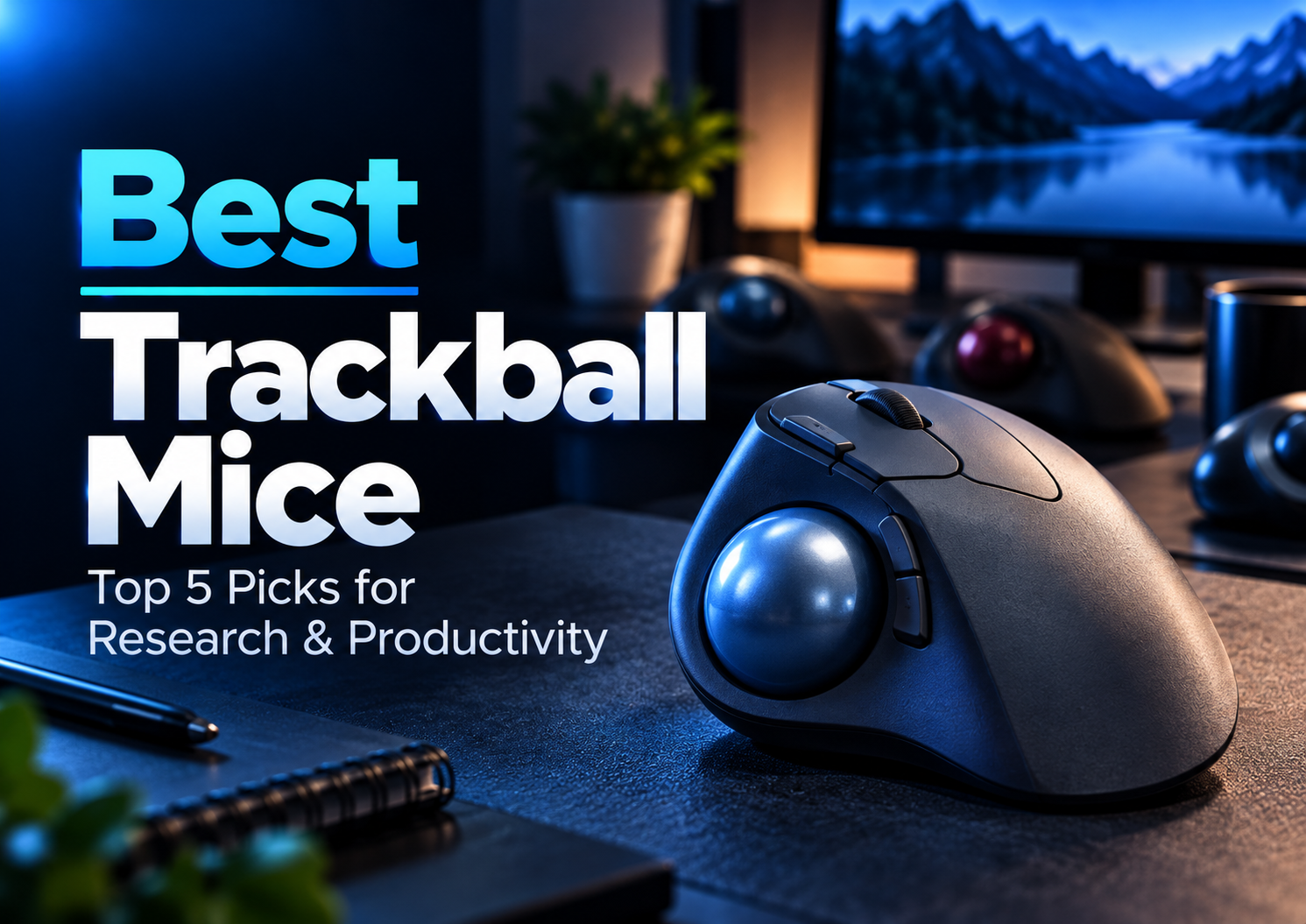
The best trackball mice for graduate students can make long research sessions more practical by reducing the need to move a mouse across your desk.
Whether you’re writing a thesis, analyzing data, programming, or reading academic papers, a trackball mouse offers a different way to control your cursor while keeping the device stationary.
We selected five trackball mice for different budgets, hand preferences, and academic workflows, from affordable thumb-operated models to customizable finger-operated designs.
Amazon Affiliate Disclosure: As an Amazon Associate, GradToolLab earns from qualifying purchases at no additional cost to you.
Editorial Note: Our recommendations are based on manufacturer specifications, available product information, and research-related use cases. We have not independently tested these trackball mice. Prices and availability may change.
1. Logitech ERGO M575S
BEST OVERALL
Best for: Graduate students who want a reliable, comfortable, and reasonably priced trackball mouse for everyday academic work.
Pros
- Comfortable thumb-operated design
- Quiet clicks for shared workspaces
- Bluetooth and Logi Bolt connectivity
- Up to 18 months of battery life
- Three customizable buttons
- Requires very little desk space
Cons
- Designed for right-handed use
- No adjustable tilt mechanism
- Uses an AA battery instead of USB-C charging
- Fewer advanced controls than the MX Ergo S
The Logitech ERGO M575S earns our Best Overall recommendation because it combines practical ergonomic features, quiet operation, and an accessible price.
For graduate students, the ability to work comfortably at a desk matters more than having the most expensive mouse.
A typical research day can involve switching between academic articles, Word documents, spreadsheets, presentation software, and programming environments.
The M575S handles these everyday tasks with a stationary design that uses a thumb-controlled trackball instead of requiring the entire mouse to move.
This is particularly useful when working at a small desk covered with notebooks, textbooks, or laboratory documents.
Another advantage is its quiet clicking mechanism.
Logitech advertises substantially quieter clicks than the original ERGO M575, making the newer model more suitable for libraries, shared research offices, and late-night study sessions.
Its Bluetooth and Logi Bolt connectivity also provide useful flexibility when connecting to a laptop or desktop computer.
The three customizable buttons can simplify repeated navigation tasks, such as moving backward and forward between web pages or assigning supported shortcuts through Logi Options+.
The M575S does not offer the adjustable tilt or extensive customization of the more expensive MX Ergo S.
However, for most graduate students, its combination of comfort, simplicity, and everyday functionality makes it the strongest starting point.
The ERGO M575S is an excellent option for students purchasing their first trackball mouse.
It is particularly suitable for right-handed users who spend long periods reading papers, writing documents, working with spreadsheets, or browsing research databases.
Students with limited desk space may also appreciate its stationary design.
If you want a practical trackball without paying for advanced controls, the M575S is our first recommendation.
- Control type: Thumb-operated trackball
- Hand orientation: Right-handed
- Connectivity: Bluetooth Low Energy / Logi Bolt USB receiver
- Buttons: 5 total, including 3 customizable buttons
- Battery: 1 AA battery
- Battery life: Up to 18 months
- Software: Logi Options+ on supported systems
- Compatibility: Windows, macOS, and other supported platforms depending on connection method
2. Logitech MX Ergo S
BEST PREMIUM
Best for: Graduate students who want adjustable positioning, advanced customization, and premium productivity features.
Pros
- Adjustable 0°/20° tilt positions
- Six customizable buttons
- USB-C rechargeable battery
- Quiet clicking mechanism
- Bluetooth and Logi Bolt connectivity
- Precision-mode button
- Supports switching between two connected devices
Cons
- Significantly more expensive than basic trackballs
- Larger and heavier than many alternatives
- Right-handed design only
- USB-C charging cable not included
The Logitech MX Ergo S is our Best Premium trackball mouse because it offers greater control over both hand positioning and software customization.
Its most distinctive feature is the adjustable base.
Users can select between two tilt positions, allowing them to choose a hand position that feels more natural for their workspace.
For students spending several hours working with computational tools, research documents, and complex software interfaces, this additional flexibility may be valuable.
The MX Ergo S also includes six customizable buttons.
Through Logi Options+, users can assign supported shortcuts and actions to simplify repetitive tasks.
For example, a researcher who frequently switches between spreadsheet applications and programming environments may find it useful to assign shortcuts for navigation or window management.
The dedicated precision-mode control also allows users to adjust cursor behavior when more careful positioning is needed.
USB-C charging is another meaningful upgrade over the M575S.
Logitech specifies up to 120 days of battery life on a full charge, although actual performance depends on usage.
The mouse also supports quiet clicks and wireless connections through Bluetooth or Logi Bolt.
These features make the MX Ergo S attractive for researchers who want a more capable desktop pointing device.
However, the premium price is difficult to justify if you only need basic cursor movement and document navigation.
The ERGO M575S remains the better value for most students, while the MX Ergo S is more suitable for those who will use its additional features.
The MX Ergo S is best suited to graduate students who spend substantial time at one workstation and want more control over their input device.
It is particularly appealing to researchers working with complex spreadsheets, programming tools, technical documents, and multiple computers.
Students who appreciate customizable shortcuts and adjustable hand positioning may find its premium features worthwhile.
If budget is your main concern, choose the M575S instead.
- Control type: Thumb-operated trackball
- Hand orientation: Right-handed
- Tilt adjustment: 0° or 20°
- Connectivity: Bluetooth Low Energy / Logi Bolt USB receiver
- Buttons: 6 customizable buttons
- Precision control: Dedicated precision-mode button
- Charging: USB-C rechargeable
- Battery life: Up to 120 days per full charge
- Software: Logi Options+
- Compatibility: Windows, macOS, and other supported platforms depending on connection method
3. Nulea M501
BEST BUDGET
Best for: Budget-conscious graduate students who want to try a wireless trackball mouse without paying Logitech prices.
Pros
- Affordable compared with premium alternatives
- Thumb-operated ergonomic design
- Bluetooth and 2.4GHz wireless connectivity
- Rechargeable battery
- Supports connections to up to three devices
- Adjustable cursor sensitivity
- Useful for compact desks
Cons
- Buttons are not programmable
- Forward/back buttons are not supported on macOS
- Fewer advanced software features
- Right-handed design
- Requires appropriate low-voltage charging rather than fast charging
The Nulea M501 earns our Best Budget recommendation because it offers the core advantages of a wireless trackball mouse at a relatively accessible price.
Not every graduate student needs advanced shortcut customization, multiple ergonomic adjustments, or premium construction.
For many students, the main goal is simply to find an affordable alternative to a conventional mouse.
The M501 accomplishes this with a thumb-operated trackball design that remains stationary during cursor movement.
This can be especially useful on crowded desks where notebooks, laptops, and research materials leave little room for mouse movement.
One attractive feature is its support for multiple wireless connections.
The M501 can connect to up to three devices through its Bluetooth and USB-receiver modes.
This is convenient for students who regularly switch between a personal laptop and another computer.
The built-in rechargeable battery also eliminates the need to replace disposable batteries during normal use.
However, the lower price comes with limitations.
Unlike the Logitech options, the M501 does not provide programmable mouse buttons.
Its standard navigation buttons may be sufficient for everyday browsing, but users who want application-specific shortcuts should consider another model.
Nulea also states that its forward and backward buttons are not compatible with macOS.
For that reason, the M501 is particularly attractive to budget-conscious Windows users who prioritize basic functionality over extensive customization.
The Nulea M501 is suitable for students who are curious about trackball mice but do not want to spend much on their first purchase.
It makes sense for everyday document editing, browsing, studying, and general laptop use.
Students who primarily work on Windows and do not need programmable buttons are likely to find its feature set more appealing.
If customization and software integration are priorities, the Logitech M575S is worth the additional investment.
- Control type: Thumb-operated trackball
- Hand orientation: Right-handed
- Connectivity: Bluetooth / 2.4GHz USB receiver
- Device switching: Up to 3 devices
- Power: Built-in rechargeable battery
- Cursor sensitivity: Adjustable DPI
- Buttons: 6 physical buttons; not programmable
- Compatibility: Windows, macOS, and other supported platforms
- Important limitation: Forward/back buttons are not supported on macOS
4. Kensington Orbit with Scroll Ring
BEST FOR BEGINNERS (FINGER-OPERATED)
Best for: Graduate students who want to explore finger-operated trackballs with a simple, ambidextrous design.
Pros
- Finger-operated 40mm trackball
- Ambidextrous design
- Dedicated scrolling ring
- Detachable wrist rest
- Simple wired USB connection
- No batteries or charging required
- Suitable for compact workstations
Cons
- Only two main buttons
- No wireless connectivity
- Limited advanced customization
- Requires a USB-A port or compatible adapter
The Kensington Orbit with Scroll Ring is our Best for Beginners recommendation among finger-operated trackballs.
Unlike the Logitech and Nulea models, which place the trackball beside the thumb, the Kensington Orbit positions a larger ball in the center of the device.
Users move the cursor with their fingers rather than relying primarily on thumb movement.
This creates a substantially different experience and makes the Orbit an interesting option for anyone exploring alternative pointing-device layouts.
The built-in scrolling ring is another distinctive feature.
Instead of relying on a conventional scroll wheel, users can rotate the ring surrounding the trackball to move through long documents and web pages.
This may be particularly appealing to graduate students who frequently navigate lengthy journal articles, dissertations, or research reports.
Its ambidextrous design is also important.
Most thumb-operated ergonomic trackballs are designed primarily for right-handed users.
The Orbit offers a more flexible arrangement that can accommodate left-handed users as well.
We also appreciate its simplicity.
The wired USB connection does not require wireless pairing or battery management, making it straightforward to use at a fixed workstation.
However, the Orbit provides only two primary buttons and lacks the extensive shortcuts available on more advanced trackballs.
It is therefore best viewed as a straightforward introduction to finger-operated control rather than a feature-heavy productivity mouse.
The Kensington Orbit is ideal for graduate students who want to try a finger-operated trackball for the first time.
It is especially worth considering for left-handed users or students who prefer a symmetrical pointing device.
Researchers who spend considerable time scrolling through papers and documents may also appreciate its dedicated scroll ring.
If you want wireless connectivity or extensive programmable controls, another model will be more appropriate.
- Control type: Finger-operated trackball
- Trackball diameter: 40mm
- Hand orientation: Ambidextrous
- Connectivity: Wired USB-A
- Buttons: 2 customizable buttons
- Scrolling: Dedicated scroll ring
- Wrist support: Detachable wrist rest
- Battery: Not required
- Compatibility: Windows, macOS, and supported ChromeOS systems
5. ELECOM DEFT PRO
BEST FOR CUSTOMIZATION
Best for: Graduate students who want extensive button customization, multiple connection methods, and finger-operated control.
Pros
- Eight-button design
- Supports programmable controls
- Finger-operated trackball
- Wired USB, 2.4GHz wireless, and Bluetooth connectivity
- Three selectable cursor-speed settings
- Supports horizontal scrolling
- Useful for complex desktop workflows
Cons
- More complicated layout than basic trackballs
- Requires time to learn button placement
- Right-handed design
- Uses an AA battery in wireless mode
- Software support should be checked for your operating system
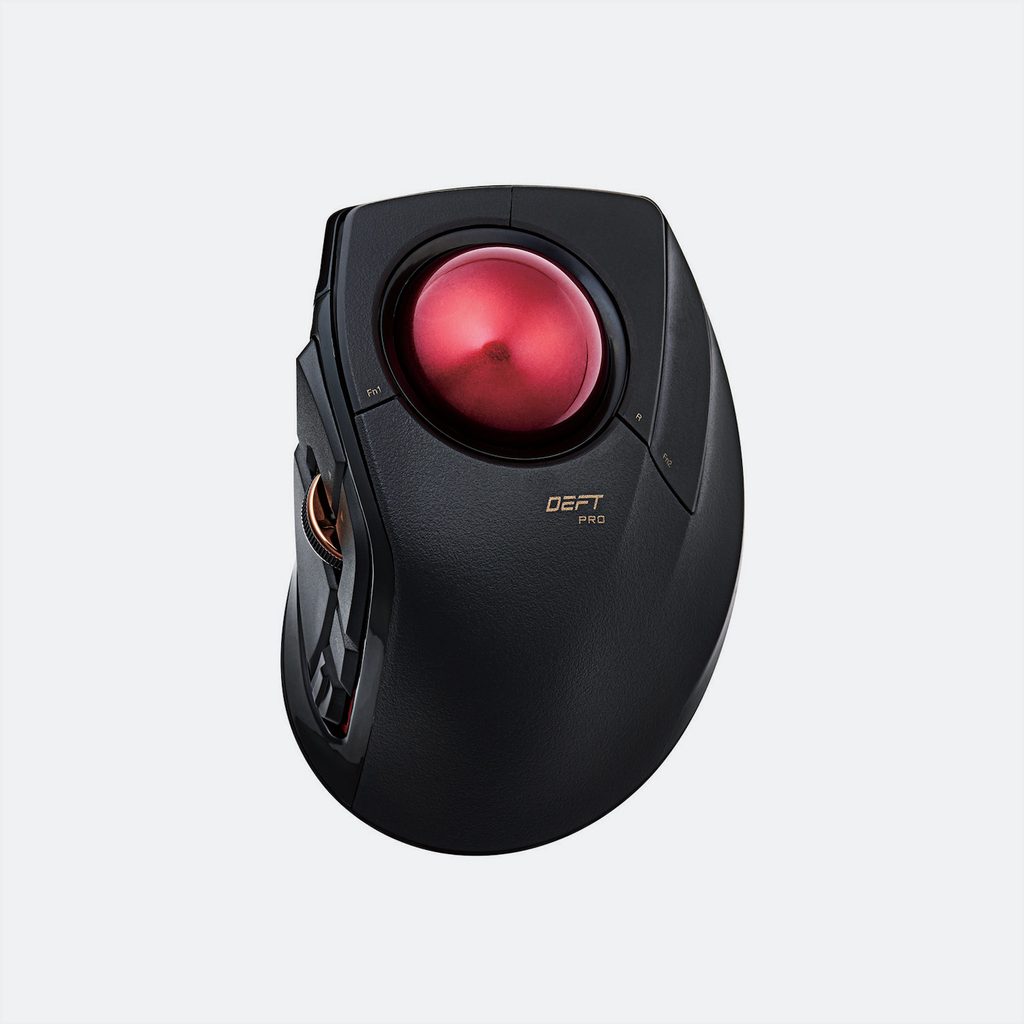
The ELECOM DEFT PRO stands out because it combines a finger-operated trackball with an unusually flexible control layout.
Its eight-button design provides more customization opportunities than the simpler Kensington Orbit.
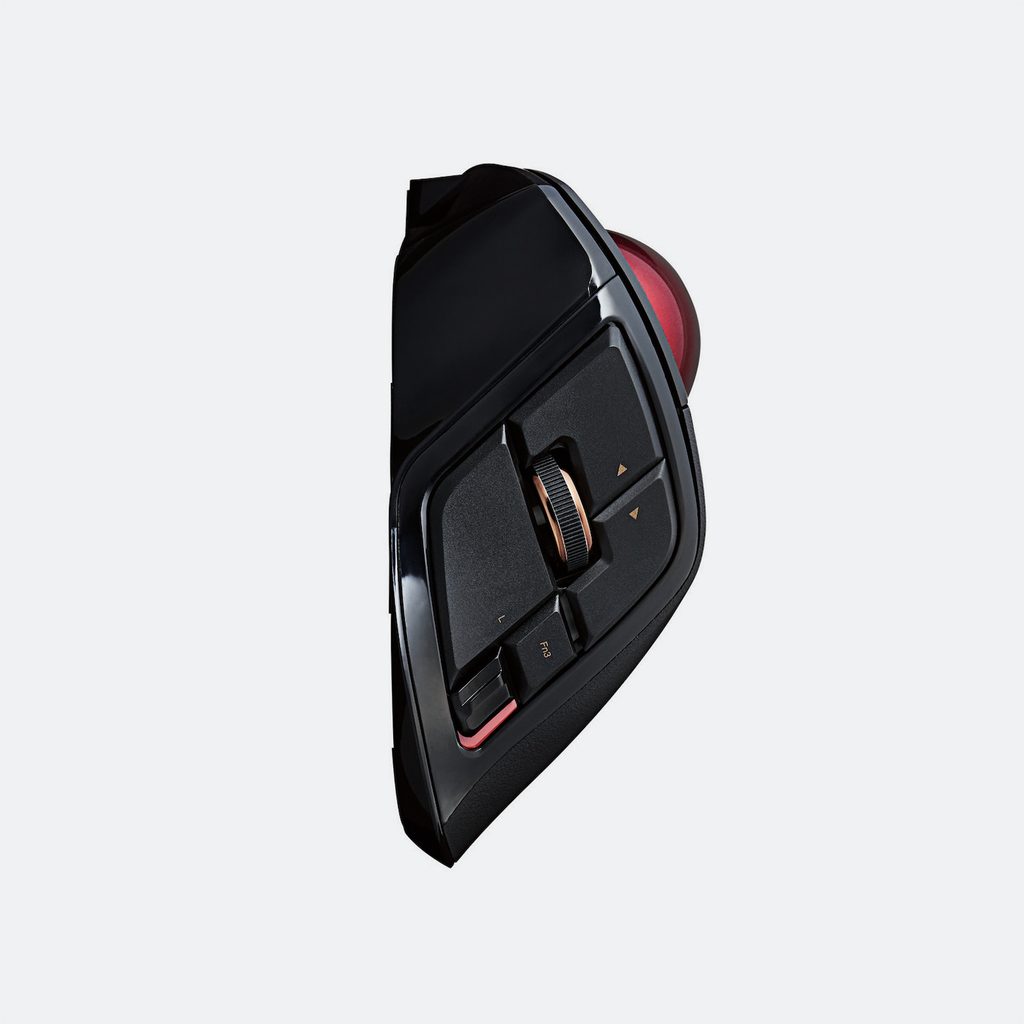
For graduate students who regularly perform repetitive actions in specialized software, additional programmable buttons can be useful.
Consider a researcher who frequently works with programming environments, spreadsheet applications, image-analysis tools, and technical drawing software.
Switching between tools, navigating documents, and triggering frequently used commands can require repeated keyboard and mouse input.
The DEFT PRO provides additional physical controls that may help organize these actions when configured through compatible software.
Its connection options are another advantage.
Unlike many trackballs that rely exclusively on wired or wireless operation, the DEFT PRO supports USB wired, 2.4GHz wireless, and Bluetooth connectivity.
This makes it adaptable to different computer setups.
The finger-operated 44mm ball also offers an alternative to thumb-operated designs.
Users who prefer cursor control with their index and middle fingers may find this approach worth exploring.
However, the DEFT PRO is not necessarily the easiest trackball to learn.
Its multiple buttons and unconventional layout introduce a learning curve, particularly for users transitioning directly from a standard mouse.
The DEFT PRO is most compelling when its customization features are part of your intended workflow rather than simply an additional specification.
The ELECOM DEFT PRO is suitable for graduate students who enjoy customizing their computer peripherals.
It is especially relevant to researchers who use multiple desktop applications and want convenient access to repeated commands.
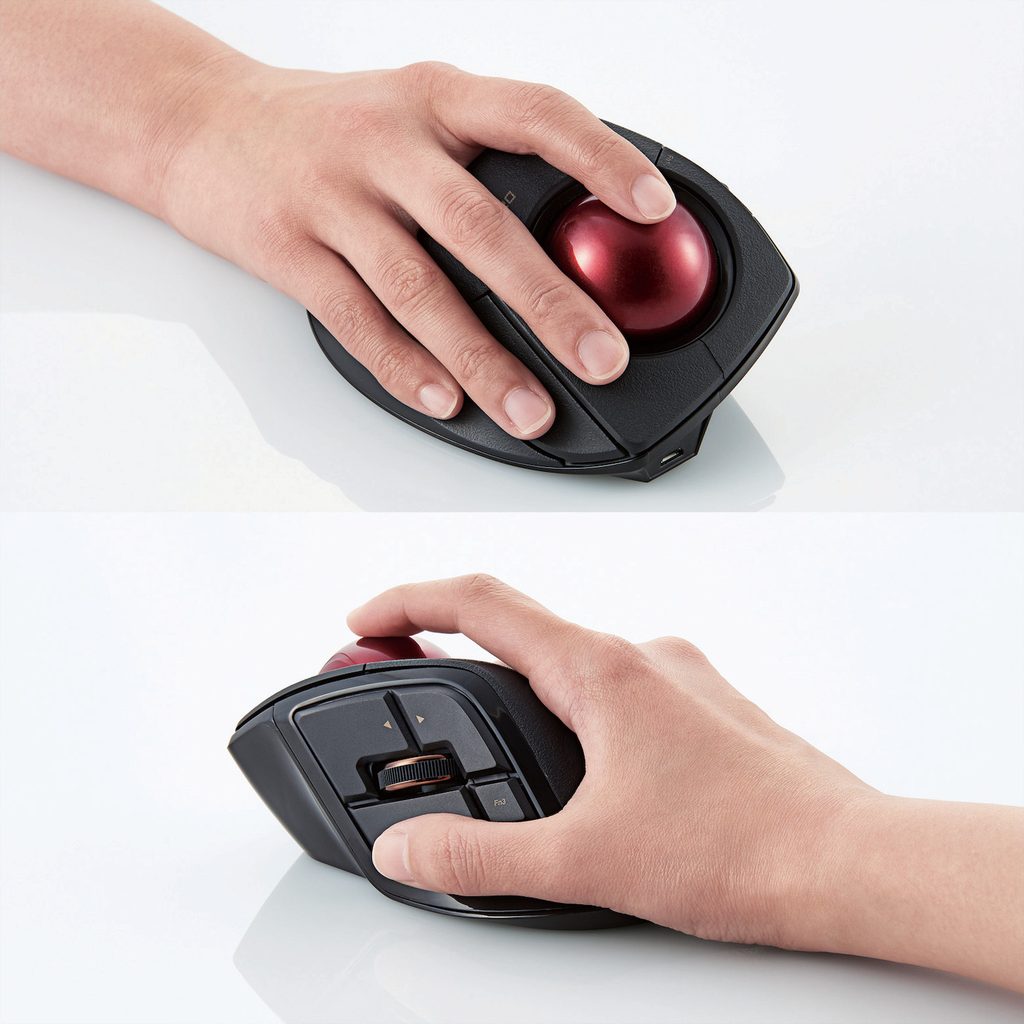
Students working with programming, data analysis, or technical software may appreciate its flexible button layout.
However, users seeking a simple plug-and-play experience should consider the Logitech M575S or Kensington Orbit instead.
- Control type: Finger-operated trackball
- Trackball diameter: Approximately 44mm
- Hand orientation: Right-handed
- Connectivity: Wired USB / 2.4GHz USB receiver / Bluetooth
- Buttons: 8, including scroll-wheel button
- Cursor sensitivity: 500 / 1,000 / 1,500 counts
- Scrolling: Vertical and horizontal scrolling support
- Power: 1 AA battery for wireless use
- Software: ELECOM customization software, subject to OS compatibility
- Compatibility: Windows and macOS; verify current software support
Quick Comparison: Best Trackball Mice for Graduate Students
| Trackball Mouse | Best For | Control Style | Connection |
|---|---|---|---|
| Logitech ERGO M575S | Best Overall | Thumb | Wireless |
| Logitech MX Ergo S | Best Premium | Thumb | Wireless |
| Nulea M501 | Best Budget | Thumb | Wireless |
| Kensington Orbit | Finger-Operated Beginners | Finger | Wired |
| ELECOM DEFT PRO | Customization | Finger | Wired / Wireless |
For most graduate students, the Logitech ERGO M575S offers the strongest balance of price, features, and everyday usability.
The MX Ergo S is the better choice for those who want adjustable positioning and more advanced controls.
Students on a tight budget should consider the Nulea M501, while the Kensington Orbit and ELECOM DEFT PRO provide different approaches to finger-operated trackballs.
How to Choose the Best Trackball Mice for Graduate Students
Thumb-Operated vs. Finger-Operated Trackballs
The first decision is how you want to control the trackball.
Thumb-operated models place the ball beside your thumb while your other fingers handle the main mouse buttons.
These models may feel more familiar to people transitioning from conventional mice because their clicking and scrolling layouts are relatively similar.
The Logitech ERGO M575S, Logitech MX Ergo S, and Nulea M501 use this approach.
Finger-operated trackballs place the ball in a position where the index and middle fingers can control it.
The Kensington Orbit and ELECOM DEFT PRO are examples.
Neither approach is universally better.
Your hand size, preferred movements, and daily computer tasks will influence which layout feels more natural.
Comfort and Ergonomics
A trackball mouse can reduce the need to move your entire pointing device across a desk.
However, this does not automatically make every trackball more comfortable than every conventional mouse.
The position of your keyboard, desk height, hand posture, and work habits remain important.
If comfort is your primary concern, consider the shape and orientation of the device rather than relying only on its ergonomic marketing claims.
An appropriately positioned keyboard can also contribute to a more practical workstation.
Our best ergonomic keyboards for graduate students guide compares several keyboard layouts designed for different typing preferences.
Programmable Buttons
Programmable buttons are particularly useful when you repeatedly perform the same actions.
Graduate students may benefit from assigning shortcuts for document navigation, application controls, or supported software functions.
The Logitech MX Ergo S and ELECOM DEFT PRO offer more extensive customization options than basic models.
However, extra buttons are not essential for everyone.
Students who mostly browse research papers and write documents may be perfectly satisfied with simpler controls.
Wired vs. Wireless Connectivity
Wireless trackballs are convenient for flexible desk arrangements and laptops.
Bluetooth can also be useful when a computer has limited USB ports.
However, wired devices eliminate the need to manage charging, batteries, or wireless pairing.
The Kensington Orbit is a straightforward option for a dedicated workstation.
The ELECOM DEFT PRO provides both wired and wireless choices.
If you want to compare trackballs with conventional mouse designs, our best wireless mice for graduate students guide explores other practical options.
Desk Space and Portability
One advantage of trackballs is that the device remains stationary during cursor movement.
This can make them attractive for small desks, shared offices, or workstations containing multiple monitors and research materials.
Unlike conventional mice, trackballs do not require a large movement area.
However, many ergonomic trackballs are relatively bulky.
Students who carry a mouse between classrooms, libraries, and laboratories should consider device dimensions and weight.
A stationary trackball also changes how much value you receive from a mouse pad or desk mat.
Our best desk mats for graduate students guide explains which desk surfaces are most useful for different setups.
Are Trackball Mice Actually Better for Research Work?
Trackball mice are not automatically superior to conventional mice.
Their main advantage is offering a different method of cursor control without repeatedly sliding the device across the desk.
For research workflows, this can be useful when working in limited space or when frequently navigating documents and desktop applications.
However, precision tasks may require practice.
Users accustomed to a conventional mouse may initially find it difficult to position the cursor accurately with a trackball.
This adaptation period is worth considering if your work involves detailed graphics, image editing, or technical drawing.
Trackballs can also accumulate dust and debris around their support points, so occasional cleaning is important.
A trackball should therefore be seen as an alternative input method rather than a guaranteed solution to wrist discomfort or repetitive strain injuries.
Frequently Asked Questions
What is the best trackball mouse for graduate students?
The Logitech ERGO M575S is our Best Overall recommendation because it combines quiet clicks, wireless connectivity, a comfortable thumb-operated design, and reasonable pricing.
Students who need advanced customization should also consider the Logitech MX Ergo S.
Are trackball mice good for programming?
Yes, trackball mice can work well for programming, especially when a desk has limited space.
Programmable buttons may help with navigation and repeated shortcuts, although most programming tasks still rely heavily on keyboard input.
Is a trackball better than a regular mouse for wrist pain?
Not necessarily.
A trackball reduces the need to move the mouse itself, but comfort depends on device shape, hand positioning, individual preferences, and working habits.
It should not be treated as a medical solution for wrist pain or repetitive strain injuries.
Are finger-operated trackballs better than thumb-operated models?
Neither style is universally better.
Thumb-operated trackballs may feel more familiar to conventional mouse users.
Finger-operated models provide a different control method and may be preferable for people who do not want to use their thumb for cursor movement.
Do trackball mice need a mouse pad?
Generally, no.
Because the device remains stationary, a trackball does not require a large tracking surface.
However, a desk mat may still be useful for protecting your workstation or providing a consistent surface for other accessories.
Are trackball mice suitable for left-handed users?
Some models are.
The Kensington Orbit with Scroll Ring features an ambidextrous design.
Many other ergonomic trackballs, including the Logitech ERGO M575S and MX Ergo S, are designed for right-handed use.
Final Verdict: Which Trackball Mouse Should You Buy?
The Logitech ERGO M575S is our Best Overall trackball mouse for graduate students in 2026.
It offers a practical combination of comfortable thumb control, quiet operation, wireless connectivity, and useful customization without the price of a premium model.
Choose the Logitech MX Ergo S if you want adjustable tilt, USB-C charging, and more advanced productivity controls.
The Nulea M501 is the most appealing budget option for students who want basic wireless trackball functionality.
For finger-operated control, the Kensington Orbit offers an approachable design with a distinctive scrolling ring.
The ELECOM DEFT PRO is the strongest choice for users who value programmable buttons and multiple connection methods.
Ultimately, the right trackball depends on how you work, how much you want to spend, and which control style feels most natural.
If you’re planning a larger workspace upgrade, our graduate student desk setup guide covers other equipment worth considering for studying and research.